Whether you work in a noisy office, at home, in your own small business, or simply enjoy your gadgets, you're constantly exposed to WiFi. And the quality of that WiFi directly impacts many things: smooth video calls, fast downloads, stable operation of smart homes, and the smooth operation of payment terminals. The challenge is that radio waves can't be touched or "seen".
That's why you need WiFi testing tools. These apps allow you to measure signal quality, identify interference, and make adjustments based on data, not guesswork. In this guide, we'll help you understand what WiFi testing tools are, what they actually do, how they differ from each other, and how to pick the one that fits your skills and for your needs.
What are WiFi Testing Tools and what are they for?
You can’t just buy a router, drop it in a “convenient” spot, and expect flawless internet in every corner. Buying a WiFi router or access point and dropping it in a “convenient” spot isn’t the same as building a reliable wireless environment. Designing WiFi is a real discipline. Network engineers deploy new networks or optimize existing ones using measurements, heatmaps, and planning — not hunches.
WiFi Testing Tools are how they do the job: they scan the airwaves, visualize how WiFi behaves in real-world conditions, and uncover hidden issues like interference, dead zones, overloaded channels, or signal drop-offs that hurt performance.
But can non-engineers do this too? Yes. If you choose the right, user-friendly WiFi Testing Tool and spend a little time learning the basics, you can dial in a rock-solid home or small-office network.
These tools help you:
- See how strong your signal really is
- Detect dead zones and overlapping channels
- Analyze band congestion (2.4/5/6 GHz)
- Identify hidden networks and security mismatches
- Optimize performance before problems show up
And the best part? Many of these tools are made with everyday users in mind. Let’s break down the categories to help you find your best match.
Let’s explore what features to look for — and which apps are best depending on your skill level.
Types of WiFi Testing Tools (And Which One You Need)
Not all WiFi Testing Tools are the same. They differ in features, depth of analysis, and ease of use. Different apps exist for different needs. If you just want a quick check and day-to-day monitoring, you don’t need to dive into iPerf, packet inspection, or other pro-level features built for engineers and power users.
Here’s the breakdown of tool types by functionality, and how to pick what actually fits you in 2026.
Basic Network & Channel Analyzers
These tools should display all visible networks (including hidden SSIDs), show signal strength (RSSI), channel, channel width, security type, and overlapping channels. Support for 2.4, 5, and 6 GHz is important. Bonus points for a real-time signal graph and a channel recommendation feature.
Best for:
Home users, freelancers, and anyone who wants a quick overview of their WiFi situation without getting technical.
Top choices:
✅ NetSpot on Android — Clean, beginner-friendly with real-time signal graphs, 6 GHz support, channel graphs, and hidden network detection. Very visual and intuitive, ideal if you want mobile flexibility without sacrificing accuracy. In the Channel view, the app can automatically suggest the best channel for your network based on nearby congestion — super handy if you don’t want to tweak settings manually.
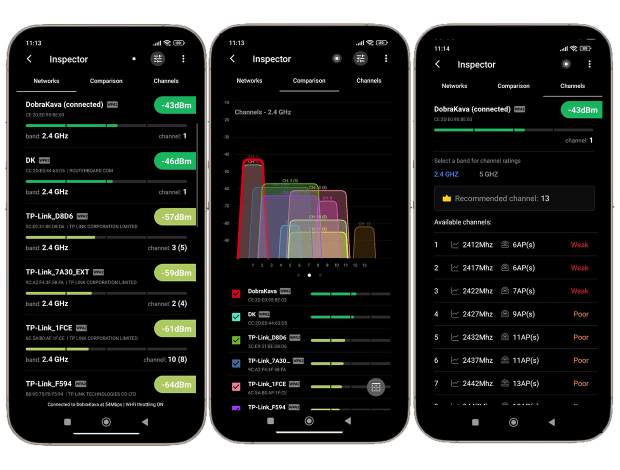
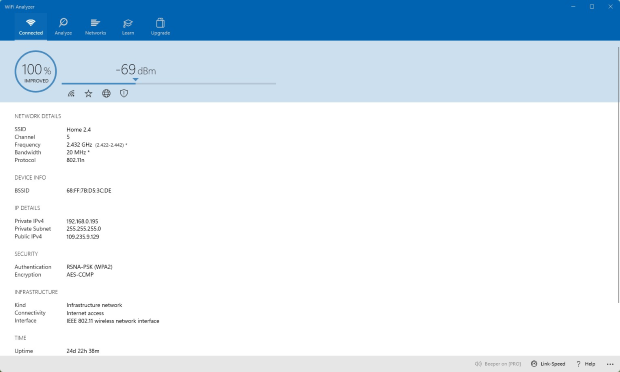
✅ WiFi Analyzer (by Matt Hafner) — Straightforward interface for quick scans. Shows an AP list with SSID/BSSID, security, channel, and RSSI, plus live Signal Meter and Channel Graph to spot overlap on 2.4/5 GHz (some devices may show 6 GHz). Great for a fast health check and picking a less crowded channel; lightweight, no frills, no heatmaps.
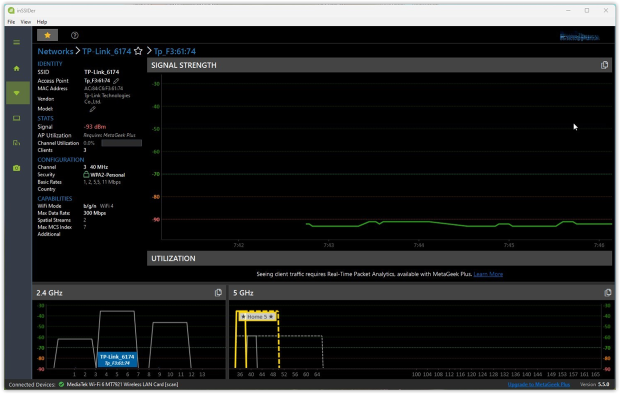
✅ inSSIDer — A bit more technical. Desktop-grade scanning with SSID details, PHY and channel width, RSSI over time, and 2.4/5/6 GHz visibility. Highlights co-channel/adjacent-channel issues and often provides a channel recommendation along with a simple network “quality” score, which helps you validate changes after you reconfigure the router.
Survey & Heatmapping Tools
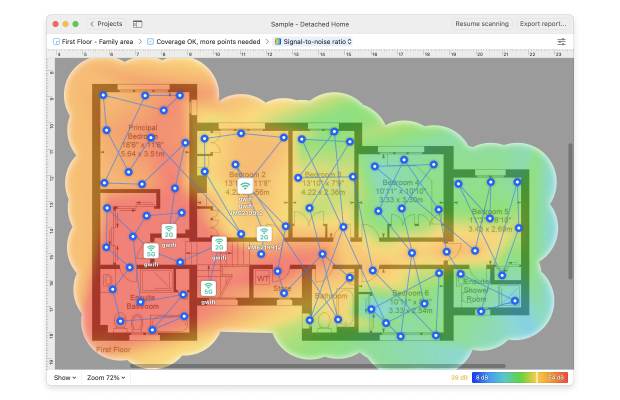
These tools go far beyond simply displaying signal strength or a list of networks. They allow you to create WiFi heatmaps — visualizations that show signal strength, noise, interference, or download speeds in any part of your home or office. This data helps you instantly identify dead zones, congested areas, and signal dropouts that are impossible to detect with a simple analyzer.
Good survey tools should support multiple heatmap types (signal, SNR, noise, interference, throughput), active testing (iPerf3), 2.4/5/6 GHz bands, and import of custom floor plans. Bonus features include predictive planning (for simulating where to place your access points).
Best for:
Tech-savvy home users, small business owners, IT consultants, and network designers. Ideal if you’re redesigning or expanding coverage, validating a new deployment, comparing “before/after” changes, and creating stakeholder-friendly visuals that justify decisions.
Top choices:
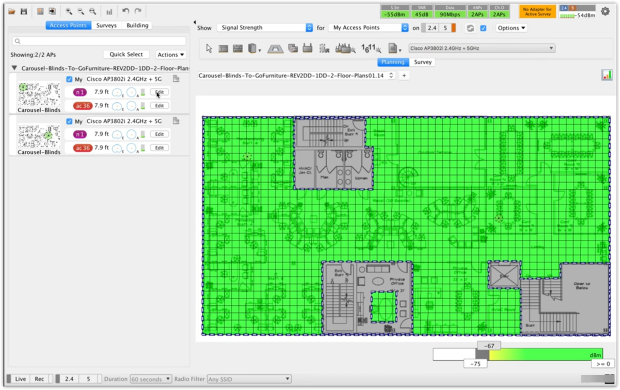
✅ NetSpot (Windows/macOS) — Combines strong pro-grade features with an intuitive UI. In Survey Mode you can run passive and active surveys and generate 20+ heatmaps (signal, SNR, noise, interference, download/upload, etc.).
iPerf3 integration adds TCP/UDP throughput tests and jitter metrics for real-time apps. Planning Mode enables predictive design to virtually place APs and optimize layouts before buying hardware. Fully ready for WiFi 6E/7 and 6 GHz visibility, making it ideal for modern upgrades.
✅ Ekahau AI Pro — A heavyweight enterprise tool with deep functionality — real-time spectrum analysis, AI-assisted planning, and support for massive deployments. But it comes with a catch: expensive licenses, required Ekahau Sidekick hardware, and a steep learning curve. Realistically, it’s built for large corporations with in-house IT teams and the budget for training and equipment.
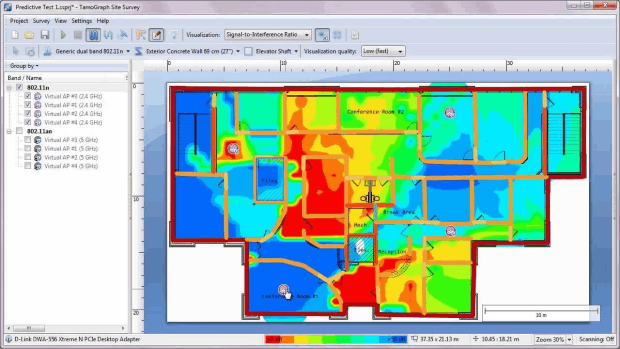
✅ TamoGraph Site Survey — A decent middle-ground option. It offers solid passive and active surveys with clear heatmaps (signal, SNR, channel overlap), supports 2.4, 5, and 6 GHz bands, and works fully offline — no cloud dependency, which can be a plus in restricted environments. Planning tools are available, but they’re not as flexible or intuitive as NetSpot’s predictive mode. The interface feels dated, and the workflow lacks polish — especially when it comes to virtual AP placement or modeling antenna configurations.
Packet & Protocol Analyzers
Tools like this, great for hunting down weird client behaviors, unauthorized devices, or performing deep packet inspection. Capture and inspect WiFi frames, decode protocols, analyze MAC behavior, monitor roaming, DHCP, and client activity.
Best for:
Network engineers, security analysts, and advanced users troubleshooting roaming, authentication issues, or rogue devices.
Top choices:
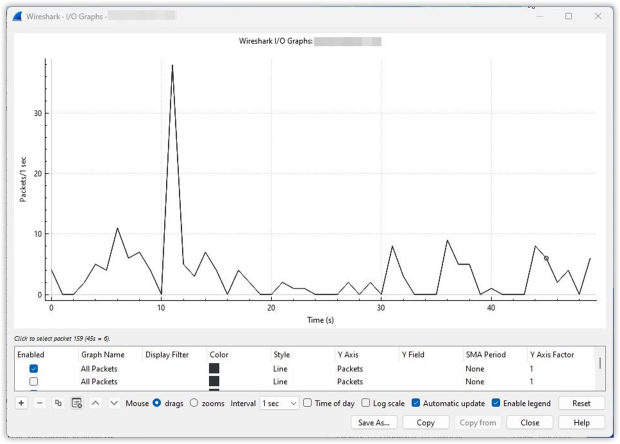
✅ Wireshark — For deep-dive protocol analysis. If you need to look inside WiFi packets, trace DHCP issues, spot handshake failures, or detect rogue devices at the frame level, these are your go-to. Requires experience — not for casual users — but nothing beats them for client-side weirdness or low-level packet work.
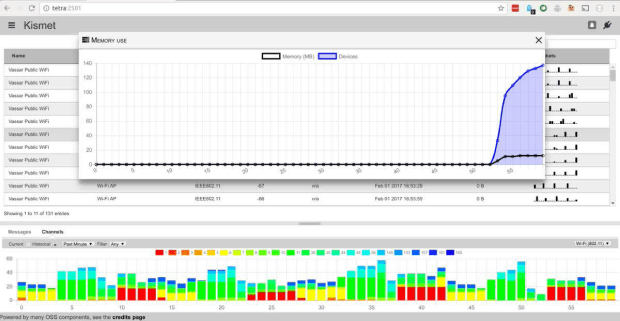
✅ Kismet — Open-source wireless sniffer for Linux, Windows (via WSL) and macOS users. Ideal for passive scanning, rogue AP detection, and channel usage monitoring. Excellent for research or security-focused scenarios, but not beginner-friendly.
We've covered the main types of WiFi testing tools by function, but another important distinction can be made: by user level. Some utilities are suitable for beginners, others are aimed at network engineers, and there are also universal solutions that combine simplicity with powerful features.
Our editors' choice is NetSpot. It combines a channel scanner and WiFi heatmapper in a single application, offering a powerful set of features while remaining intuitive and user-friendly. NetSpot is cross-platform (Windows, macOS, Android), works with 2.4/5/6 GHz, and is suitable for both quick network checkups and in-depth network analysis.
Why NetSpot Is the Best Choice
After looking at the main categories of WiFi testing tools by functionality, it’s also fair to group them by who they’re for: professional-grade tools, beginner-friendly tools, and universal tools that work for both. Our editorial pick is NetSpot — and here’s why.
It combines a full channel scanner with a true heatmapper, delivers a powerful feature set without the bloat, and stays easy to use thanks to a clean, intuitive interface. It’s cross-platform (Windows, macOS, Android, iOS) and handles both quick diagnostics and deep wireless analysis in one workflow.
NetSpot offers three fully functional modes:
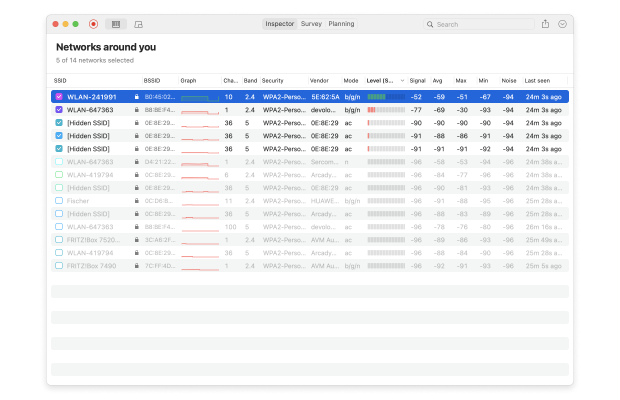
Inspector Mode gives you an instant snapshot of every WiFi network around you. This mode displays signal strength, channel, band (2.4/5/6 GHz), BSSID, encryption type, and standard (802.11n/ac/ax, etc.) vendor, and more in a single, compact table. It also allows you to sort and filter networks by any of these parameters.
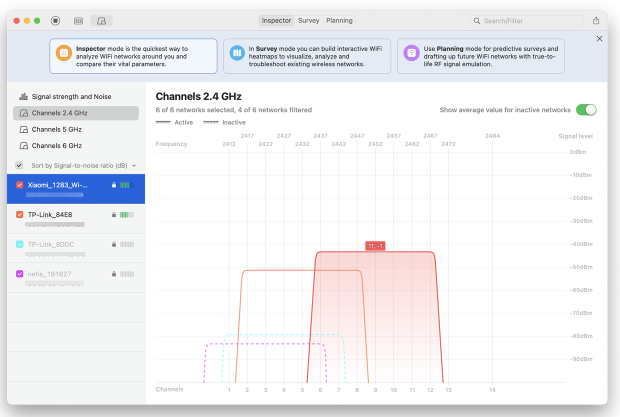
Plus live channel and signal strength graphs, including 6 GHz for Wi-Fi 6E/7. It’s perfect for crowded environments where you need to spot co-channel and adjacent-channel overlap, verify channel width choices, or catch simple misconfigurations on the fly.
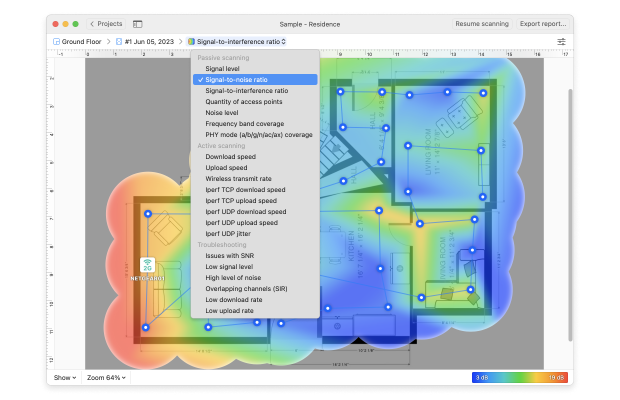
Survey Mode takes you further with full-fidelity WiFi heatmaps. This is where the full power of the mode comes into its own: you can visualize not only the signal level, but also the signal-to-noise ratio (SNR), interference level, and PHY mode, download and upload speeds, UDP/TCP performance, and even problem areas where SNR or speed drops below a specified threshold.
For power users, NetSpot also includes Active Scan with iPerf integration. That means you can run controlled performance tests and capture real-world throughput and latency where it matters — not just “signal bars”.
Ultimately, Survey Mode delivers not just dry numbers, but a very visual picture — easy to show clients before and after results, justify the need for additional access points or channel changes, and have a report at hand, not just a screenshot from the router.
Planning Mode is where NetSpot really separates itself. With predictive WiFi planning, you design or improve a network virtually — before you spend a dollar on new hardware.
The tool includes a convenient floor plan editor where you can draw walls, doors, and windows and assign real building materials with appropriate thicknesses and signal attenuation parameters. If the desired material isn't listed, you can add it manually by defining your own characteristics.
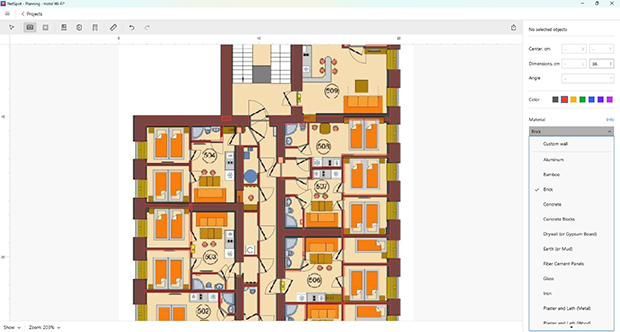
Planning mode includes nine hitmaps to help you evaluate your network before installation:
- Signal level
- Signal-to-interference ratio
- Quantity of access points
- Secondary signal level
- Frequency band coverage (2.4, 5, 6 GHz)
- PHY mode coverage (802.11 a/b/g/n/ac/ax/be)
- Low signal level areas
- Overlapping channels (SIR)
- Low secondary signal level
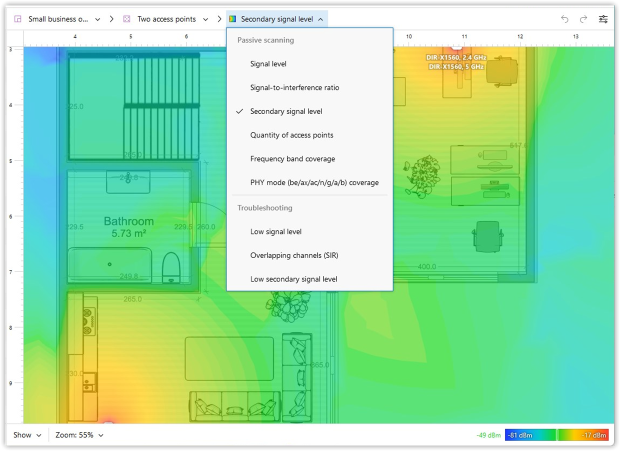
These visualizations help you identify weak signal areas, interference risks, excessive access points, and insufficient coverage in advance, thereby reducing costs and improving network stability.
NetSpot offers an extensive library of access points from most manufacturers. If the desired model isn't available, you can manually specify parameters such as transmitter power, supported frequencies, antenna type, and more.
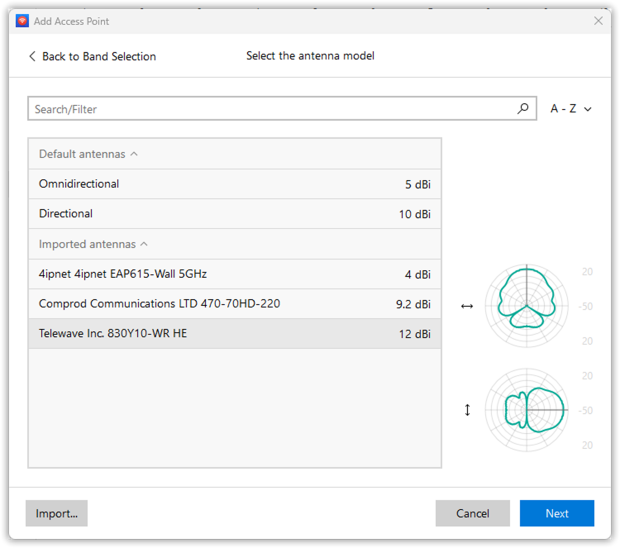
You can experiment with different antenna types: choose between omnidirectional and directional antennas, adjust gain and tilt angle for the most realistic installation simulation.
What's especially convenient is that Planning Mode is also available in the Android version of NetSpot, so you can design and make adjustments directly from your phone or tablet, without having to open your laptop.
Put together, Inspector for fast discovery, Survey for verification, Planning for design, and Active Scan for proof make NetSpot a single, coherent toolchain instead of four separate apps you have to stitch together.
Conclusion
WiFi problems don't just go away, but with the right tool, you won't have to guess where the problem lies.
WiFi testing tools give you insight into your network, help you avoid costly mistakes, and even plan for future upgrades. Whether you're building a network from scratch or simply trying to prevent Zoom from crashing in your bedroom, there's a tool for every task.
And if you're looking for a tool that does everything from heatmaps to planning and iPerf testing, NetSpot is your reliable choice.

FAQ — Questions About WiFi Testing Tools
WiFi Testing Tools help you analyze, troubleshoot, and improve your wireless network. They can show you signal strength, noise levels, interference, channel usage, and even pinpoint dead zones on a heatmap. Some advanced tools also let you simulate and plan your WiFi layout before installing access points.
A WiFi analyzer usually focuses on passive scanning: showing network names, channels, signal strength, and interference. A WiFi tester often includes active features like speed tests, throughput validation (with tools like iPerf3), and coverage mapping. Many modern WiFi Testing Tools combine both types of features in one app.
If you are trying to figure out why your connection is dropping or which channel to pick, an analyzer is the right choice. If you have already set up your network and need to prove that it meets specific performance standards (SLA validation), you need a tester.
Join the Discussion: Finding the Right Tool for Real WLAN Throughput Testing
Aim near –65 dBm or better with SNR ≥ 25 dB across the area where people talk and stream. That combination is far more predictive than RSSI alone.
Some professional-grade tools (like Ekahau or Chanalyzer) require external hardware for spectrum analysis or packet capture. But many powerful tools — including NetSpot, inSSIDer, and WiFi Analyzer — run on standard laptops or Android devices and still offer great results for most use cases.
Test both when you can. TCP reflects most real workloads; UDP is useful for streaming, voice, and stress tests.
Absolutely — many WiFi Testing Tools are designed with beginners in mind. Apps like NetSpot offer a friendly interface, auto-recommendations, and clear visualizations so you don’t need to be a networking expert. Meanwhile, advanced users can still dive into planning, heatmaps, and iPerf3 testing.
Curious about which tools everyday users prefer for their home setups? Join the community discussion “What do you guys use to actually test Wi-Fi around the house?” to see what others are using and share your own experiences!
At least three per spot and time of day — peak vs. off-peak — to understand variance. Average them and watch for outliers.

Wi-Fi Site Surveys, Analysis, Troubleshooting runs on a MacBook (macOS 11+) or any laptop (Windows 7/8/10/11) with a standard 802.11be/ax/ac/n/g/a/b wireless network adapter.