Wi-Fi Site Surveys, Analysis, Troubleshooting runs on a MacBook (macOS 11+) or any laptop (Windows 7/8/10/11) with a standard 802.11be/ax/ac/n/g/a/b wireless network adapter. Read more about the 802.11be support here.
How to troubleshoot Wi-Fi Interference with NetSpot
WiFi problems? It might not be your ISP. More often than not, it’s interference — and unless you’ve got a reliable WiFi interference scanner, you're just guessing.
Wireless interference is simply anything that corrupts the radio your WiFi uses. Modern WiFi networks face new types of interference daily: crowded 2.4 GHz bands, overlapping channels in apartment buildings, emerging 6 GHz devices, and even smart home gadgets competing for signal. That’s where a WiFi interference scanner becomes essential.
Instead of guessing, you need real data. A good scanner shows exactly where the interference happens, what causes it (neighboring networks, microwaves, smart TVs, etc.), and how to fix it — whether it’s switching channels, changing frequency bands, or upgrading hardware.
Jump to...
Modern networks face new challenges: the shift to WiFi 6E/7 introduces 6 GHz bands for less congestion, but issues like adjacent-channel interference (ACI) and co-channel interference (CCI) still don’t go away. ACI appears when nearby channels spill into each other, CCI happens when several networks sit on the same channel.
Even though modern routers try to fight this with dynamic channel selection and next-gen anti-interference features, including AI-driven automation, they can’t always guess the real RF situation around you.
When the internet starts to slow down, the first thing we do is Google "WiFi interference fix" or ways to "reduce WiFi interference". But instead of acting blindly and at random, it's better to use apps designed specifically for this purpose. They will allow you to see what's hidden: channel conflicts, "noise" from neighboring routers, and overall airwave congestion. Using this data, eliminating interference is much easier. Let's look at where to start.
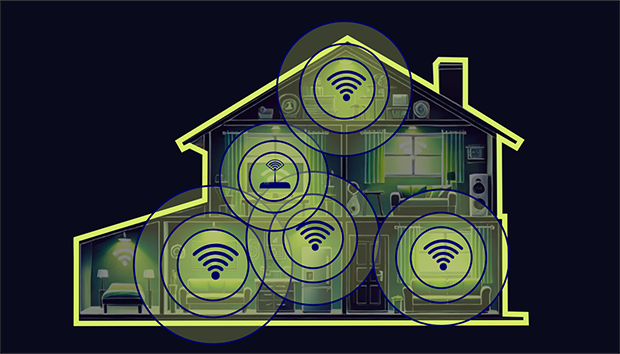
How to Eliminate WiFi Interference: A Step-by-Step Guide
Few people are interested in the theory behind internet lag, so let's get straight to the point:
Step 1: Scan your network
To fix something, you first need to see it. A dedicated WiFi interference scanner, which we mentioned earlier, will help you figure out what's interfering with your signal. Use the app and see how your network stacks up against your neighbors.
Professional, modern tools (such as NetSpot) clearly show:
- Signal-to-noise ratio (SNR)
- Overlapping channels
- Channel utilization
- Operating modes (PHY) and band usage
NetSpot displays all of this in real time on clear graphs and Wi-Fi heat maps. It can scan the 6 GHz band and even find hidden networks, which is critical for modern routers. Once you have the full picture in front of you, you'll immediately understand what steps to take next to clear the signal.
Step 2: Identify the Cause of WiFi Interference
Scanning is just the beginning of troubleshooting. It's important to understand what the numbers mean and correctly interpret and correlate them with your internet behavior.
- The signal drops behind a door or wall
Symptoms: Everything works fine near the router, but as soon as you move to another room (especially at 5 GHz), the connection drops.
Diagnosis: Physical obstacles. Concrete, brick, or rebar are the main enemies of WiFi. 5 GHz frequencies penetrate them much worse than the good old 2.4 GHz band.
- The signal is excellent, but the internet is slow
Symptoms: The indicator shows "all bars" (around -50 or -60 dBm), but video calls hang, and pages take forever to load.
Diagnosis: Network conflict. Your router is most likely operating on the same channel as your neighbor's. To confirm that interference is the issue, and not a weak signal, take another look at your WiFi scanner. It will show whether the standard 2.4 GHz band is clogged or whether interference has even crept into the new WiFi 6E/7 frequencies.
- The internet "glitches" while doing household chores
Symptoms: The connection drops exactly when you turn on the microwave, use a baby monitor, or use a Bluetooth speaker.
Diagnosis: Household interference. All these gadgets operate on the 2.4 GHz frequency and literally "clog" your WiFi with their signals.
- Problems only in a specific corner
Symptoms: Everything works perfectly in the bedroom, but as soon as you sit in a chair in the corner of the kitchen, the internet disappears.
Diagnosis: Location issue or "dead zone". Most likely, the router is poorly positioned, and the signal simply doesn't reach that point.
- The internet "dies" when everyone comes home from work.
Symptoms: During the day, when you're home alone, everything works fine, but in the evening, the video starts buffering and the ping in games jumps.
Diagnosis: Neighbor traffic. Most likely, your neighbors have come home, turned on their 4K TVs, and are using torrents. Their routers are starting to aggressively compete with yours for free airtime.
- Low speed even when standing close to the router
Symptoms: You're standing right next to the router, there's no interference, but the speed is still lousy.
Diagnosis: The problem is with the hardware or the ISP. Most likely, the issue isn't interference at all — either your router is acting up, or your ISP is limiting the connection.
Step 3: Take Action Based on the Cause
Now that you’ve identified what’s interfering with your WiFi, here’s how to respond:
Positioning of a Wireless Router
If the problem is weak Wi-Fi in certain rooms, start with the router’s location. Obviously the way you position your wireless router will have an effect on your coverage area and WiFi signal strength. Incorrect placement can lead to weak signals, dead zones, and slow network speeds.
How to troubleshoot :
- Center the access point. Try to place the router in the very center of the area where you need internet. If you move it to a corner, the signal will be unevenly distributed: in one part of the house, the connection will be excellent, but in another, it will constantly drop out.
- Adjust the antennas. Usually, vertical antenna placement (straight up) produces the best results. If your router has multiple antennas, you can try a trick: leave one vertical and tilt the other diagonally. This helps the signal better bend around obstacles and expands the coverage area.
- Raise the router higher. On the floor, furniture and the flooring itself interfere with the signal, so it's best to place the router on a table or shelf. Also, keep it away from noisy electronics (microwaves, baby monitors) as well as objects that reflect, absorb, or block radio waves — including mirrors, metal shelves, large appliances, thick walls, and aquariums. The fewer obstacles around the router, the more evenly the Wi-Fi signal can spread through the room.
- Take advantage of height (for multiple floors). If your house has more than one floor, install the router on the upper level. Radio waves spread more efficiently from top to bottom, which will help ensure more consistent coverage throughout the house.
Real-world example: Wi-Fi heatmap after relocating the router — areas with poor signal (green/blue) became much stronger (red), just by moving the router to a better spot.
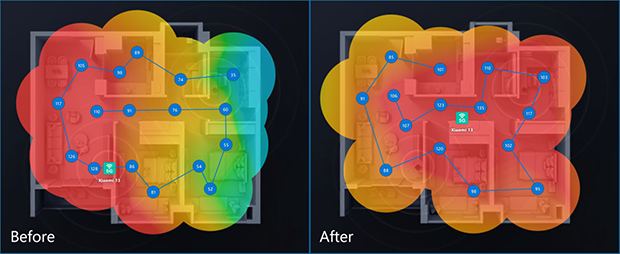
To get the most out of your Wi-Fi setup, use tools like NetSpot to analyze your network and create a heatmap. This allows you to visualize signal strength and make data-driven adjustments to position your wireless router optimally.
Physical obstacles
The layout and materials of the walls in your home or office directly affect how far and fast your internet can travel. One of the main causes of interference is simple physical barriers that simply absorb or block radio waves. To get the most out of your network, it's important to understand which materials are interfering with the signal.
Different surfaces inhibit WiFi in different ways. While wood and ordinary glass pose little to no problem, brick, concrete, and metal can completely ruin connection quality and speed.
How to troubleshoot :
If you suspect walls or ceilings are interfering with the signal, here are a few ways to fix it:
- Relocate the router. Sometimes moving the device just a meter or two is enough to allow the signal to reach a clear hallway. Also, try tilting the antennas — this is the easiest way to reduce interference.
- Install a WiFi repeater. Where walls can't be removed, a repeater can help. It picks up the signal and transmits it further, helping to bypass thick partitions or extend the connection to another floor. This is an excellent solution for dead spots in distant rooms.
- Consider Powerline Adapter. In larger spaces with challenging layouts, Powerline adapters use your existing electrical wiring to extend the network. Pairing them with a Wi-Fi extender provides a reliable solution for areas with high wireless interference.
Overlapping channels
A huge number of gadgets — even those not directly connected to your WiFi — can generate noise on the same 2.4 GHz, 5 GHz, or even 6 GHz frequencies. This radio noise distorts the waves your WiFi depends on. As a result, speed drops, and the connection can simply drop at the most inopportune moment. Understanding what exactly is causing interference is the first step to a stable internet connection.
To make it easier for you to understand, the table presents the most common sources of interference, their impact on the network, and specific solutions:
| Interference Source | Impact on Wi-Fi | Solution |
| Microwave | Causes interference, especially in the 2.4 GHz spectrum, slowing the network or causing disconnects when in use. | Place the router away from the microwave, especially for older routers operating on 2.4 GHz. |
| Cordless Phonee | Interferes with 2.4 GHz spectrum during active calls, leading to large signal disruptions. | Use DECT phones or move the router away from cordless phones. |
| Poorly Wired Satellite Dish | Can cause significant signal interference if improperly wired or with deteriorating cables. | Ensure proper wiring and replace deteriorating cables for satellite dishes. |
| Other Wireless Devices | Generates interference from wireless speakers, baby monitors, and devices on 2.4 GHz or 5 GHz. | Keep devices like wireless cameras and speakers away from the router; switch to 5 GHz if possible. |
| Power Sources | Creates interference from nearby power lines, electrical tracks, or breaker boxes. | Avoid placing the router near power lines or electrical equipment. |
| Poorly Shielded Cables | Introduces interference if cables are poorly shielded; can be resolved by replacing cables. | Replace poorly shielded cables and avoid running cables parallel to power lines. |
| External Monitors and LCD Displayss | Causes interference in the 2.4 GHz band (channels 11-14), worsened with connected external monitors. | Move the router to a different location or switch to 5 GHz or lower 2.4 GHz channels. |
| Neighbors' WiFi | Strong overlapping networks can create signal congestion and reduce network performance. | Change your Wi-Fi channel or use 5 GHz to avoid overlapping interference. |
Use your WiFi interference scanner to see which of these is the least crowded in your area right now.
How to troubleshoot :
- If the problem is overlapping channels, pick another channel.
- If the problem is non-WiFi interference from household devices, switch to 5 GHz or 6 GHz, where those devices don’t operate.
- If the problem is signal loss after walls, switch the client in that room to 2.4 GHz (better penetration) or extend the network with a mesh/AP.
- If the problem is evening congestion, open the scanner again and move to a channel that is currently cleaner. Some routers can do this automatically.
- If your router supports it, enable smart/dynamic channel selection so it can react to changing interference levels without you.
- If you’re in a crowded apartment building and use wide channels, try narrowing the channel width from 40 MHz down to 20 MHz to reduce adjacent-channel interference.
- If it stays slow right next to the router, run an ISP speed test (wired if possible), reboot the router, and check for firmware updates.
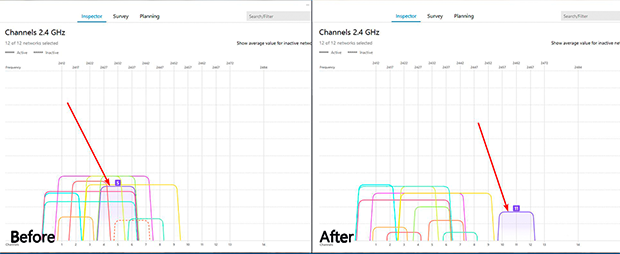
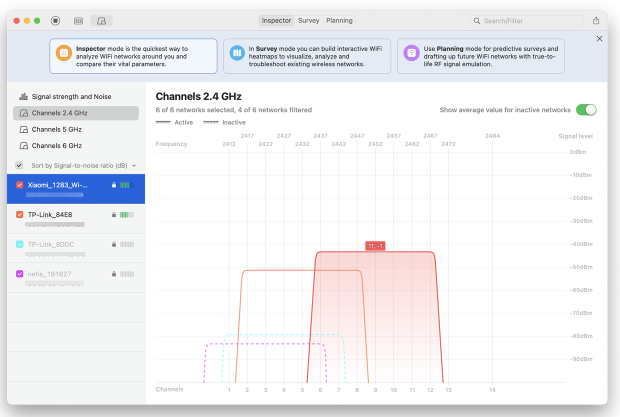
Real-world example: many users never check what channel their access point is using and just leave the factory settings. In the “before” situation you can see almost all networks sitting in the same part of the 2.4 GHz band and overlapping each other, while a couple of channels on the right stay free. After switching the AP to one of these unused channels, the network moves out of the crowded area and the interference drops. In simple cases, changing the channel to a free one is enough to fix unstable WiFi.
How to Pick the Right WiFi Channel (Even if You're Not a Pro)
If you're confused by the settings and don't know which channel to choose, don't worry — it's simpler than it seems. First, you need to understand how networks can interfere with each other. There are three types of channel interference, and each slows down your internet in its own way:
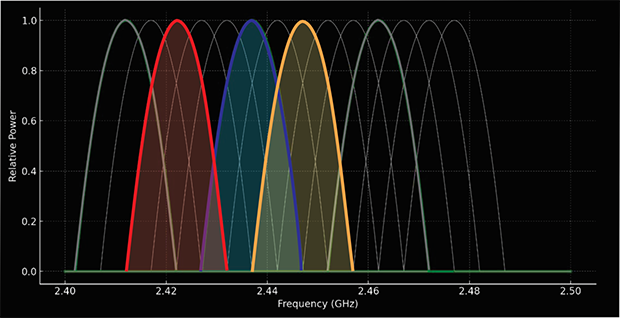
- No Overlap (best case): Networks use completely separate channels, resulting in no interference and optimal performance.
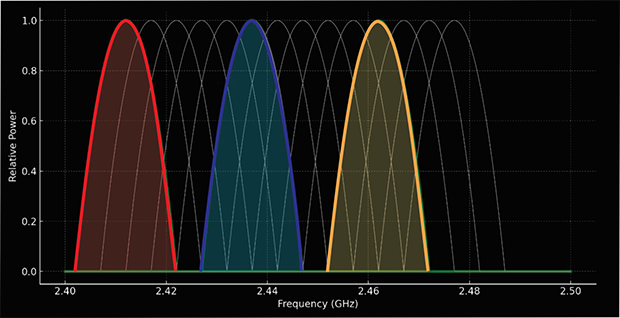
- Full Overlap (not ideal, but manageable): Networks use the same channel but can negotiate access due to Wi-Fi's collision avoidance protocols, minimizing interference compared to partial overlap.
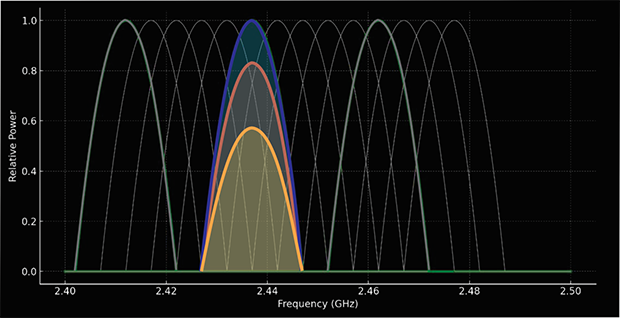
- Partial Overlap (worst case): Networks use adjacent channels, which creates significant interference as signals are seen as noise by each other.
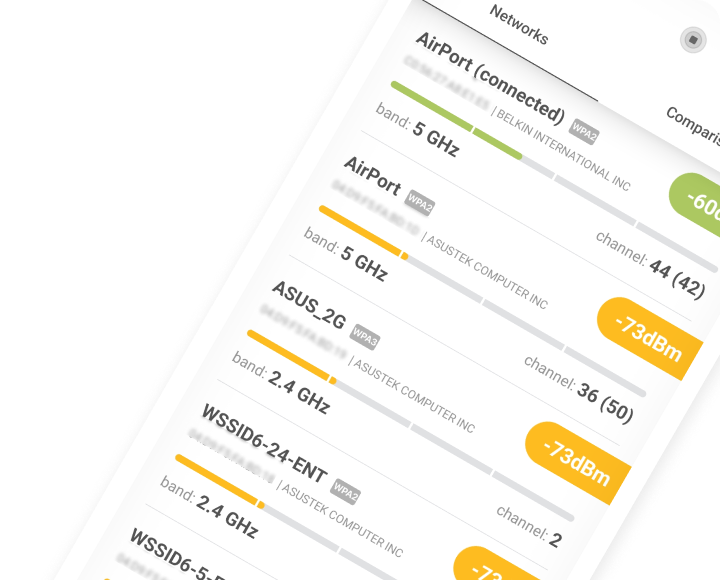
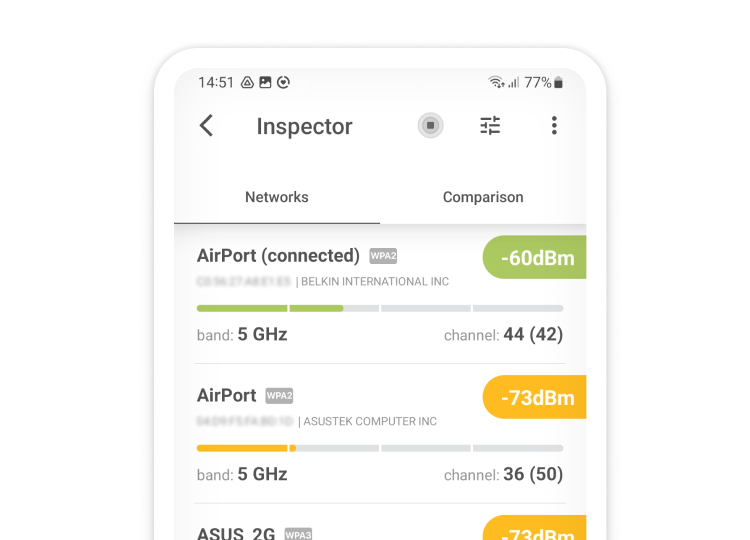
The NetSpot Android app includes a built-in Best Channel Recommendation feature. It automatically analyzes nearby networks and tells you which channel is optimal — perfect if you're not sure how to read channel graphs.

NetSpot for Android
Analyze WiFi networks around you, perform wireless surveys, and test Internet speed — all with just a phone or tablet in your hands.
Why NetSpot Is the Best WiFi Interference Scanner for Your Network
NetSpot isn’t just a scanner — it’s a full suite for interference detection, channel optimization, and predictive planning. Its features include:
Inspector Mode: shows a clear, structured table with the most important data about nearby networks (SSID, BSSID, channel, band, security, signal level), plus a real-time Signal Strength graph and Channel graphs, including 6 GHz.
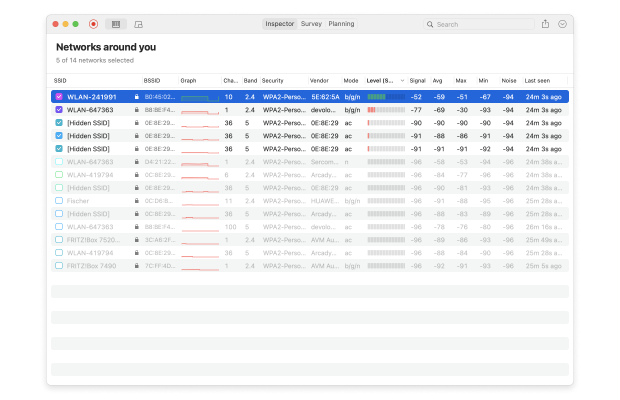
Everything is visual, easy to read, and can be filtered by band, channel, signal strength, security, or vendor — perfect when you need to see which networks create interference right now.
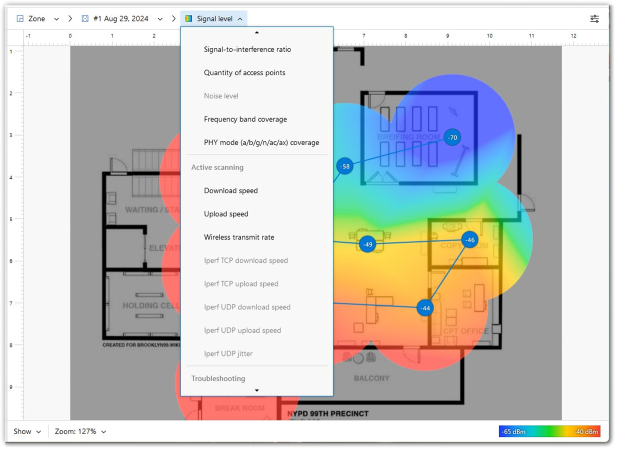
Survey Mode: lets you build multiple Wi-Fi heatmaps (signal, noise, interference, SNR, download/upload speed, AP quantity, overlapping channels, and more), so you can analyze the environment from every angle. Supports both passive and active scanning, which helps you see not only coverage, but also real performance in problem areas. Very visual and convenient for explaining issues to clients or teammates.
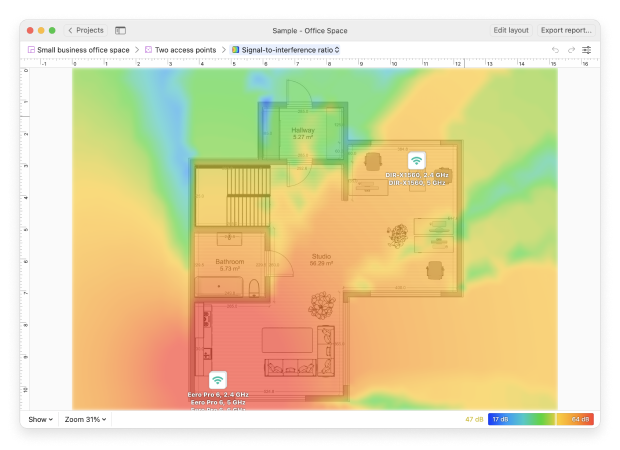
Planning Mode: lets you place virtual access points on the map, pick equipment from a list or enter AP parameters manually, adjust antenna type and direction, and simulate interference-free layouts before you buy hardware. This makes it easy to choose the right AP model, the right number of APs, and their optimal placement.
Available for Windows, macOS, and Android, NetSpot helps you detect Wi-Fi interference fast, switch to the best channel, and design a stable network that won’t collapse when neighbors change their settings.
Conclusion
Whether you’re in a crowded city apartment or a multi-level house, WiFi interference can ruin your experience. A WiFi interference scanner like NetSpot gives you the power to not just detect problems, but fix them. As WiFi 6E and 7 become standard, now’s the time to take control of your network’s environment and build a future-proof wireless setup.
SO, WE RECOMMEND

NetSpot
WiFi Interference — FAQs
Use a WiFi interference scanner like NetSpot to visualize networks, channels, and interference patterns.
How do I stop WiFi interference?
To forget about connection problems, follow this plan:
Start with the location: Place the router in the center of your apartment and high up. Move it away from walls, mirrors, and metal cabinets — they're the first to eat up the signal.
Find a clear channel: Use an interference scanner (such as NetSpot). It will show which channels are clogged by neighbors and help you choose the clearest one.
Strengthen weak spots: If the walls are too thick and the signal isn't getting through, don't bother with the router — install a WiFi repeater or use Powerline adapters to extend the internet connection through a wall outlet.
Is there a way to troubleshoot the issue connected to the positioning of a wireless router?
If you suspect physical obstacles are interfering with the signal, try a little troubleshooting with these steps:
Find the "geographic center": Estimate the center of the area where you need internet and move the router there. Immediately check how this affects the signal strength in distant rooms.
Align the antennas: Try placing the antennas strictly vertically — for most models, this is the most efficient mode.
Raise the device: Simply move the router from the floor to a table or shelf. Sometimes, these thirty to forty centimeters of height are enough to prevent the signal from "getting stuck" in furniture.
Join the discussion today if you are still experiencing connectivity gaps despite these adjustments. You can find more community-driven tips in this forum discussion regarding dead zones and signal drop-offs.
What is wireless interference?
Wireless interference occurs when external factors disrupt the radio waves used by WiFi to communicate. This can result in slow speeds, dropped connections, and weak signals. Common sources include physical barriers, overlapping networks, and devices operating on similar frequencies.
How to troubleshoot interference from competing WiFi networks?
Start with enabling channel auto-switching on your WiFi router. Look into its user manual if you are not sure how to do it. If the speed is still slow, try setting up a channel manually and perform a speed test. Try NetSpot — it is a great WiFi Channel Scanner.
How to beat WiFi Interference with NetSpot?
With the help of NetSpot you can see which wireless channels other networks are using, and what channel might be a better solution for your WiFi network.
If all channels are congested, switch to the 5 GHz or 6 GHz band, where more free frequencies are available. When using 2.4 GHz, set the channel width to 20 MHz for stability and choose a channel with minimal signal strength from neighboring networks. If you're looking for advice that fits your specific situation, you can join the discussion on the forum: “WiFi analyzer says interference on all channels, what should I do?”
Can smart routers fix interference on their own?
Some offer automatic channel optimization, but manual analysis with a scanner usually yields better results.

Get NetSpot for Free
Wi-Fi Site Surveys, Analysis, Troubleshooting runs on a MacBook (macOS 11+) or any laptop (Windows 7/8/10/11) with a standard 802.11be/ax/ac/n/g/a/b wireless network adapter. Read more about the 802.11be support here.