Wi-Fi Site Surveys, Analysis, Troubleshooting runs on a MacBook (macOS 11+) or any laptop (Windows 7/8/10/11) with a standard 802.11be/ax/ac/n/g/a/b wireless network adapter. Read more about the 802.11be support here.
Why Does my WiFi Keep Disconnecting
11 Real Fixes That Actually Work — discover quick solutions to boost stability and Get The Best WiFi Coverage for a seamless online experience.
Is it annoying when your Wi-Fi drops out at the most inopportune moment? It's perhaps one of the most frustrating little things in life. Whether it's a work Zoom call or a TV show freezing at the most exciting part, internet glitches like these can drive anyone crazy.
The good news: in most cases, these issues can be fixed without calling a technician or buying expensive hardware. A couple of simple adjustments, often overlooked, are often all that's needed. We've compiled a few proven methods that will help you finally forget about constant connection drops and unstable signal.
Jump to...
1. Restart Your Modem and Router — The Classic Fix
Sometimes internet outages are simply due to an overloaded router. Over time, small errors accumulate, background processes increase, and everything slows down or becomes unstable. A simple reboot resolves all these issues and often returns everything to normal. It may seem overly simple, but honestly, it's the first thing you should try.
What to do:
Unplug the router and modem from the outlet, wait 30-60 seconds, and then plug them back in. It's best to start the modem first, and then the router after a minute.
Pro tip:
If you get into the habit of rebooting your equipment at least once a week, you'll significantly reduce glitches and sudden speed drops.
2. Check Your Cables — the Problem isn't Always the Signal Itself
The root of the problem isn't always the wireless signal itself. Sometimes, the issue is something much more mundane — like a loose or worn cable. Ethernet or coaxial cables can silently cause random connection drops if they're improperly connected or become worn over time. This can be easy to overlook, but it's definitely worth checking before attempting more complex solutions.
What to do:
Take a close look at all the cables running from your modem to your router. Make sure everything is firmly connected and clicks into place. If a cable feels loose, looks damaged, or the clip is broken, it’s best to replace it.
Pro tip:
Even a small bend or slight damage can mess with your connection. Swapping in a new cable is a quick and surprisingly effective way to fix random Wi-Fi dropouts.
3. Move Your Router to a Better Spot
Many people make the same mistake: hiding the router so it doesn't spoil the decor. Sure, the wires aren't visible, but that's a real disaster for the signal. If you're constantly wondering, "Why does my Wi-Fi keep disconnecting?" it's likely the signal is simply struggling to penetrate the obstacles.
What to do:
Place your router in an open, elevated spot near the center of your home or apartment. Keeping your router out in the open and away from obstructions like furniture or large appliances ensures better Wi-Fi signal strength and stability.
Pro Tip:
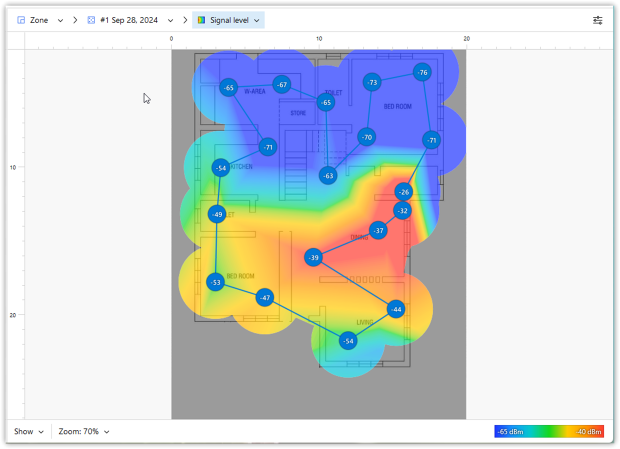
Think of Wi-Fi like light — open space = better coverage. To pinpoint and eliminate “dead zones” in your home, use a Wi-Fi analyzer such as NetSpot.
4. Watch Out for Signal Interference
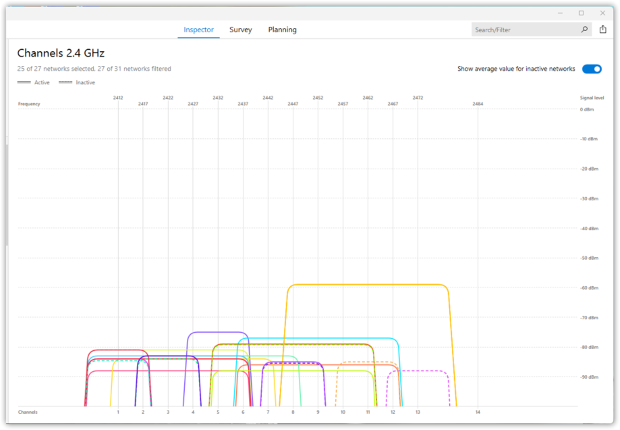
Another common problem can be interference. Many common household devices can interfere with the signal, including microwaves, Bluetooth devices, cordless phones, baby monitors, and even nearby routers using the same or overlapping channels.
This is one of those issues that often goes unnoticed. While everything may seem fine at first glance, interference can subtly reduce speed and make the connection feel unstable.
What to do:
Use NetSpot, to spot channel overlap and network interference. NetSpot’s intuitive graphs clearly visualize Wi-Fi networks, including hidden ones, helping you find the least crowded channel.
5. Too Many Devices Are Connected
It might not seem like a big deal, but having a lot of devices connected at the same time can put real strain on your network. Even devices you are not actively using still take up router resources in the background. That extra load can lead to slower speeds, unstable performance, and random Wi-Fi dropouts.
What to do:
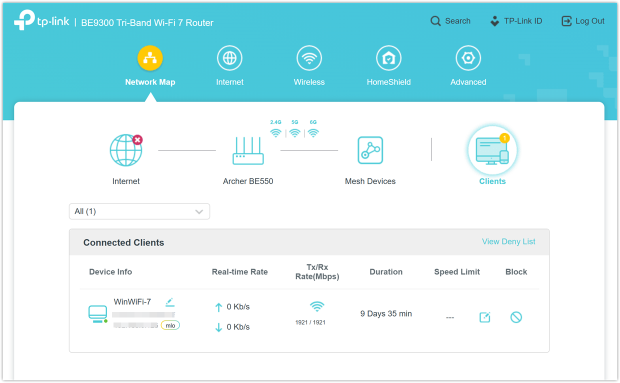
Start by opening your router’s admin panel and checking how many devices are currently connected.
Step 1: Access Your Router’s Admin Panel
- On a device currently connected to your Wi-Fi, launch a web browser.
- Type your router’s IP address into the browser's address bar. Common addresses include 192.168.1.1, 192.168.0.1, or 10.0.0.1.
- (If unsure, you can find this information on the label underneath your router or in its manual.)
Step 2. Log into the Admin Interface
Enter your username and password when prompted. Often, the default login details are:
- Username: admin
- Password: admin, password, or printed on the router label
Tip: If you've changed your login details and forgotten them, you might need to reset your router.
Step-by-step after logging in:
- Navigate to a section like Connected Devices, Attached Devices, Client List, or Network Map.
- Review the list of devices shown, identifying each by their device name, MAC address, or IP address.
- Disconnect or block any unknown or suspicious devices.
6. Update your Wi-Fi adapter drivers — this is often overlooked
Often, internet outages are caused not by the router, but by the "brain" of your laptop or computer. Many people think that drivers update automatically, but in fact, outdated software is one of the main causes of constant connection drops or slowdowns. Even the best router won't help if your network adapter is running on five-year-old drivers.
Updating only takes a couple of minutes, but it's real one of the most effective ways to improve your connection and make your signal more stable.
What to do:
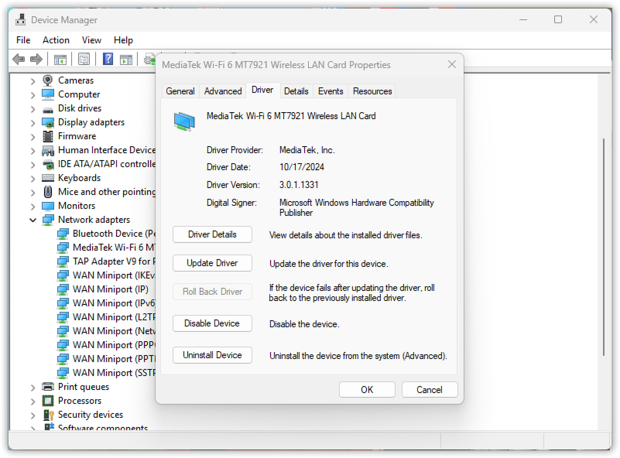
Go to "Device Manager" → find the "Network adapters" section → right-click your Wi-Fi adapter and select "Update driver". Simply follow the on-screen instructions.
Pro Tip:
Windows doesn't always find the latest software. If the problem persists, check your laptop or motherboard manufacturer's website — they usually have the most current versions, which actually fix connection errors.
7. Prevent your device from "hopping" between networks
If your internet connection is constantly dropping, it's possible your laptop or phone is simply trying too hard to be useful. Gadgets often scan their surroundings and try to choose the strongest network from those you've previously saved. But the "strongest" signal doesn't always mean the "most stable".
As a result, your device starts bouncing between your router, your neighbor's Wi-Fi, or some access point at a cafe down the street. Each such switch can instantly disrupt your connection right in the middle of an important call or a game.
What to do:
Open your Wi-Fi settings and review your saved networks. Remove the ones you no longer use, or turn off automatic connection for them. Leave auto-connect enabled only for your home network.
On Windows 10:
- Open Settings → Network & Internet → select Wi-Fi.
- Click on Manage known networks, select a network you don’t want to auto-join, click on it, then choose Properties and toggle off Connect automatically.
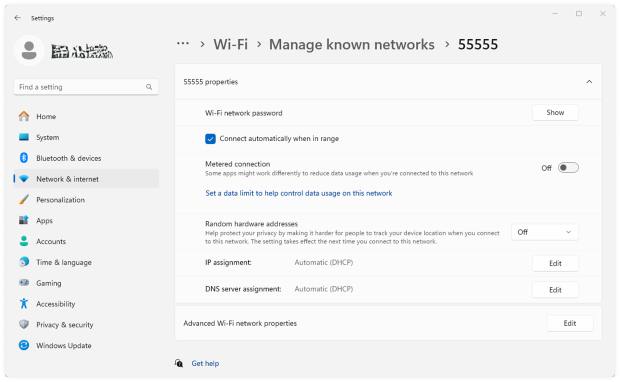
On Windows 11:
- Open Settings → Network & Internet → Wi-Fi.
- Select Manage known networks, click on the network you wish to disable auto-join for, and toggle off Connect automatically.
Pro Tip:
If your router broadcasts both 2.4 GHz and 5 GHz bands separately, it can be better to stick to one instead of letting your device bounce between them. Even if the other band looks stronger, constant switching can sometimes cause more problems than it solves.
8. Reset Your Network Settings
Sometimes the real issue is not the router at all, but the network clutter that builds up on your device over time. Saved connections, outdated network profiles, and small system glitches can pile up for months and start causing random disconnects or unstable Wi-Fi. Resetting your network settings is often the quickest way to wipe that mess out and start clean.
What to do:
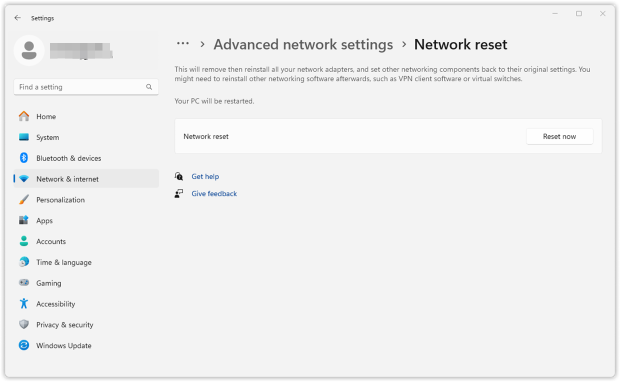
Go to Settings → Network & Internet → Advanced network settings → Network Reset → Reset Now. Once complete, your PC will reboot, and you’ll need to reconnect to your Wi-Fi network — keep your password handy.
Pro Tip:
Performing a network reset every few months can significantly improve Wi-Fi stability, ensuring you get consistent, reliable coverage at home or in the office.
9. Check Background Apps and Antivirus Software
Your Wi-Fi might keep disconnecting because certain background applications or software running quietly on your computer use up more bandwidth than you'd expect. Apps running automatic updates, cloud backups, license verification tools, and antivirus software often silently eat up your bandwidth, making your internet slow, unstable, or prone to frequent disconnections.
Many people immediately blame the router or a poor signal, not even realizing that it's common software that's choking their internet connection. Programs for automatic backups, license verification (like Adobe Creative Cloud), or endless cloud drive syncing can strain the bandwidth so much that the connection simply bursts at the seams.
As a result, you experience lag and disconnects out of the blue, even though the hardware itself is working perfectly. Sometimes, simply cutting a couple of these resource-hungry apps in the background is enough to get your Wi-Fi up and running again.
What to do:
Open Task Manager (Windows) or Activity Monitor (Mac) and sort processes by network usage to quickly identify which applications use the most bandwidth. Pay particular attention to cloud services, backup software, and subscription license verification tools. Close or temporarily pause non-essential bandwidth-consuming apps, and monitor whether your Wi-Fi stability improves.
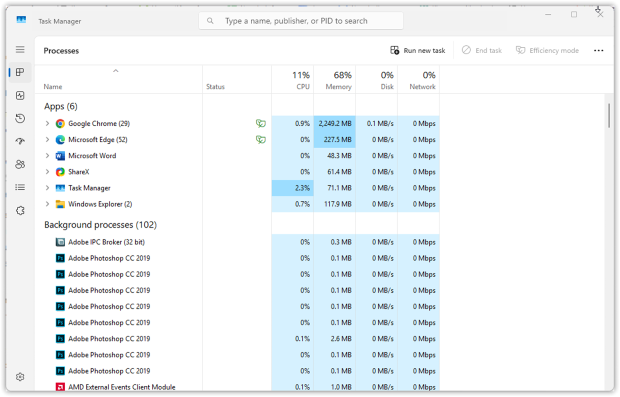
If necessary, temporarily pause or reschedule background backup tasks, or adjust synchronization settings in software such as Dropbox or OneDrive.
Pro Tip:
Regularly checking your device’s network activity helps pinpoint problematic software. For optimal results, schedule heavy downloads or backups during off-peak hours to reduce Wi-Fi disconnects.
10. Test Your Internet Speed
Before investing in new gear, make sure you’re actually getting the internet speed you're paying for. Many users skip this crucial step, assuming slowdowns or disconnects are due to Wi-Fi hardware or interference issues, but your actual internet bandwidth might simply be insufficient.
A quick Wi-Fi speed test helps identify bottlenecks and reveals if your connection meets your provider’s promised speeds.
What to do:
Run an online speed test and you'll quickly see your current download, upload speeds, and latency. If your measured speeds fall significantly short of what you're paying for, the problem might be with your ISP or your plan rather than your home Wi-Fi setup.
With NetSpot, you can do more than just a quick speed test — you can create detailed Wi-Fi heatmaps showing your actual download and upload speeds throughout your home or office.
Run an active survey in NetSpot’s Survey Mode. Collect precise download and upload speed data across various locations in your home or office with NetSpot as you move around the space.
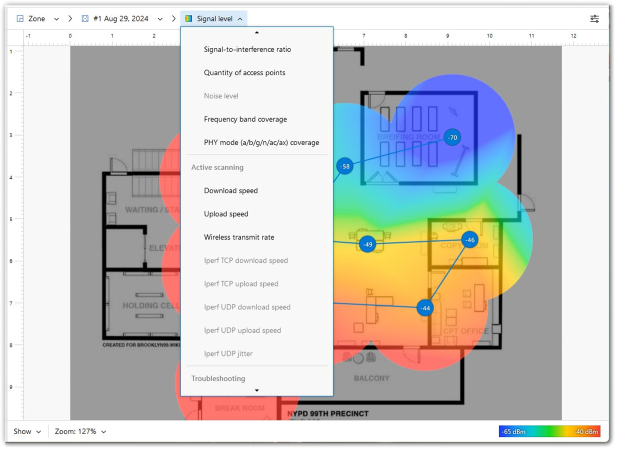
Once the survey is complete, you'll receive detailed heatmaps of your Wi-Fi performance, visually highlighting problem areas and speed bottlenecks.
Pro Tip:
Run the speed test several times throughout the day to check for peak-hour slowdowns. Test multiple devices to confirm whether the issue is with your network or a specific gadget.
Perform surveys regularly to track network performance changes over time, especially after repositioning equipment or adjusting settings.
Conduct surveys at peak usage times to understand how your network handles maximum load, helping you plan any necessary upgrades effectively.

Get a perfect WiFi speed with NetSpot
Don’t settle for a decent Internet connection, NetSpot ensures a consistent WiFi speed.11. Consider Replacing Old Equipment — Sometimes the Hardware Is the Problem
If you’ve already tried all the usual fixes and your Wi-Fi is still dropping out or slowing down, there’s a good chance the issue is your equipment. Older routers and modems can struggle to keep up with the way we use the internet today — more devices, faster plans, and newer Wi-Fi standards all put extra strain on outdated hardware.
What to do:
- Check how old your modem and router are. If they’re over 4 – 5 years old, it’s probably time to upgrade.
- Look for devices that support Wi-Fi 5 (802.11ac) or Wi-Fi 6/6E (802.11ax) — they’re faster, more stable, and better with multiple devices.
- For more expansive homes or offices, a Mesh Wi-Fi setup can be a great option — it gives you strong coverage across all rooms.
- If you’re renting equipment from your ISP, ask them for a newer model.
Pro Tip:
Before spending money on new gear, try using the NetSpot app in Planning Mode. It offers a virtual Wi-Fi equipment selection tool — you can simulate different routers and access point placements before you buy anything.
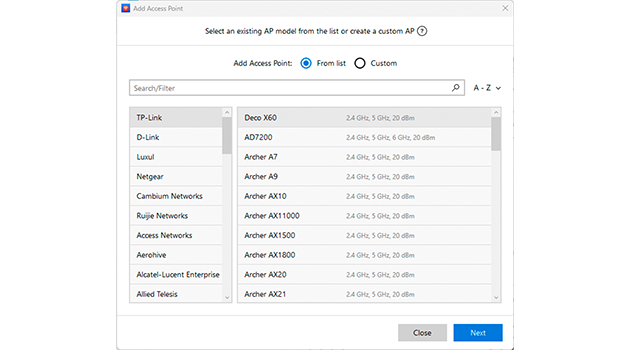
This smart feature helps you test and find the best setup for your space.
Conclusion
If you came to this text with the question, "Why is my Wi-Fi always slow?", now you know — it's not a curse or just a "bad day". In 90% of cases, internet issues are caused by very specific and, best of all, fixable reasons. You don't need to be a third-generation system administrator to tweak a few settings or move your router to a higher shelf.
But here's the trick: if the internet is your work, your studies, and your life in general, it's better not to wait until everything completely crashes. Prevention is always easier than frantically trying to fix the network during an important call.
For such cases, there are great tools like NetSpot. It will clearly show you where the signal is dying in your apartment, detect interference from neighbors, and even help you figure out the best place to install a new router before you buy it.
A stable connection isn't a luxury; it's a matter of proper setup. Give your network a little TLC every now and then, and your Wi-Fi will love you back.
SO, WE RECOMMEND

NetSpot
Fix Disconnects and Get Better Coverage — FAQs
Why does my Wi-Fi keep disconnecting at random?
Random Wi-Fi dropouts usually happen because of interference, overloaded channels, outdated drivers, background apps, or sometimes hardware problems. The good news is that most of these issues are pretty common and can usually be fixed without too much trouble.
How can I find the best WiFi channel and reduce interference?
A Wi-Fi analyzer like NetSpot can show you which channels around you are crowded. Once you see that, you can log into your router settings and switch to a less busy channel to improve stability and reduce interference.
How often should I reset my network settings?
You do not need to do it often, but every few months can be helpful if your connection has been acting strange. It can remove old network profiles and clear out corrupted settings that may be causing instability.
One of the easiest fixes is moving your router to a better spot. Try to place it somewhere central, open, and slightly elevated. Keeping it tucked behind furniture or near large appliances can weaken the signal.
Is 5 GHz better than 2.4 GHz for avoiding disconnects?
In many cases, yes. The 5 GHz band is usually less crowded and can give you better speed and a more stable connection, especially in apartments or busy neighborhoods. If your devices support it, 6 GHz can be even better.

Get NetSpot for Free
Wi-Fi Site Surveys, Analysis, Troubleshooting runs on a MacBook (macOS 11+) or any laptop (Windows 7/8/10/11) with a standard 802.11be/ax/ac/n/g/a/b wireless network adapter. Read more about the 802.11be support here.