Wi-Fi Site Surveys, Analysis, Troubleshooting runs on a MacBook (macOS 11+) or any laptop (Windows 7/8/10/11) with a standard 802.11be/ax/ac/n/g/a/b wireless network adapter. Read more about the 802.11be support here.
WiFi Optimization: How to Fix a Slow Network
Struggling with slow WiFi or unstable connections? This WiFi optimization guide shows how to reduce interference, improve coverage, and fix common issues using smart analysis — no experts required.
When your WiFi starts acting up — slow pages, buffering videos, dropped Zoom calls — it’s tempting to blame your provider or rush to buy new gear. But the truth is, many WiFi issues can be fixed without spending a dime or calling in pricey IT help. All you need is the right tool, a bit of curiosity, and a little time.
In this article, we’ll skip the obvious advice (yes, we all know about rebooting and updating firmware) and go straight to the most effective WiFi optimization steps that actually make a difference. Let’s walk through the most common issues and show you how to fix them without needing to be a networking pro.
Jump to...
Before we begin, it’s worth clarifying one thing. We won’t spend time on the standard baseline steps — restarting your router, updating firmware, or checking for an ISP outage. Those are essential, but widely understood.
Instead, we’ll focus on practical adjustments that genuinely improve WiFi performance and are often overlooked, even though they can deliver a noticeable difference in just a few minutes.
Optimize Channels, Bands, and Channel Width
One of the most common WiFi problems — and the fastest to fix — is interference from overlapping channels. In apartment buildings and dense neighborhoods, dozens of access points compete for the same airspace. Many routers still run on default settings, which means several networks often end up stacked on the same channels.
This is usually where WiFi optimization should start.
Use a WiFi channel scanner to see what’s happening around you. A good option here is NetSpot, since it shows both visible and hidden networks, supports modern standards, and presents the data in a clear, understandable way. You can instantly see which channel your network is using and how crowded nearby channels are.
When choosing a channel, the best option is always a free one with no overlap.
If that’s not available, full overlap is generally better than partial overlap. Networks on the same channel can detect each other and share airtime, while partially overlapping channels tend to create more destructive interference.
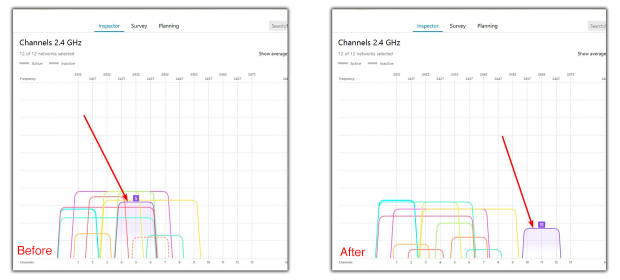
Example of Channel Optimization by Switching From Channel 5 to Channel 11
Channel width matters more than many people realize. Wider channels can increase throughput in clean environments, but in busy ones they often make things worse. Choosing the right width is about balance, not chasing maximum numbers.
On the 2.4 GHz band, sticking to narrower channels usually works best. A 20 MHz channel helps reduce overlap and improves stability in crowded environments.
On 5 GHz, you have more flexibility — 40 MHz or 80 MHz can work well depending on how busy the spectrum is around you.
If your router supports 6 GHz and your devices can use it, moving there can dramatically reduce congestion thanks to much cleaner spectrum.
Router Placement and WiFi Coverage Optimization
Another extremely common mistake is poor router placement. Routers often end up in corners, closets, cabinets, or behind furniture so they don’t “ruin” the interior. Unfortunately, WiFi signals don’t care about aesthetics — walls, metal, and closed spaces all weaken coverage.
Optimizing WiFi often means optimizing location.
To understand what’s really happening, it’s better to rely on measurements. In NetSpot’s Survey mode, you can map your space and visualize coverage with WiFi heatmaps. These maps clearly highlight weak spots and dead zones that are easy to miss without a visual view.
As a rule of thumb, anything around −75 dBm or better is usually enough for stable browsing, video calls, and streaming. If the signal drops below that in the areas you actually use, tweaking channels won’t really solve it — at that point, it’s more of a coverage problem.
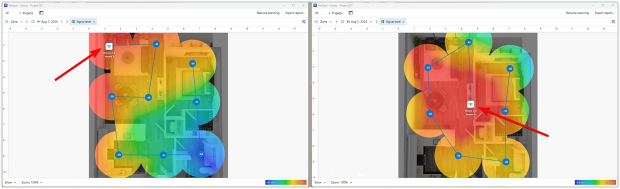
Example of Router Placement Optimization by Moving it to a More Central Location
Using NetSpot WiFi Planner, you can virtually simulate and test different router placements and see how coverage changes before physically moving anything. This makes it much easier to find a practical location that improves signal without turning your space upside down.
Optimizing the Number of Access Points
When WiFi feels unstable in a larger home or office, a lot of people assume the fix is simple: add another access point. But “more” doesn’t automatically mean “better”. In fact, too many APs can make a network slower and less predictable.
Too many access points can increase interference, confuse client devices, and create roaming problems. Instead of improving performance, they may actually make the network less stable — especially if APs overlap heavily, run on poor channel plans, or transmit too loudly for the space.
This is where optimization becomes less about “adding coverage” and more about “cleaning up the RF environment”. You want enough access points to cover the space well — but not so many that they start stepping on each other.
NetSpots Planning mode helps here by showing whether your current number of access points is really necessary or if fewer, better-placed APs would deliver cleaner coverage and better performance. You can model different AP counts and placements, then compare coverage results to find the sweet spot — strong signal where you need it, without excessive overlap.
The SNR (Signal-to-Noise Ratio) heatmap lets you clearly see and understand whether access points are competing with each other, by showing where noise and overlap begin to impact signal quality.

Example of AP Count Optimization (as you can see, one access point performs better than five)
A practical sign you might have “too many” APs: if devices randomly cling to a weaker AP, speeds fluctuate while standing still, or roaming feels messy even though the signal looks “strong”. That’s often not a coverage issue — it’s an AP density and overlap issue.
Hardware upgrades: From Antennas to Mesh WiFi
Sometimes software tricks are useless if the hardware itself has become a bottleneck. In this situation, there's only one solution: upgrading the hardware.
Upgrade or Adjust Your Antennas
Don't rush out to the store for a new router — start small. Try to get the most out of what you already have, especially your antennas. This often yields impressive results without any investment. If your setup allows, you can simply replace the standard antennas with more powerful or directional ones.
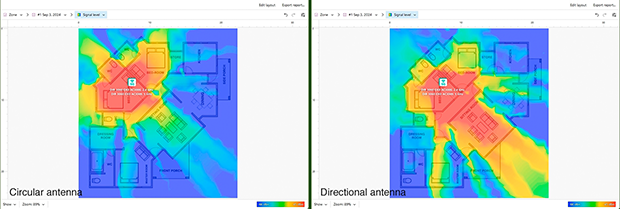
Example of Antenna Optimization (in Planning mode, an omnidirectional antenna was virtually replaced with a directional one)
Use NetSpot's planning mode: it simulates the performance of different antenna types. You can virtually adjust the angles and signal strength, clearly understanding the results before upgrading.
Replace Outdated Equipment or Add Mesh Nodes
Routers don't last forever. If yours is over five years old or doesn't support WiFi 6, it’s likely holding you back. For larger spaces, switching to a Mesh system is usually the smartest move for a consistent signal.
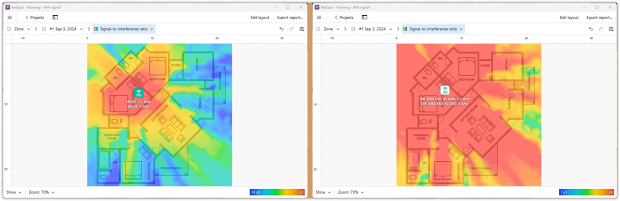
Example of AP Model Selection Optimization
Not sure which AP to choose? In NetSpot’s Planning Mode, you can virtually test different access point models from the built-in list right on your floor plan. If the model you need isn’t in the catalog, you can create a custom one and enter the specs manually. You can also experiment with the number of access points to see what delivers solid coverage without going overboard.
Conclusion
WiFi optimization doesn’t have to be complicated or expensive. With the right channel and channel width, a better router placement, a quick look at your coverage using heatmaps, and a bit of planning before upgrading hardware, you can noticeably improve your network on your own.
By following these recommendations and using a troubleshooting tool like NetSpot, it’s possible to turn a struggling network into a stable, fast, and predictable one — without guesswork and without relying on costly specialists.
SO, WE RECOMMEND

NetSpot
FAQ: WiFi Optimization
What is WiFi optimization, in simple terms?
WiFi optimization is the process of improving how your wireless network actually works in your space. It’s not about theoretical maximum speeds — it’s about reducing interference, improving coverage, and making the connection stable where you really use it.
Why is my WiFi slow even though my internet plan is fast?
Because your internet speed and WiFi quality are two different things. A fast plan won’t help if your router is stuck on a crowded channel, placed poorly, or fighting interference from nearby networks and devices.
Do I need new hardware to optimize WiFi?
Not always. Many issues can be fixed through better channel selection, placement, and planning. If hardware is outdated or coverage demands have grown, upgrading to modern WiFi standards or using mesh systems may help — ideally after testing options virtually.
How can NetSpot help with WiFi optimization?
NetSpot allows you to analyze channels, visualize coverage with heatmaps, plan router and access point placement, test antennas virtually, and evaluate different hardware options before buying. This helps fix WiFi issues based on real data, not guesswork.
How do I choose the best WiFi channel?
The best channel is usually the least congested one. If no free channel is available, full overlap with neighboring networks is often better than partial overlap. A WiFi analyzer like NetSpot helps visualize nearby networks, including hidden ones, so you can make an informed choice.

Get NetSpot for Free
Wi-Fi Site Surveys, Analysis, Troubleshooting runs on a MacBook (macOS 11+) or any laptop (Windows 7/8/10/11) with a standard 802.11be/ax/ac/n/g/a/b wireless network adapter. Read more about the 802.11be support here.
A practical sign you might have “too many” APs: if devices randomly cling to a weaker AP, speeds fluctuate while standing still, or roaming feels messy even