Runs on a MacBook (macOS 11+) or any laptop (Windows 7/8/10/11) with a standard 802.11be/ax/ac/n/g/a/b wireless network adapter. Read more about the 802.11be support here.
WiFi Troubleshooting Tools: 2026 Practical Guide
Learn how WiFi troubleshooting tools actually work, how to choose the right one for your needs, and which apps to look out for in 2026
WiFi problems rarely manifest themselves in obvious ways. Most often, the network is technically "working", but you experience constant discomfort with your WiFi: the connection drops during video calls, the speed drops in certain rooms, or everything slows down as soon as several additional devices are connected.
In such situations, you should resort to WiFi troubleshooting tools. These apps are designed to shed light on what's actually wrong with the network and help you determine how to boost your WiFi signal.
Jump to...
What WiFi Troubleshooting Tools Really Do
Before we dive in, let’s clear up one important point right away: WiFi troubleshooting tools aren’t designed to “boost” or “fix” your network with a single tap — as nice as that would be, it’s simply not how WiFi works.
What these tools do give you is visibility. They help you uncover the weak spots that are dragging performance down, so you can fix the real cause and actually improve your WiFi.
In practice, WiFi troubleshooting tools — and related WiFi diagnostic tools — help you identify things like:
- weak or inconsistent WiFi signal strength
- overcrowded or poorly chosen channels
- WiFi interference and elevated noise levels
- speed drops caused by congestion rather than coverage
- configuration issues that limit real-world performance
Once a problem becomes obvious, its solution is usually not difficult.
Understanding this upfront sets realistic expectations and helps you choose the right category of WiFi troubleshooting tool instead of chasing quick fixes that don’t last.
Types of WiFi Troubleshooting Tools
Before we talk about specific applications, it’s useful to understand the broader context. Not all WiFi diagnostic tools perform the same functions or have the same capabilities. In practice, they can be divided into three main categories, depending on how deep the analysis needs to go and suitable for different user levels.
Universal WiFi Troubleshooting Tools
Best for: best balance for most users. Power users, home offices, small businesses, and anyone who wants real answers without enterprise-level complexity.
Beyond basic information about nearby networks, these tools provide a much broader view of your own WiFi network. They expose enough technical detail to diagnose real performance problems — not just signal strength, but how that signal behaves under load, across different bands, and in different parts of your space.
At the same time, this depth doesn’t come at the cost of usability. Thanks to well-designed interfaces and clear visualizations, the data remains understandable even for non-experts.
What you’ll typically see in this category:
- WiFi heatmaps (coverage, noise, interference)
- comparison between good and bad areas
- active speed testing across locations
- band-level analysis (2.4 GHz, 5 GHz, 6 GHz)
- basic predictive planning
Typical examples:
NetSpot, Acrylic Wi-Fi
For most real-world troubleshooting scenarios, universal WiFi troubleshooting tools offer the best balance between clarity, depth, and usability.
Basic WiFi Troubleshooting Tools
Best for: routine checks in apartments, homes, and small offices — and for quick “is it my WiFi or something else?” situations.
These tools are designed to answer the everyday questions most people run into first:
Is the signal actually strong enough where I use WiFi?
Am I competing with neighboring networks on the same channel?
Do speeds drop noticeably as I move away from the router?
What you’ll typically see in this category:
- signal strength (RSSI)
- channel usage and channel overlap
- nearby WiFi networks
- simple download and upload speed tests
Typical examples:
WiFi Scanner for Windows, WiFiman, WiFi Analyzer by olgor.com, WiFi Analyzer by Matt Hafner, inSSIDer
These apps are fast, lightweight, and easy to understand. Their limitation is that they provide a snapshot, not the full picture.
Professional WiFi Troubleshooting Tools
Best for: professional network engineers and large-scale deployments. These tools focus on deep technical analysis, exposing RF characteristics and network behavior that go well beyond the needs — and skill level — of most home or small office users.
What you’ll typically see in this category:
- deep RF and spectrum analysis
- validation and predictive surveys
- airtime utilization and noise floor analysis
- roaming behavior diagnostics
- packet-level inspection
Typical examples:
Ekahau, Wireshark for packet-level troubleshooting
These tools are powerful, but they’re often unnecessary for homes and small offices.
Best WiFi Troubleshooting Tools Worth Considering
Now that we’ve covered the main categories, let’s look at the strongest options in each one — the tools people actually use in real WiFi troubleshooting workflows, from quick diagnostics to deep engineering-level analysis.
- NetSpot — among universal WiFi troubleshooting tools.
- WiFi Scanner — it’s a lightweight tool designed to quickly analyze your wireless network.
- Ekahau AI Pro — it’s built for deep analysis and is primarily used by professional network engineers.
Choice #1
Among universal WiFi troubleshooting tools, NetSpot stands out as a balanced solution that combines depth of analysis with a user-oriented interface. It provides sufficient technical detail for effective diagnostics while remaining accessible to non-enterprise users.
-

Inspector Mode
Gives you real-time insights into the WiFi networks around you.
-

Survey Mode
Provides a comprehensive, map-based analysis of your WiFi network's performance.
-

Planning Mode
Enables you to simulate and plan your WiFi network's layout and coverage.
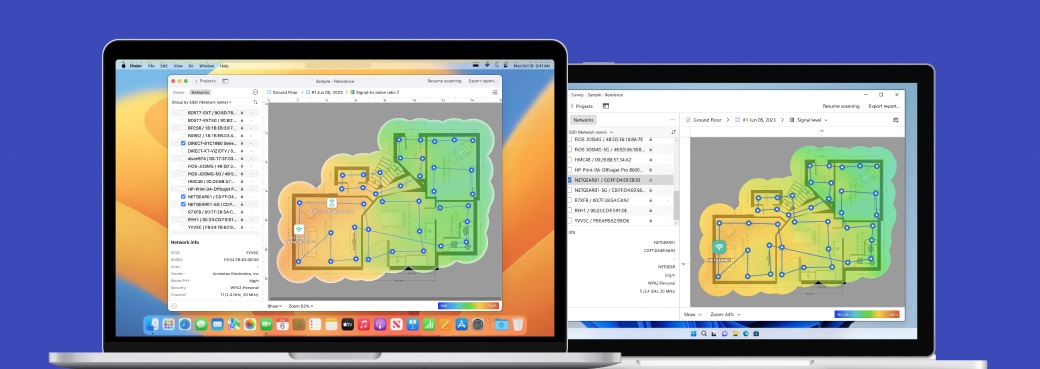
NetSpot covers the full network analysis workflow in one place: you start by examining current WiFi conditions, then verify real performance as you move through the physical space, and finally model potential changes before you reconfigure anything or invest in new hardware.
The tool supports hidden networks (hidden SSIDs) and modern WiFi standards, including multi-band environments, which is essential for accurate analysis in congested and mixed-generation networks.
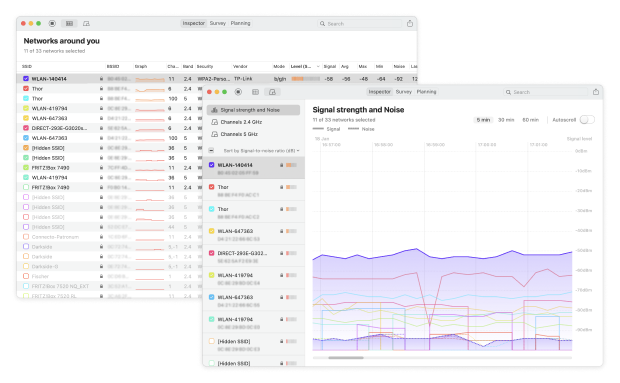
Inspector Mode provides real-time visibility into nearby WiFi networks through a live table with the key network details. Alongside the table, NetSpot includes clear, live-updating Channels and Signal Strength graphs, which make it easier to spot channel overlap and track signal changes as you move.
NetSpot also presents network data visually through WiFi heatmaps, making it much easier to understand how the network behaves across a space.
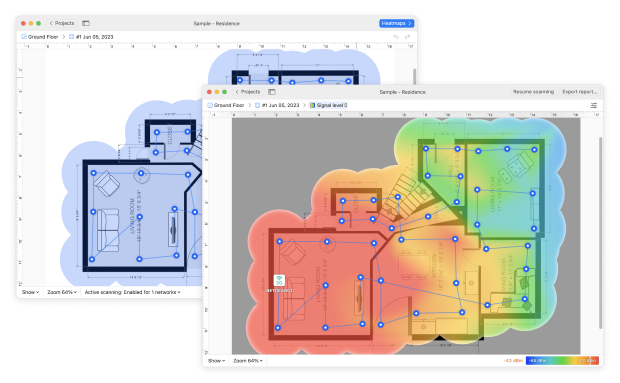
Instead of relying on a single metric, the tool offers a broad set of heatmap types, which allows for a more comprehensive examination of the network — from basic coverage to noise, interference, and overall quality.
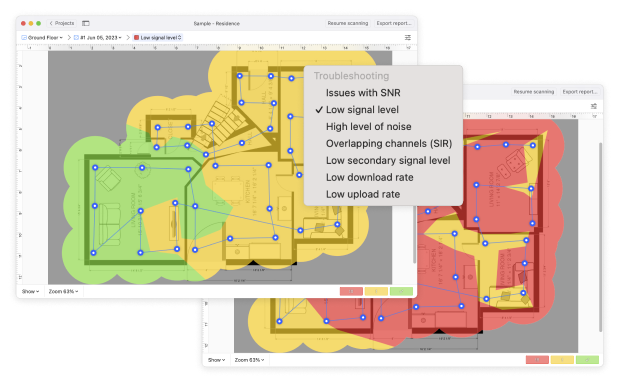
A separate Troubleshooting heatmap group lets you manually define critical thresholds and quickly highlight areas that fall outside acceptable limits, which is especially useful when you need to isolate specific problem zones rather than assess coverage in general.
To validate performance, Active Scanning measures real download and upload speeds at different locations, giving a clear picture of how the network actually performs for users. For more advanced analysis, Active Scanning can be extended with iPerf testing, where test parameters can be adjusted for deeper, more professional throughput investigation. This helps explain cases where signal looks fine, but real application performance still suffers.
Planning Mode deserves special mention. This mode allows you to simulate a WiFi network before making changes to the actual infrastructure. You can test access point placement, estimate expected coverage, and determine whether relocating equipment will solve the problem or whether it will require replacement. This mode often becomes the logical conclusion of the troubleshooting process, when it becomes clear that the problem lies not in the settings, but in the physical location or capabilities of the equipment.
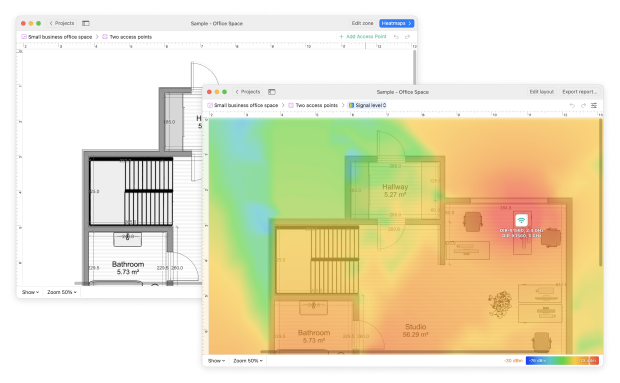
As a result, NetSpot remains a rare example of a tool that is equally well suited for basic analysis and more in-depth troubleshooting. It provides the user with not just data, but a clear picture of what's happening, allowing them to make informed decisions about improving their WiFi network.
Choice #2

WiFi Scanner
Available for Windows 10, Windows 11.
For a fast, no-frills WiFi check, WiFi Scanner (standalone) is a solid pick. It’s a lightweight tool meant for a quick “what’s going on right now?” look at your wireless environment — without getting into survey workflows or engineer-level analysis.
It keeps things simple: you get the core network info, a couple of clear signal/channel-style views, and filtering so you can zero in on the networks you care about instead of wading through everything around you.

A key reason to consider it in 2026 is 6 GHz / WiFi 6E visibility on Windows — the developer notes that Windows WiFi Scanner supports scanning 6 GHz networks when you’re using a compatible Wi-Fi 6E adapter (and, implicitly, your system/driver stack can see those networks). So if your goal is specifically “I need to confirm what’s happening on 6 GHz, not just 2.4/5”, this tool fits that niche.
It also includes built-in upload/download speed testing for quick performance validation — useful when you want to confirm that a slowdown is real (and repeatable) rather than just “it feels slow right now”.
Choice #3

Ekahau AI Pro
Available for Windows 10/11 (64-bit), macOS 11 and later.
Ekahau represents the professional end of WiFi troubleshooting tools. It’s built for deep analysis and is primarily used by professional network engineers working with complex or mission-critical networks. The level of technical detail it provides goes far beyond what most home users or small offices need — and that’s exactly the point.
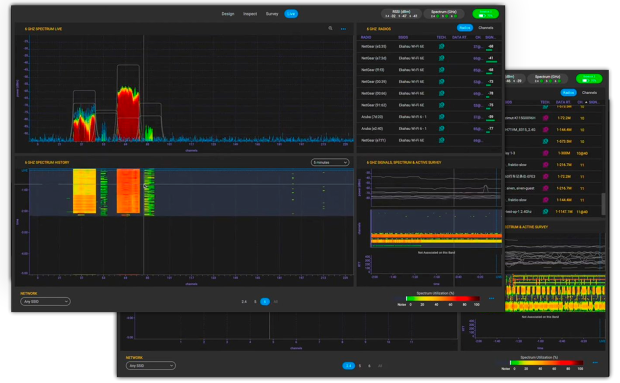
Ekahau is a high-cost solution and typically requires formal training to use effectively. Advanced troubleshooting and spectrum analysis workflows depend on dedicated hardware, such as the Ekahau Sidekick, which is required for certain measurements and increases overall deployment cost.
The platform supports predictive design, on-site validation surveys, and post-deployment analysis.
Ekahau provides tools for RF-level analysis, including evaluation of signal quality, noise, interference, and channel usage. It is commonly used to identify coverage gaps, capacity constraints, and design issues that cannot be diagnosed through basic inspection or heatmap tools.
Mobile survey applications extend the workflow to iPadOS, enabling standardized data collection in the field. Collected measurements can be reviewed and analyzed in the desktop application for reporting and design refinement.
Due to its complexity and cost, Ekahau is generally not suitable for routine home or small office troubleshooting. It is designed for environments where precise RF data and defensible design decisions are required.
Conclusion
WiFi troubleshooting tools don’t repair networks on their own — they help you see what’s actually going wrong. Once the problem is clear, decisions stop being guesswork and start being deliberate.
Whether the issue is slow performance, dropped connections, or uneven coverage, using the right WiFi troubleshooting tool lets you understand the root cause before making changes.
As wireless setups continue to evolve and become more crowded, periodically checking your network with reliable WiFi diagnostic tools is a practical way to maintain stable Wi-Fi in 2026 and beyond.
SO, WE RECOMMEND

NetSpot
Wi-Fi Site Surveys, Analysis, Troubleshooting runs on a MacBook (macOS 11+) or any laptop (Windows 7/8/10/11) with a standard 802.11be/ax/ac/n/g/a/b wireless network adapter. Read more about the 802.11be support here.
FAQ About WiFi Troubleshooting Tools
Do WiFi troubleshooting tools actually fix WiFi problems?
No. WiFi troubleshooting tools don’t repair your network by themselves. Instead, they show where and why problems occur — weak signal areas, noisy channels, interference, or poor placement. Once the issue is visible, you can make the right change, whether that’s adjusting settings, moving equipment, or upgrading hardware.
What is the best WiFi troubleshooting tool for home users?
For most home users, a universal WiFi troubleshooting tool is the best choice. Tools like NetSpot or similar apps provide live analysis, signal visualization, and coverage maps without overwhelming the user. They help identify dead zones, channel congestion, and speed drops across real living spaces.
Join the discussion on the best simple WiFi app forum if you're looking for more recommendations or want to see what other home users recommend for ease of use.
Are WiFi analyzer apps accurate enough for troubleshooting?
Yes, for many common problems. WiFi analyzer apps accurately measure signal strength, channel usage, and interference. While they don’t replace professional RF tools, they’re more than sufficient for diagnosing slow speeds, unstable connections, and coverage issues in homes and small offices.
Can WiFi troubleshooting tools help improve Wi-Fi speed?
They can’t increase speed directly, but they help you improve it indirectly. By revealing channel congestion, excessive noise, or poor router placement, WiFi troubleshooting tools guide you toward changes that often result in noticeably faster and more stable connections.

Get NetSpot for Free
Wi-Fi Site Surveys, Analysis, Troubleshooting runs on a MacBook (macOS 11+) or any laptop (Windows 7/8/10/11) with a standard 802.11be/ax/ac/n/g/a/b wireless network adapter. Read more about the 802.11be support here.