Wi-Fi Site Surveys, Analysis, Troubleshooting runs on a MacBook (macOS 11+) or any laptop (Windows 7/8/10/11) with a standard 802.11be/ax/ac/n/g/a/b wireless network adapter.
What Is Guest WiFi and How to Set It Up
Learn how to set up a guest WiFi network by following the steps described in this article.
It has become a common practice for hosts to share the password to their home WiFi network with guests. This practice, however, has serious security implications. After all, you don’t just give each and every guest who enters your home their own key, don’t you? Of course, you also don’t want your friends and family to be deprived of internet access when paying you a visit just to improve your security. The solution? Guest WiFi network!
Jump to...
What Is a Guest Wi-Fi Network?
A guest WiFi network is basically a secondary network that’s intended to be used exclusively by guests and other temporary users.
Guest wireless networks are commonly created by public-facing businesses to provide customers with internet access without inviting them to the same network that connects their servers, computers, and other IT assets.
Guest networks can also be created by regular home users, and most modern routers make it very easy to do so. When used this way, guest networks prevent guests from accessing shared network resources like printers, network-attached storage, and shared folders.
To serve the intended purpose, it’s a common practice to protect a guest network with a unique password when configuring WiFi encryption and security settings, instead of reusing the one that protects the main network.
Why Set Up a Guest Wi-Fi Network?
Even if you don’t mind sharing your WiFi password with others, there are multiple good reasons to create a guest WiFi network. Let’s explore some of them:
- Enhanced security: Guides that explain how to stop a WiFi hacker often recommend readers to create a guest WiFi hotspot to segregate devices as a prevention mechanism against snooping. When guest devices are on their own network, any malware that infects them can’t easily spread to other devices on the same network, but the same can’t happen when they’re separated on their own network, which is one extra way how a guest WiFi network can enhance your security.
- Improved bandwidth: Your router can provide only a limited amount of bandwidth, so it’s not a good idea to share it all with guests, especially if you often perform bandwidth-intensive tasks, such as video conferencing or running a home server. Capable routers let you limit the amount of bandwidth available to your guests, and you should even be able to reserve an entire WiFi band just for your personal devices.
- Convenience: Even if you don’t care about security or performance, the convenience of running a guest WiFi network is hard to ignore. For example, you can print the password to the guest network on a piece of paper and have it framed so that you can hang it up on a wall like a functional and unique decoration that’s guaranteed to serve well as an ice-breaker.
- Cost: Another thing that’s great about guest WiFi networks is the fact that they don’t cost anything to create. Most routers — not just high-end ones — support the functionality right out of the box, and enabling it is usually a matter of a single click, which certainly beats buying a new router just to set up an additional WiFi network for guests.
- Flexibility: Just because you enable a guest WiFi network once doesn’t mean that you have to keep it enabled forever. You can just as easily turn it off — both temporarily and permanently. Your main WiFi network won’t be affected in any way.
As you can see, learning how to set up a guest WiFi network can unlock many valuable benefits, and the next section of this article explains the process step by step.
How to Set Up a Guest Wi-Fi Network
Follow the steps below to set up a guest WiFi network:
Step 1

Open your router’s admin panel. Modern routers typically come with a companion smartphone app that makes this easy. Older routers can be managed from a web-based panel that can be accessed by entering the router’s IP address in your web browser (common addresses include 192.168.1.1, 192.168.0.1, and 10.0.1.1).
Step 2
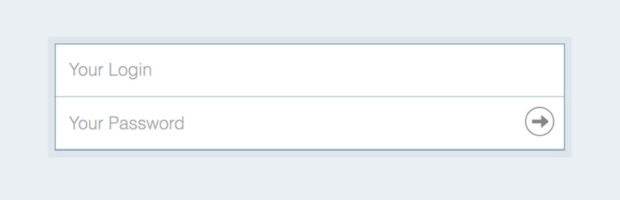
Log in to the admin panel as administrator. To enable a guest WiFi network, you may have to enter the administrator username and password. If you don’t remember chaining them, then you can try “admin/admin” since those are the most common default administrator login credentials.
Step 3
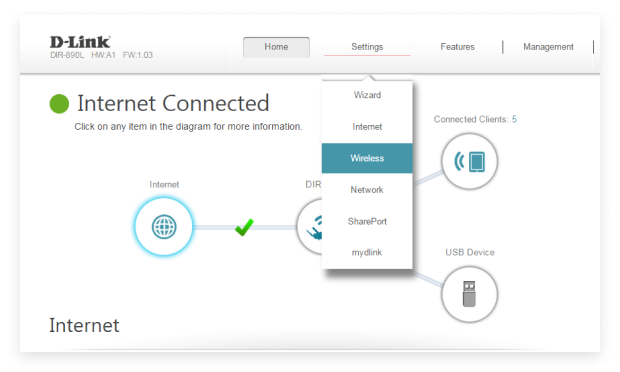
Locate the guest WiFi setting. The exact location of the setting will depend on your router’s brand and model, but good places where you can look for it include the Wireless Settings menu and the Extra Features menu.
Step 4
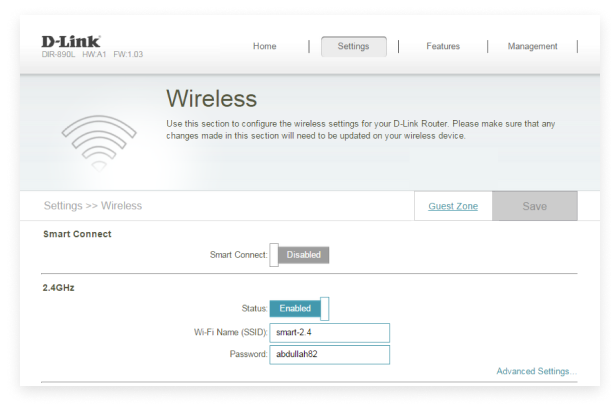
Enable the guest WiFi option. In most cases, all you need to do is click the right checkbox or button.
Step 5
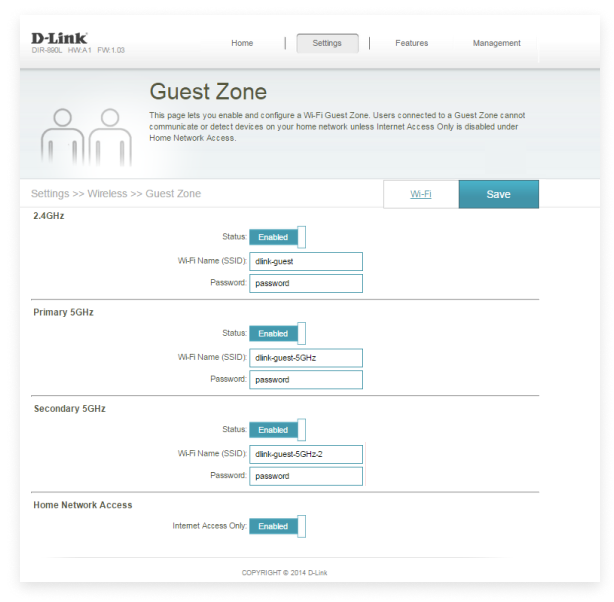
Configure basic settings. To protect the privacy of your guests and provide them with a smooth WiFi experience, you need to configure a couple of basic settings. To start with, enable password protection and use a password that can’t be easily guessed. Next, give your guest WiFi a descriptive name by changing its SSID. Depending on which WiFi standards your router supports, you may also be able to enable or disable individual bands.
That’s how easy it is to set up a guest WiFi network from scratch. As you can see, you don’t need to be an expert to complete the above-described steps.
Should you encounter any issues with the performance of your newly created WiFi network, you can use a WiFi checker like NetSpot to perform a wireless site survey and analysis to troubleshoot the problem.
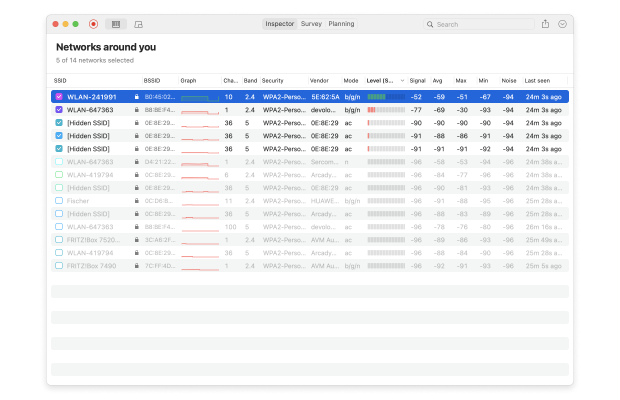
NetSpot can collect detailed information about all WiFi networks in your real area and visualize coverage on a map to reveal all signal dead zones, among other things.
Can Your Router Create a Guest Network?
While the guest WiFi functionality is becoming more and more common, there are still some routers that don’t support it. To find out if your router can create a guest network:
Step 1
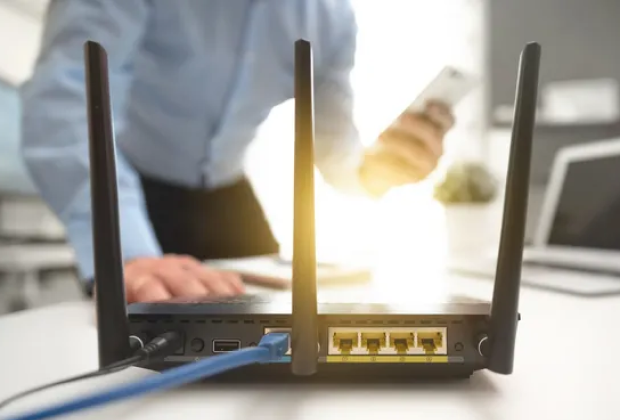
Find out exactly which router you have. The information should be written on a sticker located somewhere on your router.
Step 2

Look up the router on its manufacturer’s website. Most manufacturers advertise the guest WiFi functionality as a useful extra feature.
Step 3

If you’re still not sure if the router can create a guest WiFi, then don’t hesitate to contact the manufacturer directly.
Keep in mind that not all manufacturers call the guest WiFi functionality the same. For example, D-Link refers to it as the Guest Zone.
Guest Wireless Network Can Stop IoT Threats
As we’ve explained earlier in this article, guest WiFi security benefits stem from the separation a guest WiFi creates between guests and devices on the main network.
This separation can also be used to stop Internet of Things (IoT) threats, such as hacking and malware. That way, you don’t have to constantly ask yourself the question, “Who's on my WiFi?” just because you don’t trust your smart home devices to be as secure as their manufacturers claim they are (the reality of IoT security can be alarming).
Instead, you can rest assured, knowing that even the most skilled hacker can’t jump from your guest network to the main network and breach your personal devices.
SO, WE RECOMMEND

NetSpot
FAQ: Guest WiFi Networks Explained
What is a guest WiFi network and how is it different from your main network?
A guest network is a separate АР created specifically for visitors, preventing them from accessing your main network. It operates with its own password and often has restrictions, which immediately increases security by isolating it. That's why when setting up your home WiFi, you should start with basic security and a separate SSID.
Why create a guest network at all if I trust my guests?
Even with complete trust, a guest network protects against accidental malware infection from someone else's phone or laptop, and it also means you don't have to share the internet speed — your video calls and downloads won't slow down. This is especially important in busy homes with many devices. This should be taken into account when deploying a home WiFi network.
How do I know if my router supports guest Wi-Fi?
Most modern routers support guest networks out of the box, but to confirm, check the model sticker on your device and search the manufacturer's website for information about features like "guest access" or similar terms (for example, D-Link calls it "guest zone"). If this isn't listed, contact support. This feature is essential when deploying Wi-Fi and doesn't require additional costs. It provides flexibility without affecting your primary connection.
How to quickly and easily set up guest WiFi at home?
Log in to your router's admin panel (via IP or through the app), find the Guest Network section, enable it, create a separate SSID and a strong password, and limit the bandwidth if necessary. That's it — your network is ready, and guests can connect without risking your devices. When you have a large number of devices, it's important to consider bandwidth to ensure no one is hogging the channel — this is well covered in the article on WiFi capacity.
Can a guest network really protect IoT devices from hacking?
Yes, precisely because of isolation: even if a hacker gains access to a smart light bulb or camera on the guest network, they won't be able to "jump" to your computer, phone, or NAS. This is one of the basic techniques for building a reliable wireless infrastructure, where VLANs and traffic segmentation play a key role, as discussed in the wireless infrastructure overview.
Is guest WiFi suitable for house parties or entertaining guests?
It's ideal: turn on the network only for the duration of the event, post the password prominently, and everything is online without any questions asked. With a large number of people, it helps manage the load and prevent overload, which is especially important in crowded scenarios similar to temporary High-Density Events networks.
Get NetSpot for Free
Wi-Fi Site Surveys, Analysis, Troubleshooting runs on a MacBook (macOS 11+) or any laptop (Windows 7/8/10/11) with a standard 802.11be/ax/ac/n/g/a/b wireless network adapter.