Wi-Fi Site Surveys, Analysis, Troubleshooting runs on a MacBook (macOS 11+) or any laptop (Windows 7/8/10/11) with a standard 802.11be/ax/ac/n/g/a/b wireless network adapter. Read more about the 802.11be support here.
How to Check Your Wi-Fi Signal Strength
DON'T LET WEAK WI-FI SLOW YOU DOWN — LEARN HOW TO CHECK YOUR SIGNAL STRENGTH AND SUPERCHARGE YOUR CONNECTION!
Your internet connection’s quality directly depends on the strength of your Wi-Fi signal. If the signal isn’t strong enough, you’ll likely experience slower data speeds, sluggish webpage loading, and even dropped video calls. Knowing how to measure your current signal strength and what steps you can take to boost it can make a big difference.
Jump to...
How can you really tell if your Wi-Fi is working?
In short, signal strength is how reliably your internet connection works. In settings, this is usually expressed in dBm (decibel milliwatts). There's one peculiarity: the values are always negative. The closer the number is to zero, the better the connection.
For instance, a signal strength of -30 dBm is excellent, while -80 dBm is poor and likely to cause connection issues.
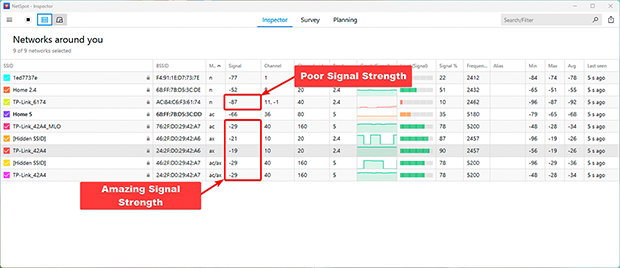
Best Ways to Measure Wi-Fi Signal Strength on Any Device
There are different ways to check your Wi-Fi signal strength, from the basic tools already built into your device to dedicated apps that give you a much closer look at what’s going on. Below are some of the most common ways to do it:
Easy Ways to Check Wi-Fi Signal Strength Using Built-In Tools
You can start with the Wi-Fi icon on your device. Most people ignore it, but it actually gives you a quick sense of how strong the connection is. On Windows, click the Wi-Fi icon in the lower-right corner of the screen and you’ll see the list of nearby networks.
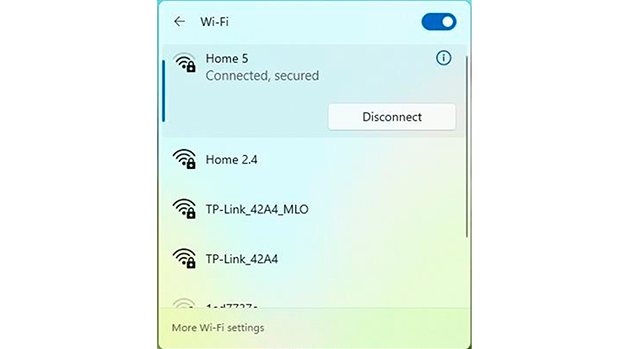
Each network shows a row of bars. In general, more bars means a stronger signal.
If you want something more exact on Windows, open Command Prompt. Press Win + R, type cmd, and press Enter. Then enter this command:
netsh wlan show interfaces
That will show more detailed connection info, including the signal strength shown as a percentage.
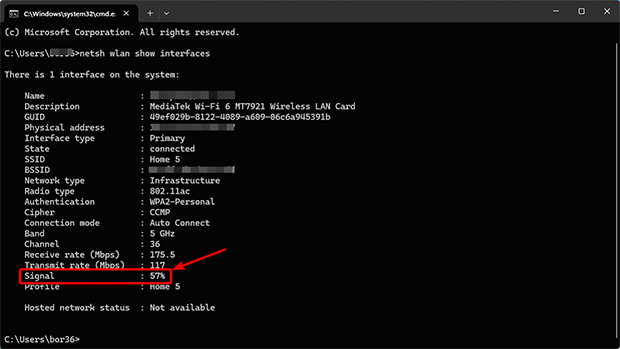
This will show the more detailed connection info, including the signal strength in dBm.
On a Mac, hold down the Option key and click the Wi-Fi icon in the menu bar.
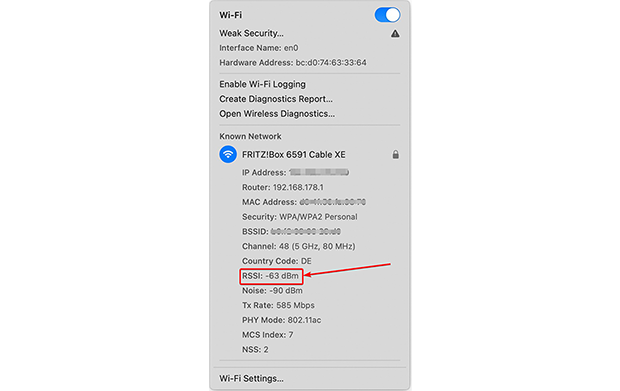
You’ll get a dropdown with extra details about your connection, including RSSI (Received Signal Strength Indicator), which shows how strong the current Wi-Fi signal is.
Best Wi-Fi Apps for Detailed Wireless Signal Analysis
If you're not satisfied with just seeing the "sticks" on the screen and want to dig deeper, take a closer look at NetSpot. It’s easy to use, not overpriced, and gives you a lot more than a simple signal reading. Besides showing your Wi-Fi strength in real time, it can also build a heatmap so you can actually see how the signal spreads around your space.
Check Wi-Fi Signal Strength in Real-Time with NetSpot
Install NetSpot on your Windows laptop, MacBook, or Android device. The free version is enough if your goal is simply to check Wi-Fi signal strength.
Once the app is open, switch to Inspector Mode from the top of the main window. This is where you can get a quick look at what’s going on with your Wi-Fi.
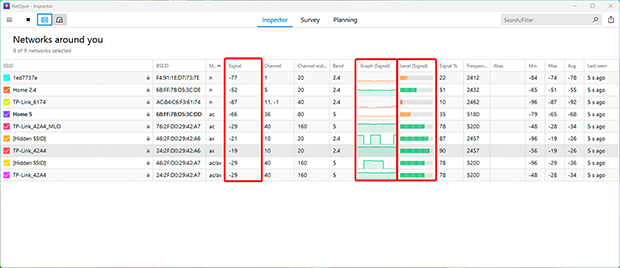
You’ll see a table with useful details such as:
- Signal: This shows the signal strength of each detected network in dBm. A higher (closer to zero) value indicates a stronger signal.
- Level (Signal Level): Provides an easily comparable format to assess signal levels across multiple networks.
- Graph (Signal Graph): Displays real-time changes in signal strength for each network. This is especially useful for identifying instability caused by interference or physical obstacles.
The Signal Strength graph in Inspector Mode makes it much easier to spot whether your connection is steady or constantly jumping around.
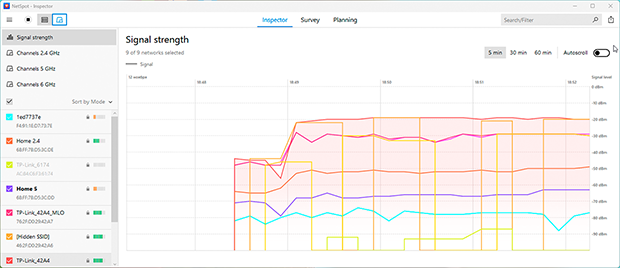
If the graph keeps dipping, that usually points to something getting in the way of the signal, or interference from nearby devices or neighboring networks.

Analyze your Wi-Fi on Android
Inspect, compare, survey, and analyze WiFi networks with NetSpot.
Creating a Wi-Fi Signal Strength Heatmap with NetSpot
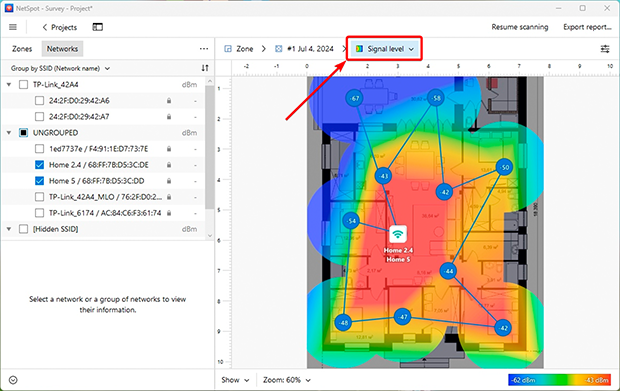
NetSpot can also create a Wi-Fi heatmap, which gives you a visual picture of your coverage. Stronger areas usually appear in green, while weaker spots show up in red, so it’s easy to see where the signal drops off and where your setup may need improvement.
- Signal Level: Shows signal distribution across your space. You can immediately identify areas where the signal is weak and decide where to place additional access points or signal boosters.
- Low Signal Level: Highlights zones with insufficient signal strength. You can customize the thresholds to classify signal quality as poor, acceptable, or strong, helping you focus on critical problem areas.
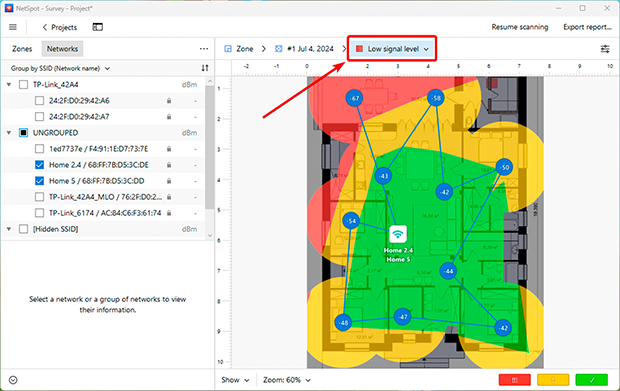
Wi-Fi heatmaps are incredibly useful for identifying gaps in coverage and ensuring every part of your home or office gets reliable Wi-Fi.
How to Really Boost Your Wi-Fi: A Few Working Tips
If your measurements show "blind spots" or a weak signal, don't despair. Here's what you can do right now to stop your internet from stumbling:
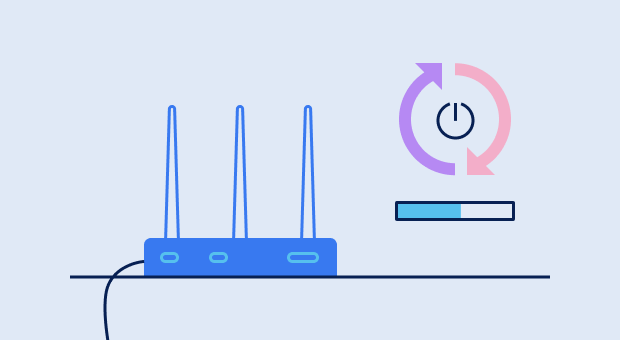
1. Restart Your Router
Yes, the good old "turn it off and on again" advice still works. Routers are like computers; they get tired over time, clog their memory with errors, and start to lag. A simple reboot clears out this digital garbage, and the network often comes back to life on its own.
2. Move the router to a better spot
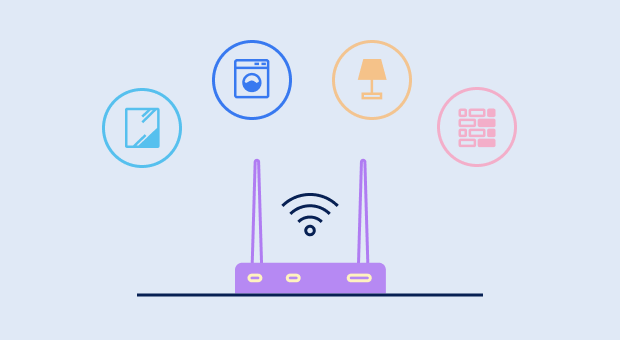
Router placement has a huge impact on Wi-Fi quality. Walls, mirrors, and even a microwave are signal killers. Don't hide your router in a closet or the far corner of the hallway. Ideally, it should be in the center of your apartment in an open space. Try elevating it higher, perhaps on a shelf — this will distribute the signal more effectively, rather than letting it get blocked by the sofa.
3. Upgrade Your Equipment or Add Signal Boosters
If your router is five years old, it's unlikely to handle modern speeds and the WiFi 6 standard. Sometimes it's easier to buy the latest model once than to struggle with an older one.

If you have a large house or apartment with thick walls, a single router may simply not be enough. In this case, it's best to consider mesh systems. These are a set of modules that create a single, seamless network: as you walk from room to room, the internet switches seamlessly and without interruption.

By using tools like NetSpot and following these tips, you can enhance the stability and quality of your Wi-Fi, ensuring reliable internet in every corner of your home or office.
SO, WE RECOMMEND

NetSpot

Get NetSpot for Free
Wi-Fi Site Surveys, Analysis, Troubleshooting runs on a MacBook (macOS 11+) or any laptop (Windows 7/8/10/11) with a standard 802.11be/ax/ac/n/g/a/b wireless network adapter. Read more about the 802.11be support here.