Wi-Fi Site Surveys, Analysis, Troubleshooting runs on a MacBook (macOS 11+) or any laptop (Windows 7/8/10/11) with a standard 802.11be/ax/ac/n/g/a/b wireless network adapter. Read more about the 802.11be support here.
Wireless Network Solutions: Design, Validate, and Optimize Your Wi-Fi
Keep your wireless network fast, reliable, and ready for WiFi 6E/7 — from coverage planning to live troubleshooting — using NetSpot’s survey, WiFi heatmap, and planning toolset.
Wireless networks today are not a luxury, but an infrastructure necessity. With the development of WiFi 6E/7, the increase in the number of connected devices, the transition to remote work, and the introduction of IoT devices, the issue of building a stable WiFi network is becoming increasingly important. In this article, we'll explore the different types of wireless network solutions and why NetSpot is becoming one of the most powerful tools for network analysis, planning, and optimization.
Jump to...
Wireless Networks in the Real World: Design Trade-Offs That Matter
Wireless network design is never a one-size-fits-all solution. A reliable Wi-Fi network that works great in a small office might fall apart in a warehouse, hotel, hospital, or event space. The right wireless network solution always depends on how people move, what they do on the network, and how much traffic they generate — not just the number of access points.
Rather than looking at "problems" in isolation, it's more useful to think about a few recurring design questions: do we have the necessary coverage where work actually happens, sufficient throughput for peak loads, a manageable infrastructure management method, and a reasonable security/segmentation model for all device types?
Coverage and roaming where work actually happens
One of the core goals of any business WiFi deployment is simple: people should be able to walk their real routes — from offices to meeting rooms, along warehouse aisles, through wards and corridors — without dropped calls or frozen handhelds. That’s less about covering every corner of the floor plan and more about following actual workflows.
Most business networks still run in classic infrastructure mode: access points are wired into the LAN, and client devices move between them while staying on the same SSID. Mesh links between APs are typically used only where pulling cable is difficult — for example, in older buildings or outdoor areas — because part of the available airtime is then spent on AP-to-AP backhaul instead of client traffic. Ad hoc, peer-to-peer links are usually limited to temporary, local tasks and are not a foundation for a managed business WLAN.
In practice, you only see the real shape of coverage once you walk the site with a wireless survey tool.
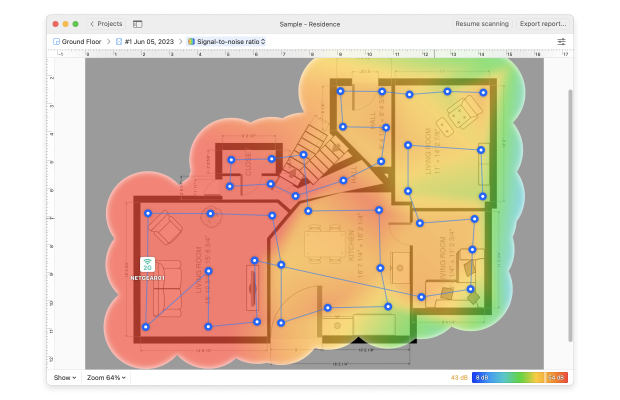
By collecting RF measurements along real user paths and turning them into WiFi heatmaps of signal strength, SNR, and interference, you can verify that design targets are actually met — for example, keeping signal around –40 to –50 dBm with an SNR of roughly 15 dB or better in voice and video areas — before the first support tickets arrive.
Capacity, interference, and finite airtime
Even when coverage appears perfect on the heat map, users may still experience "slow Wi-Fi". The cause is usually not a lack of signal, but a lack of available airtime. Modern environments are congested: corporate access points, guest SSIDs, neighboring offices, personal access points, Bluetooth scanners, cameras, and smart devices all use unlicensed spectrum.
When multiple access points and networks converge on the same channels — especially with wide channel widths left in "auto" mode — one portion of the spectrum becomes overloaded, while quieter channels remain unused. From a user perspective, this manifests as unstable throughput, intermittent calls, and bursts of packet loss, even though signal indicators appear "perfect".
That's why capacity planning and interference management go hand in hand. A Wi-Fi analyzer with channel mapping helps you see which channels are truly occupied, how strong competing networks are (including hidden ones), and where wide channels are doing more harm than good.
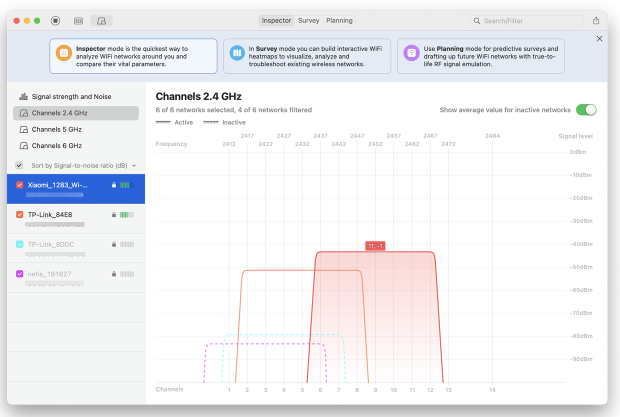
In high-density areas, it's often better to deploy more access points on narrower, well-planned channels than to "open everything" on 160 MHz and allow interference from adjacent channels to degrade throughput.
Enterprise controllers and managed access point platforms then apply operational methods on top of this: redirecting 2.4 GHz-capable clients to 5 or 6 GHz, distributing clients to nearby access points, and adjusting transmit power so that overlapping cells don't drown each other out. But none of these functions are effective if the baseline channel plan is based on assumptions rather than measurements.
Scale, management model, and operational overhead
Another axis where wireless designs differ is scale. A handful of APs in a small office can be configured locally and still remain manageable. Once you start talking about dozens of APs across multiple floors or sites, treating each one as a “one-off” configuration stops being realistic.
In smaller environments — a single office floor, a boutique retail space, a clinic — you might run standalone or lightly managed APs. The important part is not how the AP vendor labels them, but whether you can keep SSIDs, security policies, and radio settings consistent without turning every change into a manual exercise.
Larger campuses, hospitals, schools, and distribution centers typically move to controller-based or cloud-managed architectures. A central system pushes configuration, firmware, and policies to many APs at once, monitors their health, and enforces things like QoS and traffic segmentation.
The wireless design work doesn’t disappear in such environments — you still need to decide where APs go, how dense they should be, and which bands and channels they use — but day-to-day changes can be rolled out once instead of repeated device by device.
The wireless design work doesn’t disappear in such environments — if anything, it becomes more important to plan ahead. That’s why proper planning is just as critical as post-deployment testing. A WiFi planner tool lets you simulate coverage before any hardware is installed, helping you make smarter decisions about placement, density, and band allocation upfront.
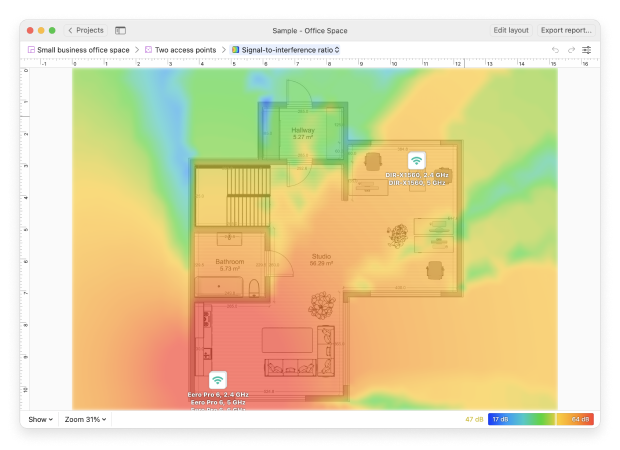
Across both small and large deployments, a recurring question remains: “Do we actually have enough signal and capacity in the places people rely on WiFi?”. That’s where periodic site surveys and validation walks, supported by WiFi heatmaps and measurement-based reports, complement whatever management platform you use.
Security, segmentation, and an untidy device mix
Any device in RF range can at least try to talk to your network. That’s the strength of WiFi and its main risk at the same time.
Modern deployments rely on WPA2/WPA3, 802.1X/RADIUS where appropriate, and per-SSID policies mapped to VLANs to keep different types of traffic apart. Corporate laptops, point-of-sale terminals, medical devices, cameras, IoT sensors, and guest phones usually shouldn’t live in the same broadcast domain or see the same resources.
A practical wireless network solution therefore combines a sensible SSID/VLAN strategy with regular visibility into what is actually on the air. A wireless network analyzer can show all SSIDs currently visible — not only the ones you meant to deploy, but also personal hotspots, accidental open networks, and test SSIDs someone forgot to remove. It will also show which security methods each network uses, making it easier to spot legacy protocols, weak configurations, and potential rogue access points.
Solving WiFi Problems with NetSpot
A strong wireless network solution is not just hardware. You also need visibility: where coverage is weak, where interference is high, where roaming breaks, and where capacity won’t hold up.
NetSpot is a WiFi survey and planning application designed to cover that visibility layer. It brings together three critical capabilities:
WiFi scanning and live analysis
NetSpot displays information about nearby networks in real time, including hidden SSIDs.
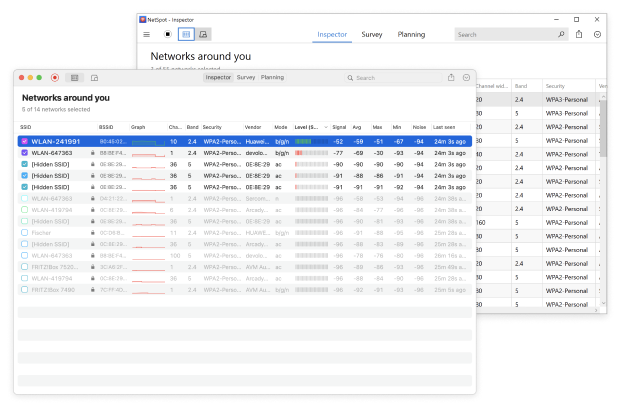
It shows a clear Signal Strength graph and Channel graphs, supporting all modern WiFi standards up to the 6 GHz band.
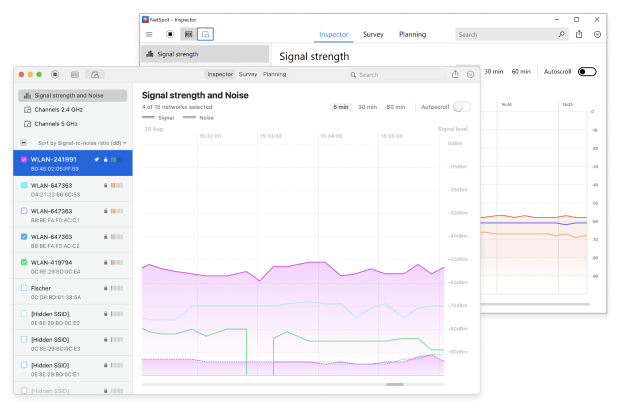
The graphs are easy to read and interactive, with filtering options by band, signal strength, security type, vendor, mode, channel, and channel width. This helps with interference mitigation, channel selection, and basic wireless security hygiene.
On-site surveys and WiFi heatmaps
NetSpot lets you perform full wireless surveys and generate over 20 different types of interactive WiFi heatmaps. These include signal level, SNR, upload/download speed, PHY mode coverage, and more.
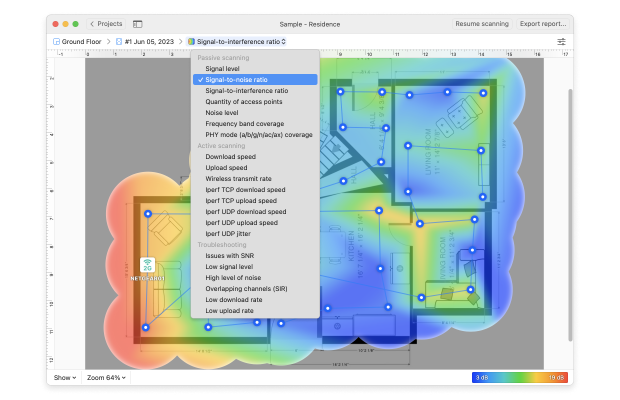
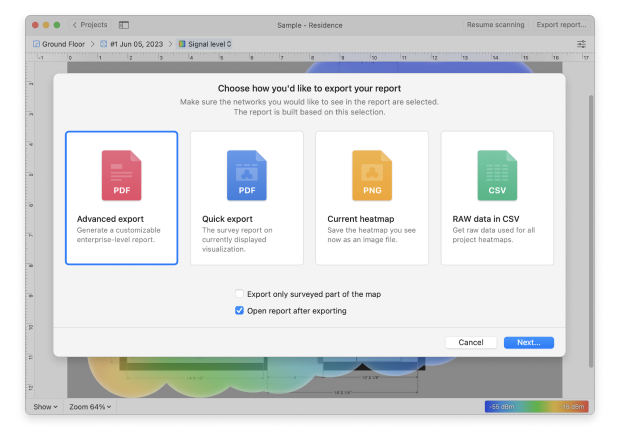
You can also run active scanning to measure real-world performance — such as upload/download speed and jitter — in specific zones where WiFi quality matters most. All collected data and visualizations can be exported (PDF, CSV), so you can document issues, share results with stakeholders, or justify upgrades and new access points.
Predictive planning and capacity forecasting
NetSpot also includes a planning mode that helps you design a wireless network before buying or installing new hardware. You can place virtual access points on top of your floor plan and experiment with positioning to see how coverage would be distributed across 2.4, 5, and 6 GHz bands.
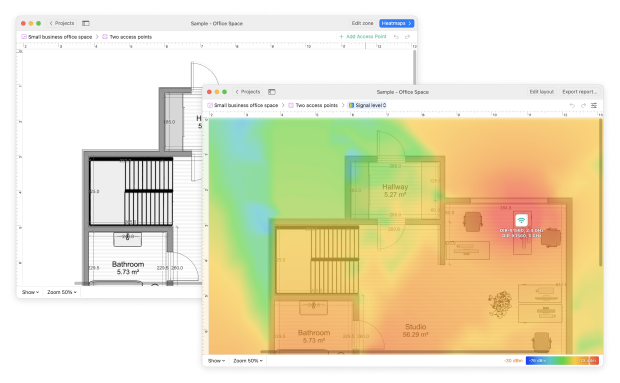
The tool lets you pick access points from a built-in list of hardware profiles or manually define your own AP with custom radio parameters. You can adjust how many APs you deploy, move them around to test different layouts, and simulate different antenna configurations — including antenna model and tilt — to understand how that affects projected coverage.
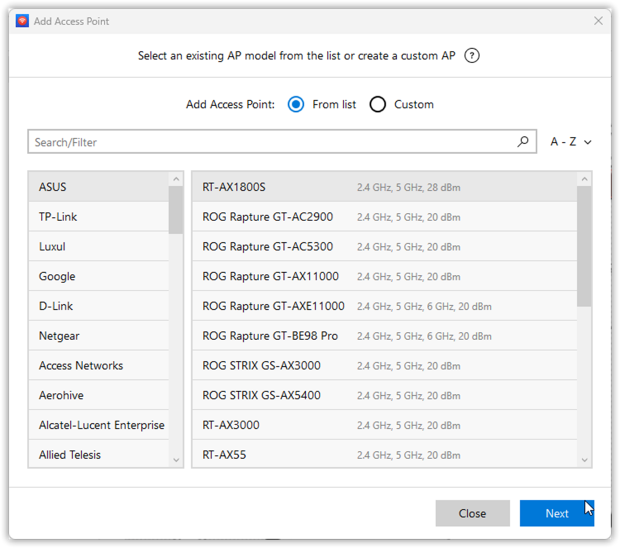
This approach helps answer core design questions in advance: How many access points do we actually need for this space? Where should they go to minimize overlap and self-interference? Will this layout handle a high-density area like a classroom, sales floor, or loading zone without choking capacity on day one?
Because NetSpot runs on Windows and macOS for full surveys and planning — and on mobile platforms (Android/iOS) for quick on-site checks and speed tests — it supports both initial rollout and ongoing validation. That means you can design for day one, confirm performance after deployment, and re-check as your environment changes.
A tool like NetSpot brings these capabilities together in one place and becomes a dependable assistant in building and maintaining a stable wireless network solution. Instead of guessing, you work with real data and can make confident decisions for both new deployments and existing environments.
SO, WE RECOMMEND

NetSpot
A wireless network solution isn't just about choosing equipment. It's about planning, measuring, and optimizing your network. NetSpot offers a comprehensive approach: from troubleshooting problems to planning a new WiFi infrastructure, taking all factors into account.
FAQs on Wireless Network Solutions
How can I design a wireless network that avoids dead zones and slow speeds?
Use wireless site survey tools like NetSpot to measure real signal strength, noise, and interference across your environment. Predictive planning features let you simulate AP placement, wall materials, and channel usage — helping you avoid guesswork and design for maximum coverage and performance from day one.
How does a WiFi site survey help after deployment?
A site survey collects real signal, noise, and SNR data across the actual space and visualizes it as heatmaps. You immediately see where users will have problems with VoIP, video calls, scanners, or point-of-sale tablets, so you can fix those exact areas instead of guessing.
How can I fix poor Wi-Fi coverage in my office or warehouse?
You can fix poor coverage by:
- Running a Wi-Fi site survey to detect weak zones.
- Relocating or adding access points.
- Using predictive planning tools to test antenna placement and reduce interference.
- Ensuring proper channel and transmit power settings.
NetSpot helps with both live troubleshooting and future-proof planning.
How do I know how many access points I need?
NetSpot’s Planning Mode lets you simulate your WiFi coverage before purchasing or installing any hardware. Just load your floor plan, define walls and materials, and test different AP counts and placements. It even lets you pick from a list of access point models or set custom radio profiles.
NetSpot is one of the most comprehensive wireless network solutions for this. It visualizes channel congestion, signal overlap, and dead zones. It also supports active scanning to test upload/download speeds and jitter in real-world conditions.
What’s the difference between infrastructure, mesh, and peer-to-peer WiFi setups?
- Infrastructure mode: Standard business WiFi with Ethernet-connected APs.
- Mesh mode: APs wirelessly link to each other, ideal for cable-limited spaces.
- Ad hoc (peer-to-peer): Temporary device-to-device connections, not scalable.
NetSpot helps analyze and optimize each type with both predictive and real-world testing.
How can I improve WiFi performance in a high-density environment like a school or clinic?
Use a wireless network solution that supports:
- Channel planning with proper widths (20/40/80/160/320 MHz),
- Load balancing (band steering),
- Transmit power tuning,
- VLAN segmentation and SSID mapping.
NetSpot helps you model, deploy, and verify these strategies with live data.

Get NetSpot for Free
Wi-Fi Site Surveys, Analysis, Troubleshooting runs on a MacBook (macOS 11+) or any laptop (Windows 7/8/10/11) with a standard 802.11be/ax/ac/n/g/a/b wireless network adapter. Read more about the 802.11be support here.