Wi-Fi Site Surveys, Analysis, Troubleshooting runs on a MacBook (macOS 11+) or any laptop (Windows 7/8/10/11) with a standard 802.11be/ax/ac/n/g/a/b wireless network adapter.
Wireless infrastructure is no longer just about getting a decent signal at home — it’s become a critical part of doing business. From handling customer service chats to keeping smart devices and payment systems online, nearly everything today relies on stable WiFi. And with WiFi 6E and WiFi 7 making their way into offices and homes, it’s not enough to just plug in a router and hope for the best.
This guide takes a fresh look at what wireless infrastructure means right now, why it’s key to staying competitive, and how using a WiFi analyzer can help you design, test, and fine-tune your network like a pro — without needing to be one.
Jump to...
What Is Wireless Infrastructure?
A wireless infrastructure is the integrated system of hardware and software that provides wireless connectivity. It’s what keeps your devices online and your network running smoothly — whether at home or in a corporate environment.
Let's take a closer look.
At its core are WiFi access points (APs) — they create a wireless signal and connect your devices to the network. Proper placement of APs ensures reliable and stable coverage anywhere on the network.
A router acts as a traffic distributor, connecting your internal network to the internet and managing data flows between devices.
Network switches manage the wired connections between devices and APs, helping manage large-scale networks with multiple access points.
A controller — either physical or cloud-based — is used for centralized management of your wireless network: configuring settings, installing updates, and monitoring performance.
Cabling, typically Ethernet and sometimes fiber, links all physical components together.
External antennas help fine-tune signal direction and coverage.
Planning and diagnostics tools — like WiFi analyzers — play a key role in building solid wireless infrastructure. They take the guesswork out of the process, helping you design the network properly from the start, test it under real conditions, and spot issues like interference before they cause problems. At the end of the day, the goal is clear: give every user fast, stable WiFi, no matter where they are in the building.
How to Design WiFi Infrastructure with Modern Tools
There’s no shortage of tools out there for designing and analyzing wireless infrastructure — from high-end enterprise suites to more accessible solutions for small teams and individuals. Some offer powerful features but come with a steep price tag or learning curve. Others aim to be simpler but might lack depth. Among the most popular options are NetSpot, Ekahau, and VisiWave.
For this walkthrough, we’ll use NetSpot as our example — not because it's the only choice, but because it strikes a rare balance: it’s affordable, packed with pro-level features, and easy enough to use even if you're not a wireless engineer.
1. Define Your Network Requirements
Before touching any tools or hardware, step back and clearly define what your network is supposed to handle.
How many users will be online at once? What types of devices are they using — phones, laptops, IoT devices? Will the network need to support high-bandwidth activities like 4K video streaming, cloud-based apps, or VoIP? Is mobility important, or are most users stationary?
Also consider the physical environment. Are you covering a large open office, a multi-room building, a warehouse with concrete walls, or a multi-story layout? Will you need support for WiFi 6E or WiFi 7?
Knowing the answers will guide your equipment choices, layout design, and performance targets — and will help avoid costly rework later on.
2. Assess the Environment
The first step — whether you’re working with a home setup or planning a business-grade deployment — is to understand what’s happening in your current Wi-Fi environment. That means scanning for surrounding networks and evaluating signal conditions before making any changes.
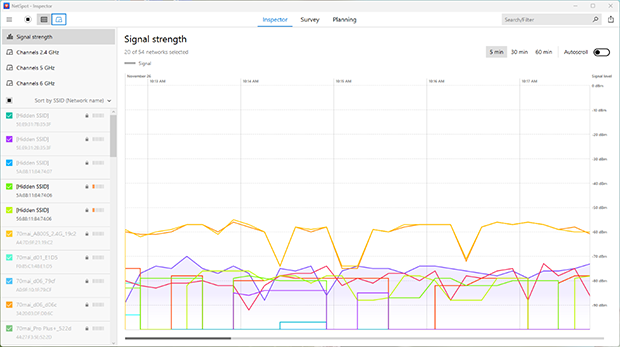
In NetSpot, this is done through Inspector Mode, which gives you a clear, real-time snapshot of nearby wireless activity. You’ll see key details like SSID, signal strength (RSSI), frequency band (2.4, 5, or 6 GHz), channel, security — all in one place. Even hidden SSIDs can be detected, giving you a complete view of the RF landscape.
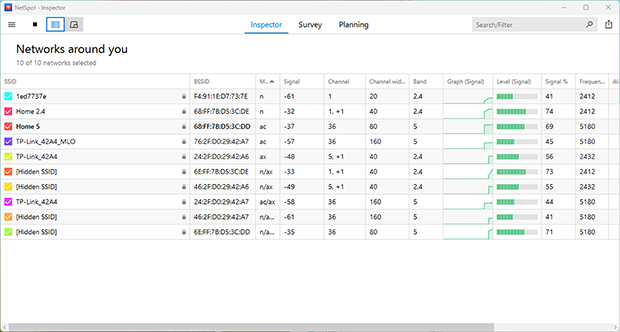
The data is organized in an easy-to-read table and accompanied by visual graphs — such as signal level over time and channel usage — so you can quickly spot overloaded bands or unstable signals.
3. Map Coverage with Heatmaps
Once you understand the surrounding wireless environment, the next step is to see how your own signal performs throughout the space — not just in theory, but in practice. This is where heatmaps come in handy.
Using NetSpot's survey mode, you can perform a WiFi site survey and get visual data about your network coverage.
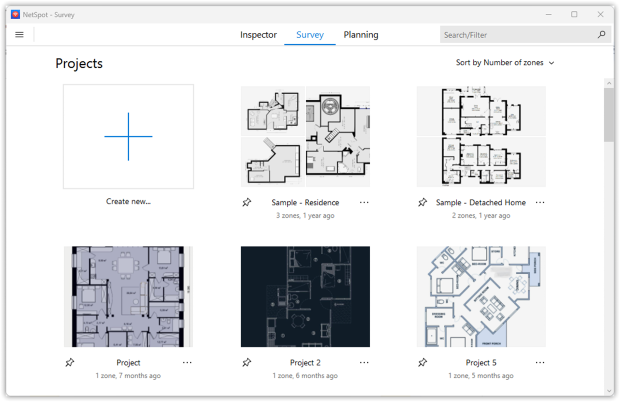
The app creates detailed, color-coded WiFi heatmaps (over 20 different types) that make it easy to spot weak spots, areas with interference, and areas without a signal — without having to look at raw numbers.
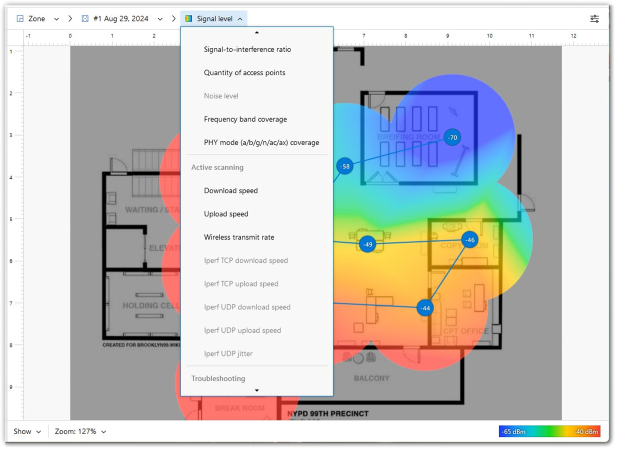
Heatmaps provide visual clarity: instead of just seeing that a signal is “-72 dBm,” you see that the room in the far corner is glowing blue while the office near the AP is red — meaning strong coverage. This kind of visualization is invaluable when planning upgrades or troubleshooting performance issues.
NetSpot also supports active scanning during surveys, meaning you can measure real upload and download speeds at every point on the map. That gives you a much clearer picture of how the network actually performs — not just what the signal should be, but how fast it really is. This is especially useful in high-density environments or when deploying WiFi 6E in the 6 GHz band, where signal behavior can be more unpredictable.
Together, these tools help ensure your network isn't just technically functional — it actually works where and when people need it.
4. Design and Deploy Your Wireless Layout
Once you've assessed the environment and mapped current coverage, it’s time to plan the future layout — and select the equipment that fits.
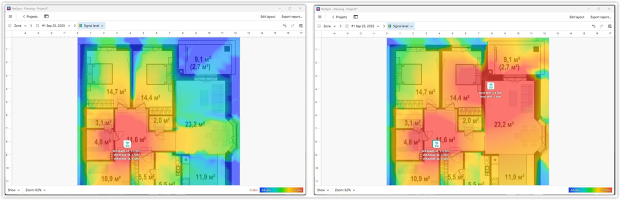
Start by using Planning Mode in NetSpot to simulate your deployment. You can place virtual APs directly on the floorplan, adjust antenna type, model and direction, and model how walls, furniture, and construction materials will affect signal propagation. NetSpot lets you pick from real hardware models or enter custom specs, so you can compare how different APs will perform before spending a dollar.
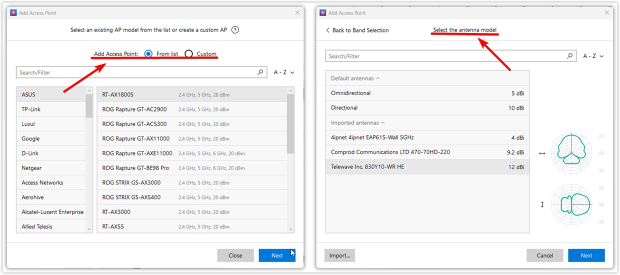
By simulating in advance, you’ll know exactly how many APs you need, where to place them, and how to avoid dead zones or overloaded cells.
From there, you can make informed decisions about your real-world equipment: choose access points that match your coverage and capacity needs, support the right standards, and integrate cleanly with your existing network.
If Power over Ethernet (PoE) is available, that can simplify cabling and reduce install time.
After selecting your equipment, move on to installation. Place access points according to your model — ideally on ceilings or high walls, clear of large metal objects or other sources of interference. Make sure antennas are aligned as planned, and run cabling in a way that avoids creating bottlenecks or physical clutter.
Done right, this phase ensures your network performs as expected — with minimal guesswork and fewer costly changes down the line.
5. Configure the Network Properly
After all the hardware is in place, the next logical — and absolutely essential — step is configuration. This is where design turns into a working system.
Start with the basics: assign static IP addresses if needed, set up DHCP ranges, and configure any required VLANs to segment guest traffic or separate departments.
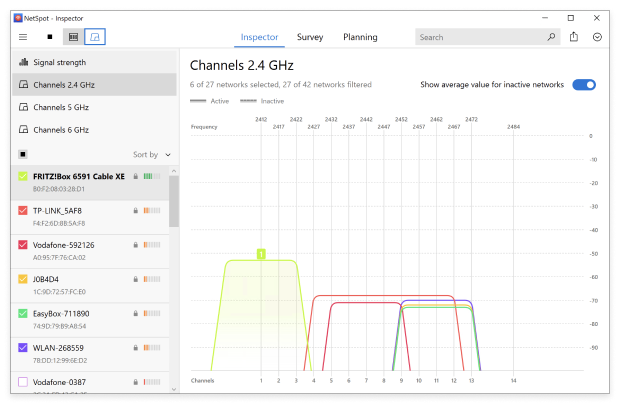
Don’t overlook one of the most important parts of configuration — channel and band settings. Many access points default to automatic channel assignment, but this can cause instability in high-density environments. Take time to manually assign the best channel and optimal channel width based on real wireless interference data.
Use NetSpot’s Channel Graphs to see which channels are overloaded and where there’s room to breathe.
Security settings are equally important. Enable WPA3 wherever possible for stronger encryption. Configure firewall rules, disable unused services, and apply access controls to restrict who can connect to which parts of the network. If remote management is enabled, ensure it’s protected with strong credentials and two-factor authentication.
Proper configuration ensures that your carefully designed network doesn't get sabotaged by poor defaults or overlooked details. It’s what separates a functional deployment from a reliable one.
6. Recheck and Maintain Your Network Over Time
Once the network is fully deployed and configured, it’s tempting to call the job done — but one more step can save you a lot of trouble down the line.
After setup, it’s a good idea to perform a final walkthrough survey to validate that everything works as planned. Use wireless network analytics software to measure actual signal strength, noise levels, and throughput across the space. Make sure dead zones are gone, roaming handoffs feel smooth, busy areas hold up under load, and no new sources of interference have appeared.
This control check helps confirm that your design holds up in real-world conditions — and gives you a performance baseline to compare against in the future.
From there, shift into routine monitoring and maintenance. Wireless networks are dynamic — neighboring routers, new devices, layout changes, or even seasonal interference can affect performance. Keep firmware up to date, track AP loads, and periodically re-survey to catch issues early. If signal levels drop or interference creeps in, you’ll have the data to adjust channels, shift AP power, or rebalance the load before users start complaining.
A properly maintained network doesn’t just work — it stays fast, stable, and secure over time.
Why Good Wireless Infrastructure Matters
A well-planned wireless network pays for itself fast because stability is the baseline your apps expect. When design is driven by measurements (coverage, SNR, interference) rather than guesswork, help-desk tickets drop, voice/video stop glitching, and busy areas hold up under load.
Performance improvements aren't accidental, but intentional. Clean spectrum, appropriate channel widths, and a sufficient number of access points for your user load are crucial. Planning helps avoid common pitfalls, such as congested 2.4 GHz channels or overly wide 160 MHz channels, which create more interference than they solve.
It's also a cost-effective approach. Instead of deploying excessive access points "just in case," thoughtful planning allows you to deploy fewer access points more strategically. This means lower equipment, cabling, and maintenance costs — and better results.
Finally, a well-planned infrastructure is easier to expand and update, whether you're adding a new floor, upgrading to WiFi 7, or connecting dozens of IoT sensors. This forethought transforms wireless network setup from a constant headache into a long-term asset.
Final Thoughts
Good WiFi isn’t luck — it's a process. Define requirements, measure, and tune continuously. Using the right WiFi checker app to capture real RF data turns guesswork into decisions. For any wireless network infrastructure, the design → validate → optimize loop is still the fastest route to stable performance.
SO, WE RECOMMEND

NetSpot
Wireless Infrastructure FAQ:
What is wireless infrastructure in networking?
Wireless infrastructure refers to all the components — hardware and software — that support wireless communication, including access points, controllers, antennas, cabling, and signal management systems. It enables WiFi connectivity throughout a space without relying on Ethernet cabling to each endpoint.
What are the benefits of using 6 GHz and Wi-Fi 7 in wireless infrastructure?
The 6 GHz band, introduced with WiFi 6E, offers cleaner spectrum with less interference and more non-overlapping channels. WiFi 7 builds on this with wider 320 MHz channels and Multi-Link Operation (MLO) for better speed and stability. Integrating these technologies makes your wireless infrastructure more scalable and future-proof.
Start by mapping out the floor plan and identifying construction materials that affect signal (e.g., brick, glass, metal). Determine the number of users and devices per area, conduct a site survey, and plan AP placement to balance coverage and capacity. Factor in current and future needs, especially if deploying WiFi 6E or WiFi 7.
How many access points do I need for my WiFi infrastructure?
There’s no universal AP-per-square-foot rule. Count clients and throughput needs first, then place for capacity and roaming (not just coverage). Start from a predictive plan, verify on-site, and add or adjust as needed. A WiFi planning tool helps you quickly test different AP layouts, channels, and transmit powers before you commit to real hardware changes.
What tools can I use to analyze my wireless infrastructure?
WiFi testing tools like NetSpot can measure signal strength, noise, interference, channel usage, and throughput. These tools often provide heatmaps and planning features to help optimize your wireless layout before and after deployment.
What’s the difference between wireless infrastructure and wireless network infrastructure?
They’re used interchangeably in practice; ‘wireless network infrastructure’ explicitly emphasizes the end-to-end network (APs, controllers, switches, cabling, spectrum design, and management).
After planning the access points, I still run into configuration issues. What exactly should I configure correctly to prevent the network from falling apart within a week?
Usually, things break not because of the hardware, but because of small details: mixed security modes, strange SSID logic, overly wide channels where they're not needed, and the lack of a clear diagram for guest devices. Configuration WiFi network at home is best done as an extension of the design: first, you set the rules (who goes where and what they're allowed to do), then you include them in the configuration, and only then you test the behavior in real locations on the map to ensure that the behavior matches your expectations.
How does WiFi design for an office differ from a temporary network for an event?
At high-density event Wi-Fi deployments, the main enemy isn't a "weak signal," but airtime and competition for airtime. Even with a good RSSI, the network can be poor because hundreds of clients are trying to communicate simultaneously. Therefore, it's more important to segment the load, carefully cut cells, and monitor channel width and actual capacity, rather than chasing "maximum power." And testing should be as close to real-world conditions as possible, otherwise the picture will only be optimistic in an empty venue.
Should you set up a separate guest network right away, or is it optional?
If the premises are used by visitors, contractors, clients, or simply many personal devices, a guest SSID is usually simpler and more secure than trying to force everyone onto a single network. Guests are provided with internet access, while internal resources and devices remain private.

Get NetSpot for Free
Wi-Fi Site Surveys, Analysis, Troubleshooting runs on a MacBook (macOS 11+) or any laptop (Windows 7/8/10/11) with a standard 802.11be/ax/ac/n/g/a/b wireless network adapter.