WiFi analyzer app runs on a MacBook (macOS 11+) or any laptop (Windows 7/8/10/11) with a standard 802.11be/ax/ac/n/g/a/b wireless network adapter. Read more about the 802.11be support here.
Wireless Analyzer: What It Is, How It Works
Discover how wireless analyzers work, what features matter, and which tools to choose for WiFi troubleshooting, heatmaps, and network optimization.
If your WiFi feels slow, unstable, or just “off”, guessing won’t fix it. You need visibility. That’s exactly where a wireless analyzer comes in. A wireless analyzer is a tool that shows what’s actually happening in your WiFi environment — signal strength, interference, channel congestion, and overall network behavior. Without it, you’re basically troubleshooting blind.
As more devices pile onto WiFi (phones, TVs, smart home gear), wireless analysis is no longer just for IT pros — it’s something every network, even at home, benefits from.
Jump to...
What Is a Wireless Analyzer?
If your WiFi is slow or inconsistent, the issue is usually not random. To identify the exact cause, you need actual RF data, not just signal bars. That’s where a wireless analyzer becomes essential.
A wireless analyzer is software that scans and analyzes nearby WiFi networks and radio conditions.
It gives you real data like:
- Signal strength (RSSI in dBm)
- Channel usage and overlap
- Interference from neighboring networks
- Network band (2.4 GHz, 5 GHz, 6 GHz)
- Wi-Fi coverage quality across your space
It gives you visibility into how your network interacts with neighboring networks.
How Does a Wireless Analyzer Work?
A wireless analyzer uses your device’s WiFi adapter to scan the surrounding radio environment and collect data broadcast by nearby access points and client devices. This includes information such as SSID, BSSID, signal strength, channel, channel width, band, and security settings.
Basic tools display this information as a live network list, signal graph, or channel graph, which helps you quickly see which networks are nearby, how strong they are, and where congestion exists. More advanced tools go further by collecting measurements across multiple physical locations and turning that data into Wi-Fi heatmaps that show how signal, noise, and interference change throughout a space.
Some specialized tools work at a lower level and capture wireless packets directly. That makes it possible to analyze retransmissions, roaming behavior, authentication failures, or other traffic-level issues that normal signal-based tools cannot show.
In simple terms, a wireless analyzer does not improve your WiFi by itself — it collects the data your network is already giving off and turns it into visual information you can use to troubleshoot, optimize, or plan your setup more effectively.
Once you have this data, you can actually solve real WiFi problems instead of guessing.
A wireless analyzer helps you:
- Identify crowded or overlapping channels
- Find weak signal areas and dead zones
- Detect interference from nearby networks or devices
- Visualize coverage with heatmaps
- Improve access point placement and channel selection
Wireless Analyzer Tools Compared
There are many wireless network analysis applications available. Not all wireless analyzer tools solve the same problem. Some are built for quick checks, others for full network optimization, and some for very specific technical diagnostics.
Let’s break down the most popular wireless analyzer tools in each category and compare how they perform.
Universal Wireless Network Analysis Tools
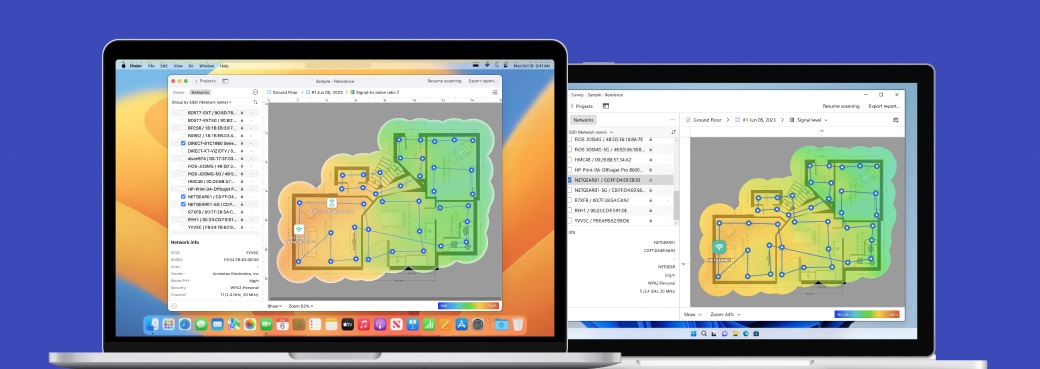
NetSpot is one of the most practical tools if you want everything in one place without overcomplicating things.
-

Inspector Mode
Gives you real-time insights into the WiFi networks around you.
-

Survey Mode
Provides a comprehensive, map-based analysis of your WiFi network's performance.
-

Planning Mode
Enables you to simulate and plan your WiFi network's layout and coverage.
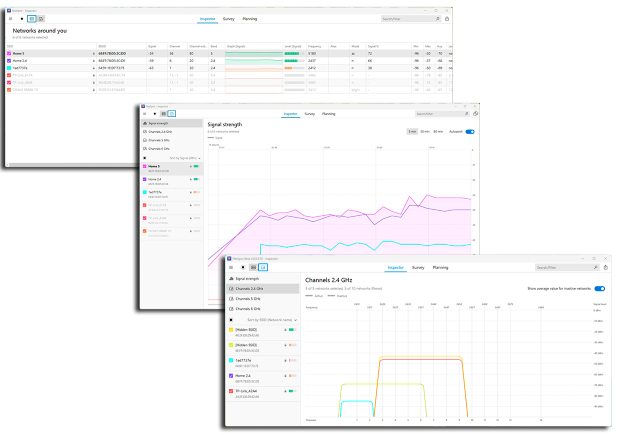
Inspector Mode (real-time analysis) — detects all nearby networks (SSID, BSSID, channel, band, RSSI) and presents them in a detailed Networks Around You table, combined with a Signal Strength graph to track changes over time and identify instability, and a Channels graph with a clear visual representation of channel overlap and congestion. It also allows signal-level filtering and quick identification of crowded or problematic channels.
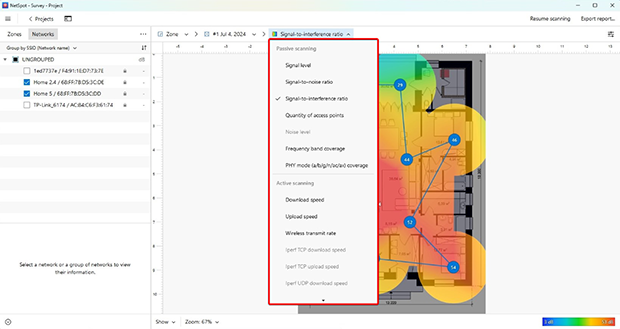
Survey Mode (heatmaps) — builds visual Wi-Fi heatmaps (20+ visualizations) based on real measurements, showing signal level, SNR, interference, noise, and overall coverage quality. This makes it easy to identify dead zones, weak coverage areas, and unstable parts of the network.
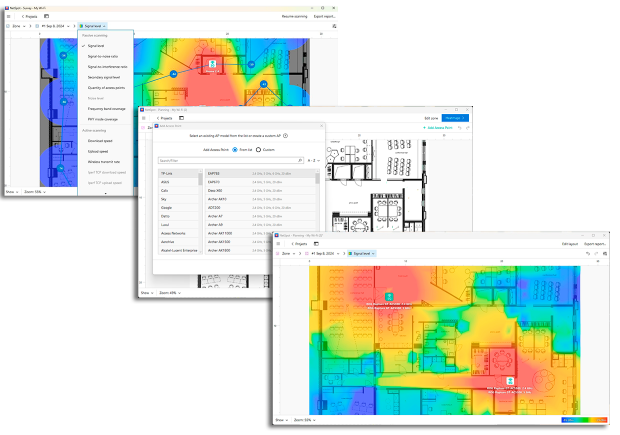
Planning Mode (predictive analysis) — simulates Wi-Fi coverage before deployment, supports access point placement, hardware selection, and even antenna configuration, while modeling walls, materials, and signal propagation to help design a network that actually works before you install anything.
Supports 2.4 / 5 / 6 GHz (Wi-Fi 6E / Wi-Fi 7 ready environments)
Cross-platform (Windows, macOS, Android)
Covers the full workflow: analyze → visualize → optimize → plan
What this means in practice: you’re not just seeing raw data — you can clearly understand what’s happening in the air, spot interference, and make decisions faster.
Works well for both beginners and professionals, which is rare for this type of software.
Basic Wireless Analyzer Tools (Quick Checks Only)

Available for Windows 10 version 10240.0 or higher.
This is a typical example of a lightweight tool when you just need a quick look at what’s going on around you.
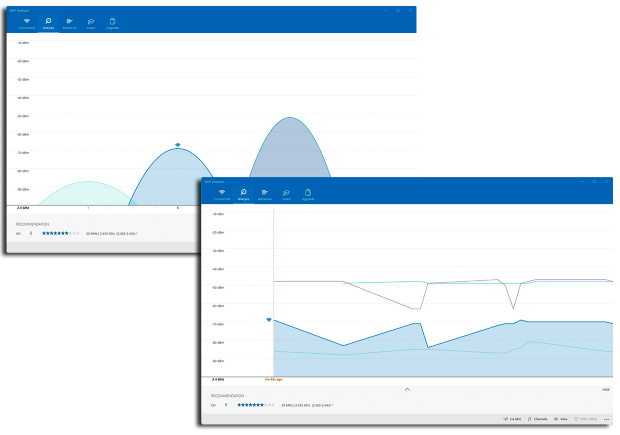
Real-time network detection — shows all nearby networks with key details like SSID, BSSID, signal strength (RSSI in dBm), channel, band (2.4 / 5 / 6 GHz), and security type, so you can quickly understand what’s happening around you.
Channel graph visualization — provides a clear visual view of channel distribution and overlap, making it easy to spot congestion and see which channels are overcrowded versus relatively free.
Signal strength tracking — displays signal levels in real time, helping you move around and quickly identify where the signal drops or becomes unstable.
Channel rating / recommendations — suggests better channels based on current congestion, which is useful when you just want a quick optimization without digging into RF theory.
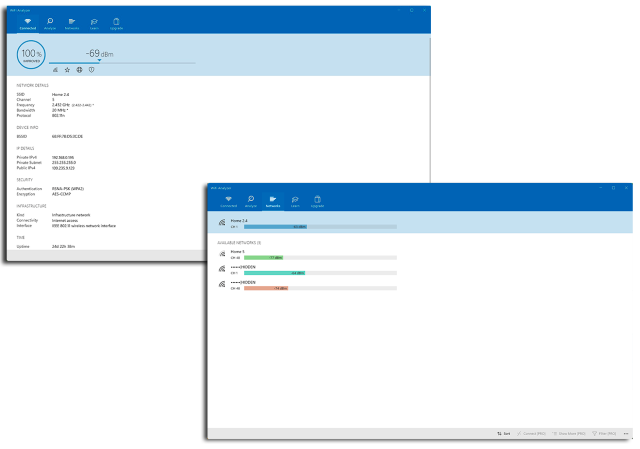
Basic filtering and sorting — allows you to focus on specific networks, bands, or signal ranges to simplify analysis in crowded environments.
Helps identify the best Wi-Fi channel.
What this means in practice: you can quickly understand if your Wi-Fi issues are caused by channel congestion or weak signal without diving into complex tools.
Best for quick questions like: “Which channel should I switch to?” or “Is my signal weak here?”
Specialized Wireless Analysis Tools (Advanced Diagnostics)

Runs on Linux (most compatible), macOS (with native Airport!) and Windows (remote capture via WSL).
Kismet is a powerful tool built for deep RF monitoring and wireless security analysis rather than everyday troubleshooting.
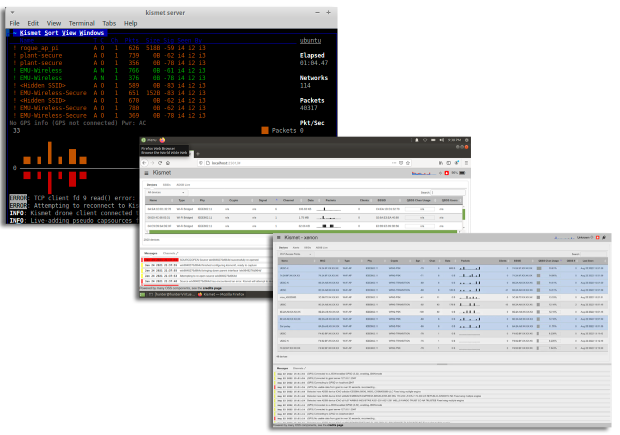
Passive RF monitoring (no active probing) — collects packets directly from the air without sending any traffic, which allows you to detect networks and devices without being visible on the network.
Detection of hidden and non-broadcast networks — identifies SSIDs that don’t appear in standard scans by analyzing traffic instead of relying on beacon frames.
Wireless IDS (Intrusion Detection System) — monitors for suspicious activity like rogue access points, unusual devices, or potential attacks in the wireless environment.
Multi-protocol RF analysis — works not only with Wi-Fi, but also Bluetooth, Zigbee, and other wireless signals, giving a broader view of the RF environment.
Packet capture and logging — records raw wireless traffic and saves it for deeper analysis (for example, in Wireshark-compatible formats).
Channel hopping and wide coverage scanning — automatically switches between channels to detect as many networks and devices as possible in the environment.
What this means in practice: Kismet doesn’t just show Wi-Fi networks — it reveals everything happening in the air, including hidden devices, suspicious activity, and non-Wi-Fi interference.
Best for: security analysis, RF monitoring, detecting rogue or hidden devices.
Not for: coverage optimization, heatmaps, channel tuning for performance.
Specialized Wireless Analysis Tools (Advanced Diagnostics)

Available for Windows, Linux, OS X, Solaris, FreeBSD, NetBSD, and many others.
Wireshark is the go-to tool when you need to understand what’s actually happening inside your network traffic, not just at the signal level.
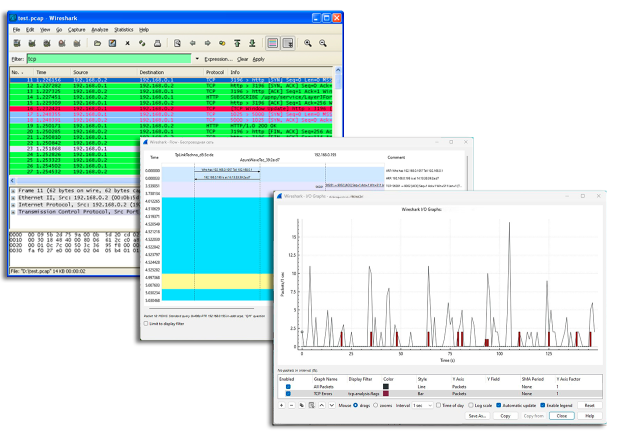
Packet capture (802.11 frames and protocols) — records raw wireless traffic, including management, control, and data frames, giving full visibility into how devices communicate.
Deep protocol inspection — decodes traffic at multiple layers (TCP, UDP, ARP, DHCP, TLS), helping you see exactly where communication breaks or slows down.
Retransmission and latency analysis — helps identify issues like packet loss, high latency, or excessive retries that directly impact performance.
Authentication and handshake troubleshooting — detects problems during connection setup, such as failed authentication, dropped sessions, or WPA/WPA2 handshake issues.
Filtering and traffic isolation — allows you to isolate specific devices, sessions, or types of traffic, making it easier to focus on a particular problem.
Capture export and offline analysis — saves traffic logs for deeper investigation or sharing with other tools and teams.
What this means in practice: instead of guessing why something is slow or unstable, you can see exactly where communication fails — at the protocol level.
Best for: deep troubleshooting, debugging complex or unstable problems, analyzing specific client or application behavior.
Not for: coverage analysis, signal strength or heatmaps, channel optimization.
Enterprise Wireless Analyzer Tools (Large-Scale Deployments)

Available for Windows 10/11 (64-bit), macOS 11 and later.
Ekahau is a professional toolset used for designing, validating, and troubleshooting Wi-Fi networks in complex environments.
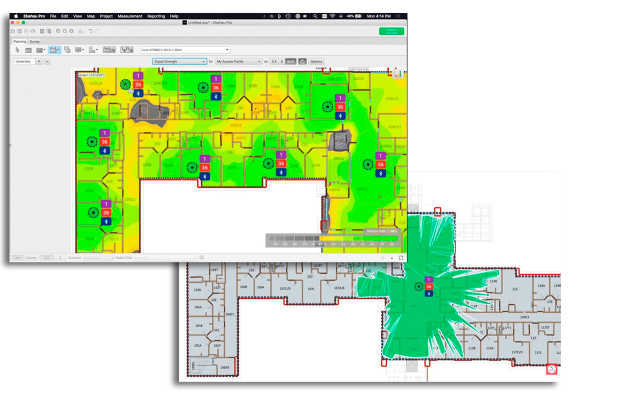
Survey workflows (passive, active, validation) — collect real on-site measurements to analyze signal strength (RSSI), SNR, noise, channel usage, roaming behavior, and actual client performance. Active surveys allow testing throughput, latency, and packet loss from a client perspective.
Predictive Design (pre-deployment planning) — design Wi-Fi networks before installation by placing access points on a floor plan, configuring transmit power, antenna patterns, and simulating signal propagation based on wall materials and attenuation.
Wi-Fi heatmaps — generate professional-grade visualizations including signal strength, SNR, channel overlap, interference, data rates, and capacity. These are used for both troubleshooting and validation.
Capacity planning — estimate how many users a network can support based on device density, application requirements, and airtime utilization.
Spectrum analysis (with Ekahau Sidekick) — detect non-Wi-Fi interference (e.g., microwaves, Bluetooth, other RF sources) that standard Wi-Fi adapters cannot see.
Hardware integration (Ekahau Sidekick) — a dedicated measurement device that provides more accurate and consistent data collection, faster surveys, and built-in spectrum analysis.
What this means in practice: Ekahau is not just for “checking Wi-Fi” — it’s used to design networks from scratch, validate deployments, and troubleshoot complex RF issues with high accuracy.
Best for: enterprise environments, high-density networks, professional WiFi engineers.
Limitations: Expensive (software + hardware), requires experience and training, overkill for home or small office use.
Conclusion
A wireless analyzer isn’t just a “nice to have” anymore. With modern WiFi environments getting more crowded and complex, it’s essential.
Good wireless analysis helps you: understand your coverage, reduce interference, сhoose better channels, and plan smarter network layouts.
And instead of guessing what’s wrong with your WiFi, you finally get clear answers. If you want a tool that makes all of that easy to understand and actually actionable, NetSpot is one of the most balanced options out there today.
SO, WE RECOMMEND

NetSpot
WiFi analyzer app runs on a MacBook (macOS 11+) or any laptop (Windows 7/8/10/11) with a standard 802.11be/ax/ac/n/g/a/b wireless network adapter. Read more about the 802.11be support here.

Get NetSpot for Free
Wi-Fi Site Surveys, Analysis, Troubleshooting runs on a MacBook (macOS 11+) or any laptop (Windows 7/8/10/11) with a standard 802.11be/ax/ac/n/g/a/b wireless network adapter. Read more about the 802.11be support here.