WiFi Analyzer — Improving WiFi Performance
A WiFi analyzer is a useful software application that can tell you many things about your wireless network and the networks around you, helping you optimize your WiFi for best performance.
Jump to...
What Is a Wi-Fi Analyzer?
Wi-Fi analysis is the process of examining and optimizing a wireless network to ensure smooth and efficient performance. It's like a health check-up for your WiFi, and it's performed using a tool known as a Wi-Fi analyzer.
If you could see wireless network activity with your eyes, you would most likely be surprised by how many wireless signals are in range. In densely populated areas, the demand for WiFi connectivity is so large that it’s causing major issues with signal interference, which can lead to slowdowns and connection drops.
The purpose of a WiFi analyzer is to gather as much information as possible about available wireless networks to help professionals and home users alike troubleshoot WiFi-related problems, ensure optimal router placement, and more.
In the past, WiFi analyzers were used predominantly by large organizations and enterprises that needed to cover a large area with a strong WiFi signal. These days, WiFi networks are everywhere, and our expectations of them have never been greater.
Without knowing how to use a WiFi analyzer, it’s very difficult for home users, small businesses, and schools to provide reliable coverage and the best data transfer speeds possible. The good news is that WiFi analyzers have become readily available at a variety of price points, and they can be roughly divided into two categories:
- Hardware WiFi signal analyzers: Aimed at professional network administrators and security experts, hardware WiFi signal analyzers are physical devices used for troubleshooting and performance testing. They often have an external directional antenna that lets them discover and analyze remote networks. Some hardware wireless analyzers are self-contained and don’t need to be connected to a computer to function as intended. In virtually all cases, the cost of hardware wireless analyzers starts at hundreds of dollars and goes up to thousands.
- WiFi Analyzer apps: For home users and small businesses, it doesn’t make financial sense to spend money on an expensive hardware wireless analyzer because they can simply download one of the best WiFi analytics software and perform WiFi analysis using a laptop, smartphone, or tablet. WiFi analyzer apps are affordable, easy to use, and the information they provide are accurate enough to satisfy the needs of most users.
With a proficient WiFi analyzer, whether free or paid, you can gather data not only on 2.4 GHz and 5 GHz signals but also on the relatively recently introduced 6 GHz frequency range. The information collected can be instantly transformed into easy-to-understand graphs, charts, and heatmaps. WiFi analyzers can be operated on nearly any WiFi-enabled laptop, tablet, or smartphone, and they don’t require any special skills.
Of course, not all hardware WiFi signal analyzers and WiFi analyzer apps are created equal, which is why it’s important to know what the best WiFi analyzers are and avoid those that don’t perform well.
What Does a Wi-Fi Analyzer Do?
A WiFi analyzer lets you see wireless activity in your area by examining the radio spectrum in which WiFi signals are broadcasted. The most modern routers now utilize three frequency bands: the 2.4 GHz band, the 5 GHz band, and the latest 6 GHz band, which was opened just a few years ago.
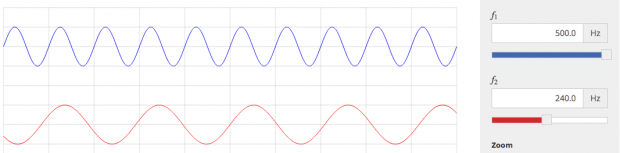
The 2.4 GHz band is used much longer than the 5 GHz band, making it often overcrowded in densely populated areas. However, it provides wider coverage than the 5 GHz band, whose main advantage is increased data transfer rates. The 6 GHz band is even better: it has virtually no interference and many more open channels, making it ideal for heavy content and the stable operation of a large number of devices simultaneously.
By analyzing the 2.4 GHz and 5 GHz bands, you can gather information about all currently broadcasting access points that are within the range of the device on which you run your free WiFi analyzer, such as a Windows laptop or MacBook.
The best free WiFi analyzer apps can then help you make sense of the gathered information, allowing you to use it for a variety of different purposes, some of which we discuss later in this article. Some free WiFi analyzer Windows and Mac apps can even zero in on a specific network and visualize its coverage on a map by putting together information gathered from different parts of the covered area.
How Are Wi-Fi Analyzer Apps Used?
To use a WiFi analyzer app, you don’t need to be an expert on wireless networks. Most WiFi analyzer apps are actually used by regular people who want to maintain connection quality and quickly identify problems that are preventing them from watching videos on the internet, playing online games, browsing the web, or even sending email messages.
Of course, WiFi analyzer apps are also used by professionals whose job is to set up complex enterprise networks and seamlessly cover multiple floors with a strong WiFi signal. What’s important, however, is that all features of modern WiFi analyzer apps like NetSpot are accessible to beginners and pros alike.
Even if you're completely satisfied with your Wi-Fi, it's worth taking a closer look at specialized analyzer apps — there's always a chance to find a way to improve your connection. Your home may have small areas with weak signal, so-called "dead zones", that you might not even notice because problems only occur occasionally.
And if your internet is noticeably slow or the connection is constantly dropping, an app like this can help you make an accurate diagnosis: it will clearly show the signal level and interference, so you can understand what exactly is interfering with the network.
If you’re in a crowded environment, such as an apartment building or office, Wi-Fi channels can become congested, leading to interference. A Wi-Fi analyzer can help you find the best channel to reduce interference and boost connectivity.
Additionally, if you’re using multiple smart devices, having a stable and reliable Wi-Fi connection is crucial. A Wi-Fi analyzer allows you to optimize your network for consistent connectivity across all your smart devices, minimizing dead zones and reducing network dropouts.
What Is the Best WiFi Analyzer App?
A WiFi analyzer can be an invaluable tool for diagnosing problems and optimizing your wireless network. You can use a WiFi analyzer app to improve the speed and reliability of your network. There are many apps from which to choose, so what features should you look for? A good wireless analyzer app should be able to do several things.
To start with, it should quickly detect all nearby wireless networks and gather enough information about them. At the very least, the app should be able to retrieve network names, also known as Service Set Identifiers (SSIDs), security settings, and signal strength data.
Some of the more feature-packed WiFi analyzers also come with heatmapping functionality, which allows you to capture signal strength data on a map to reveal areas of signal weakness and possible high interference.
Best WiFi analyzer apps are not just packed with useful features, but they are also exceptionally easy to use even by people who have little to no previous experience with WiFi analysis.
Features of a WiFi Channel Analyzer
A solid WiFi channel analyzer doesn’t just draw pretty graphs — it helps you make quick, confident decisions about your network. Here’s what actually matters in practice.
- SSIDs (network names). Your analyzer should show every nearby network, including ones that don’t broadcast a name (hidden SSIDs). Hidden networks aren’t “special,” they’re just quiet; a good tool still detects and lists them so you see the full picture before you tweak channels or placement.
- Bands and channels. Most homes today use 2.4 GHz, 5 GHz, and increasingly 6 GHz. Each band is split into channels, and when too many neighbors land on the same one, everyone slows down. The analyzer’s job is to reveal that crowding and point you toward a cleaner channel, so you can squeeze the most out of your band of choice.
- Security at a glance. If an analyzer shows you a network is using WEP or an old WPA flavor, that’s a red flag. You want to see WPA2 at minimum and, ideally, WPA3. A quick security readout helps you decide whether it’s time to update settings on your own router.
- WiFi standards. WiFi standards evolve: older 802.11n/ac are still common, but WiFi 6/6E (802.11ax) and WiFi 7 (802.11be) bring better efficiency and speed — especially in busy homes and offices. Your analyzer should identify which standard each network uses so you know whether you’re leaving performance on the table.
- Signal strength that means something. “Bars” aren’t enough. Look for real numbers in dBm (roughly from about −30 dBm for excellent to around −90 dBm for barely usable). That gives you an honest read on coverage, lets you compare rooms, and helps you decide between moving the router, adding a node, or changing channels.
- Noise and interference. Sometimes the signal is fine but the air is noisy — microwaves, Bluetooth gear, and neighboring APs all contribute. A useful analyzer shows noise levels (also in dBm). The closer that number sits to zero, the louder the environment; knowing that difference between signal and noise (your SNR) is what separates guesswork from real fixes.
User interface — The manner in which the network data is presented can impact your ability to use it efficiently. You should be able to quickly find the information you are interested in viewing.
Portability — When it comes to using a WiFi analyzer effectively, portability is key. Taking multiple readings of your network from various locations within the coverage area requires a tool that can go where you go. This is where the convenience of mobile WiFi analyzer apps shines. Whether using a laptop or mobile device, selecting a WiFi analyzer that fits your platform leads to the most productive use of the tool. For example, those who are using Apple devices should explore the best WiFi analyzer iOS apps.
Reporting — You may find that you want to keep records of your WiFi scans and network statistics. Some apps give you the ability to export data to files for later analysis.
The Top 10 Best WiFi Analyzer Apps
For those looking to optimize their WiFi networks, a WiFi analyzer app can be a game-changer, providing insights and solutions that can dramatically enhance performance. Whether you're a tech-savvy professional or just someone looking to boost your home WiFi signal, the right app can make all the difference.
Here are ten WiFi analyzer apps that can help you tune your network for peak performance.
- NetSpot — is the professional app for wireless site surveys, WiFi analysis, and troubleshooting on macOS and Windows.
- Network Performance Monitor — is the web-based tool that designed to be used by enterprise network administrators.
- InSSIDer — one of the oldest and most trusted WiFi analyzer apps.
- WiFi Scanner — both Mac and Windows users will benefit from the advanced features of this tool.
- Real WiFi — a simple WiFi analyzer for Windows with an integrated speed test feature.
- Network Analyzer — includes diagnostic tools and an Internet speed test.
- WiFi Analyzer — is a free WiFi analyzer for Windows.
- Wireshark — is an extremely capable network protocol analyzer used to analyze what’s happening on wireless networks.
- Wi-Fi Scanner (LizardSystems) — is a straightforward analyzer app that targets mainly home users who are interested in learning more information about the wireless activity in their area.
- Vistumbler — is one of the best open source WiFi analyzer apps.
| App | NetSpot |
| Platform | Windows, macOS, iOS, Android |
| Best For | Home users, small businesses, IT consultants, WiFi engineers |
| Key capabilities | Inspector, Survey, and Planning modes; visual heatmaps (signal, SNR, interference, speed and more); predictive planning; support for modern Wi-Fi standards |
| Wi-Fi Heatmaps & Predictive planning | Yes |
| Main drawbacks | No Linux version |
| App | Network Performance Monitor |
| Platform | Web-based (deployed on Windows / servers) |
| Best For | Enterprise IT teams, large organizations |
| Key capabilities | Centralized monitoring; customizable dashboards; WiFi and wired metrics; alerts; custom WiFi maps |
| Wi-Fi Heatmaps & Predictive planning | Limited, no predictive planning |
| Main drawbacks | Expensive for small environments; overkill for home and very small office networks |
| App | inSSIDer |
| Platform | Windows, limited macOS support |
| Best For | Enthusiasts, small IT teams |
| Key capabilities | Channel and signal visualizations; compares your network with neighbors; plain-English hints; LAN client scan |
| Wi-Fi Heatmaps & Predictive planning | No |
| Main drawbacks | MetaGeek account required; modern macOS support is limited; no built-in heatmaps |
| App | WiFi Scanners |
| Platform | Windows, macOS |
| Best For | Desktop power users |
| Key capabilities | Signal graphs; connection statistics; HTML reports; automatic speed tests; fast IP scanning |
| Wi-Fi Heatmaps & Predictive planning | No |
| Main drawbacks | Paid app; pricing and feature set differ between Windows and macOS; no full site-survey workflow |
| App | Real WiFi |
| Platform | Windows 10+ (Microsoft Store) |
| Best For | Home users, basic troubleshooting |
| Key capabilities | Built-in internet speed test; simple WiFi analyzer; device scan to see who’s on your network |
| Wi-Fi Heatmaps & Predictive planning | No |
| Main drawbacks | Lacks advanced analysis; not designed for professional WiFi engineers |
| App | Network Analyzer |
| Platform | iOS, iPadOS |
| Best For | Mobile diagnostics, advanced users |
| Key capabilities | WiFi diagnostics from iPhone/iPad; internet speed test; device discovery; port scanning; IPv4/IPv6 support |
| Wi-Fi Heatmaps & Predictive planning | No |
| Main drawbacks | Interface feels dated; feature set can be overwhelming for beginners |
| App | WiFi Analyzer (Microsoft Store) |
| Platform | Windows |
| Best For | Home users who need a quick check from a PC |
| Key capabilities | Shows signal strength and channels; helps find less congested channels; simple speed checks; easy install from Store |
| Wi-Fi Heatmaps & Predictive planning | No |
| Main drawbacks | No heatmaps or deep analysis; even PRO features are limited for professional use |
| App | Wireshark |
| Platform | Windows, macOS, Linux, others |
| Best For | Network engineers, security / protocol analysts |
| Key capabilities | Deep packet inspection; live capture and offline analysis; supports many protocols and operating systems |
| Wi-Fi Heatmaps & Predictive planning | No |
| Main drawbacks | Very steep learning curve; it’s a protocol analyzer first, not a classic WiFi analyzer |
| App | Wi-Fi Scanner (Lizard Systems) |
| Platform | Windows, Windows Server |
| Best For | Home users and admins who need a low-cost analyzer |
| Key capabilities | Supports 2.4/5 GHz and 802.11 a/b/g/n/ac/ax; filters; multiple interfaces; free personal license |
| Wi-Fi Heatmaps & Predictive planning | No |
| Main drawbacks | No heatmaps; visuals are fairly basic; Windows-only |
| App | Vistumbler |
| Platform | Windows |
| Best For | Enthusiasts, GPS/wardriving scenarios |
| Key capabilities | Open source; access point visualization with GPS data; export to KML/GPX for Google Earth and similar tools |
| Wi-Fi Heatmaps & Predictive planning | No |
| Main drawbacks | Outdated interface; focused on AP mapping rather than friendly reports or coverage planning |
Choice #1

NetSpot
WiFi analyzer app runs on a MacBook (macOS 11+) or any laptop (Windows 7/8/10/11) with a standard 802.11be/ax/ac/n/g/a/b wireless network adapter. Read more about the 802.11be support here.
One Wi-Fi analyzer app that meets all of the above-mentioned criteria is NetSpot. This professional app for wireless site surveys, Wi-Fi analysis, and troubleshooting on macOS and Windows is loved by seasoned network administrators and home users alike. More about the NetSpot Windows Wi-Fi analyzer.
NetSpot runs on any Mac computer with macOS 11+ or newer and any Windows computer with Windows 7/8/10/11. Unlike most other Wi-Fi analyzer apps, NetSpot supports three distinct wireless analysis modes: Inspector, Survey and Planning!
-

Inspector Mode
Gives you real-time insights into the WiFi networks around you.
-

Survey Mode
Provides a comprehensive, map-based analysis of your WiFi network's performance.
-

Planning Mode
Enables you to simulate and plan your WiFi network's layout and coverage.
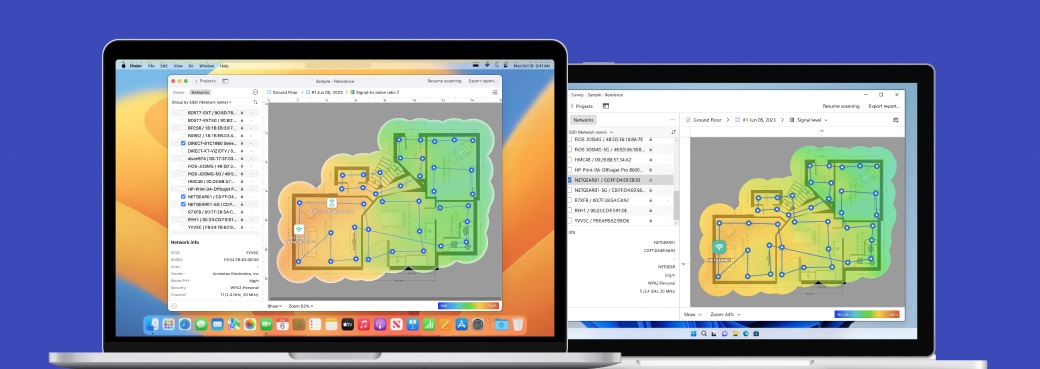
The Inspector Mode is great for taking quick snapshots of nearby wireless networks. When in this mode, NetSpot instantly detects all wireless networks near you, including your own wireless network, and allows you to check their security settings, signal strength, the channel and band they broadcast on, and much more.
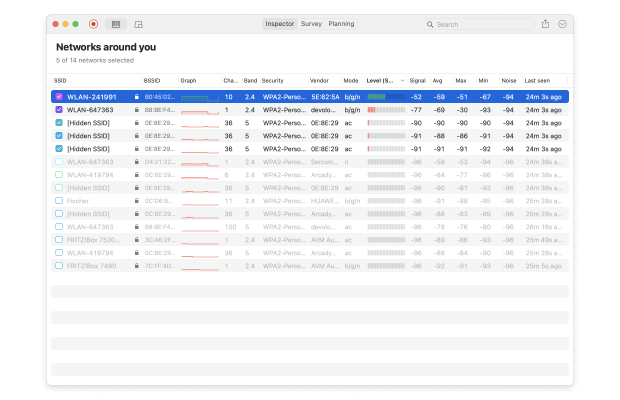
When in the Survey Mode, NetSpot allows you to outline your real-life wireless network data on a map, clearly showing where your signal is the weakest and where it is the strongest.
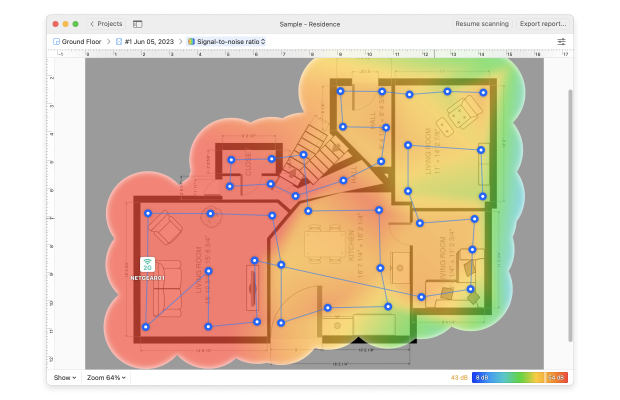
NetSpot’s heatmapping functionality supports multi-level projects with different areas, floors, and so on, and it even makes it possible to create any number of snapshots within each zone to quickly compare various wireless configurations with one another.
Finally, there’s the Planning Mode, which can be used to perform a predictive site survey. This feature is especially beneficial for those who are in the process of setting up a new WiFi network or looking to expand an existing network's coverage.
Starting with NetSpot 6, Planning Mode supports both single-level spaces and multi-floor buildings. You can create a Single-level layout or add multiple floors as separate levels within one project and simulate how the WiFi signal spreads not only horizontally across each floor but also vertically between them.
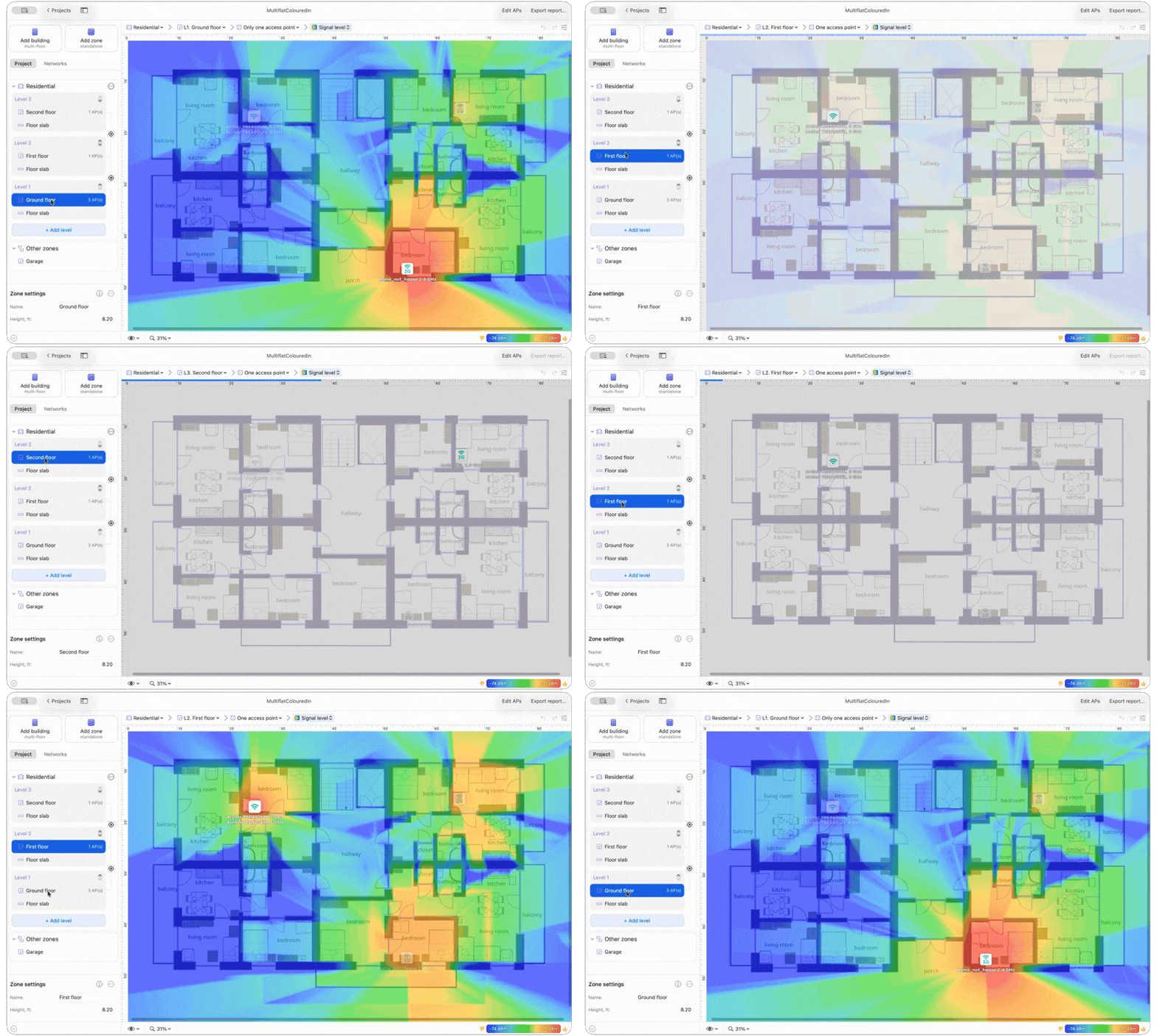
For multi-floor designs, NetSpot can account for the material and thickness of floor slabs as well as open floor cutouts for stairwells, making the simulation more representative of the actual building.
By adjusting the placement of access points, users can effectively predict signal coverage, identify potential dead zones, and optimize the overall network layout before any physical installation begins.
The predicted signal distribution also updates in real time as an AP is moved, so different placement options can be compared immediately.
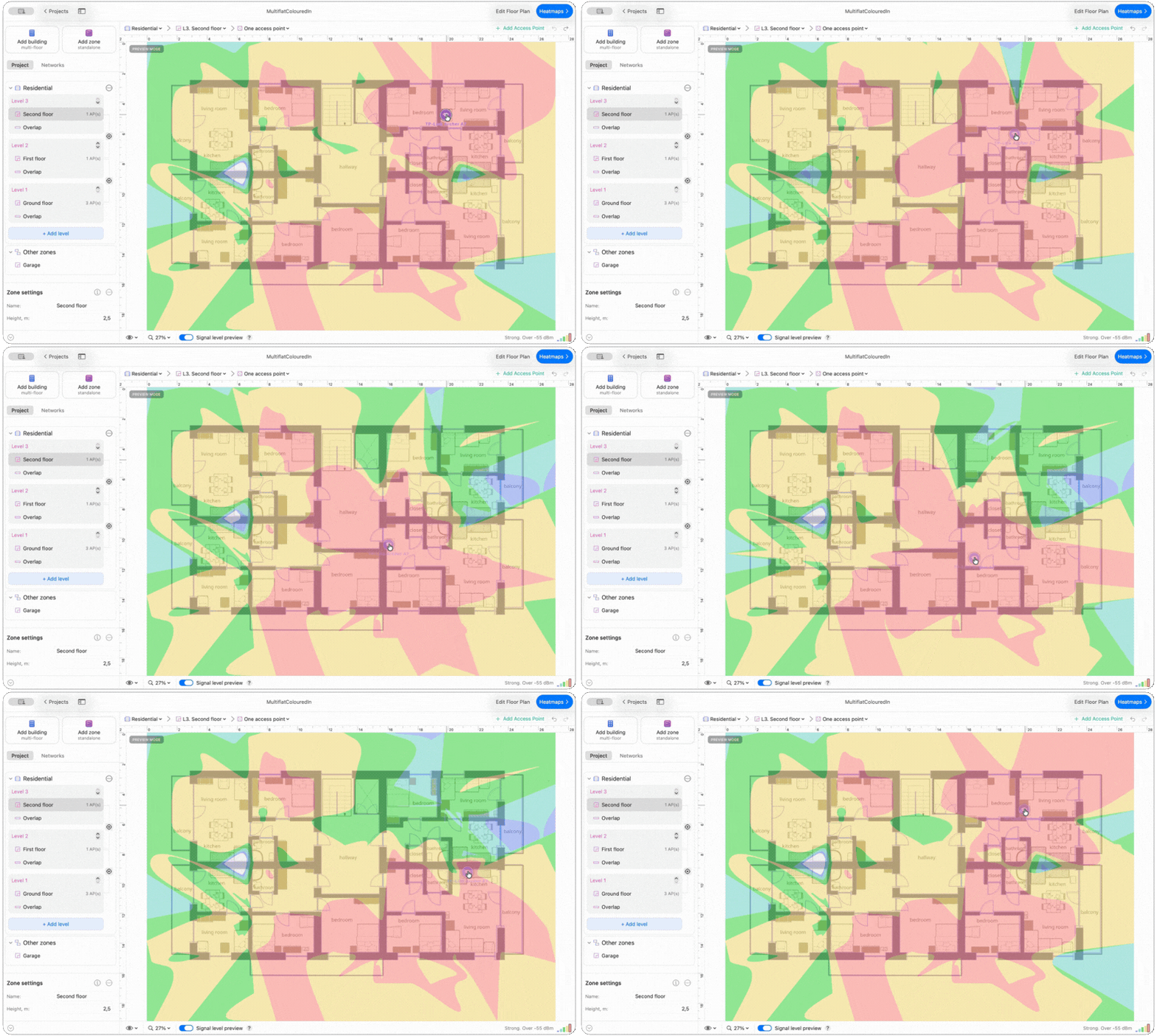
In an aligned multi-floor project, this preview extends between levels as well.
Pros and Cons
-
Works on Windows, macOS, and Android
-
Easy to use yet delivers professional results
-
Three wireless analysis modes
-
Heatmapping functionality
-
Multiple WiFi signal visualizations
-
Single-zone and multi-floor predictive planning
-
None
- Summary recommendation: Get NetSpot
Choice #2

Network Performance Monitor
Available for Windows 7/8/10/11 and MacOS X v10.8 or later.
This web-based tool is designed to be used by enterprise network administrators and is powered by cutting-edge technology and advanced monitoring features.
Network Performance Monitor is designed to function as an automatic network analyzer, providing administrators with the information they need to maintain internal wireless network performance and spot potential issues before they affect employee productivity.
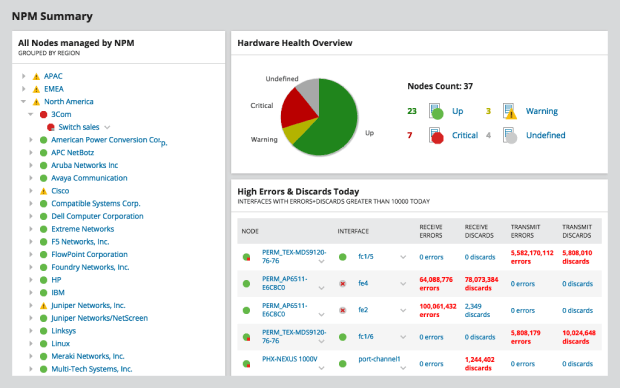
All important performance metrics are displayed on a customizable dashboard, including device downtime, average response time, and interface availability. Administrators can gain additional visibility into their networks thanks to a library of custom WiFi heatmaps within the Network Performance Monitor dashboard.
Even though Network Performance is an expensive enterprise-grade WiFi analyzer, anyone can test its features for up to 30 days for free.
Pros and Cons
-
Enterprise-grade WiFi analyzer
-
Customizable dashboard
-
Advanced WiFi visualizations
-
Free version available
-
Very expensive
-
Not suitable for home users
Choice #3

InSSIDer
Available for Windows (all recent versions) and Mac (macOS Mojave 10.14 and macOS Catalina 10.15 only).
inSSIDer has been around since 2007, making WiFi analysis a breeze. The tool conveniently displays all essential information you need to see how your network performs in relation to other neighboring networks, including WiFi channel details, signal strength, and security settings.
Strong emphasis is placed on making the gathered data easily understandable, which is great if you're new to WiFi analysis or looking to pinpoint specific issues without getting lost in technical jargon. inSSIDer even scans your Local Area Network (LAN), showing you the devices connected, their types, and even their names when possible. All this without having to dig through complicated menus.
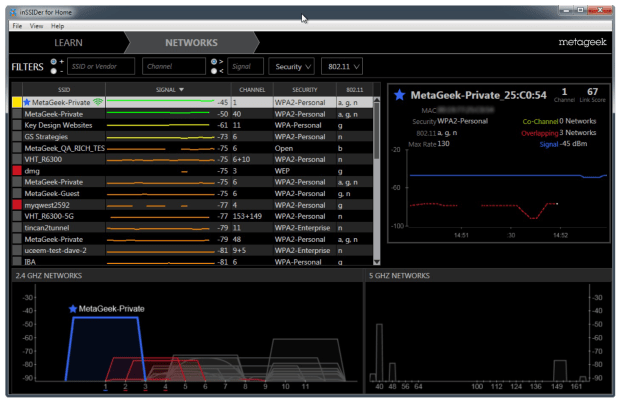
Because inSSIDer is developed primarily for Windows, Mac compatibility is restricted to a few specific (and outdated) versions. What's more, a MetaGeek account is mandatory to use the tool. This requirement may deter those users who don't wish to share their personal information with yet another company.
Pros and Cons
-
One of the oldest and most trusted WiFi analyzer apps
-
Simplifies complex data into plain English
-
Shows devices on your Local Area Network (LAN)
-
MetaGeek account required to use the tool
Choice #4

WiFi Scanner
Available on Mac OS (10.7 and later) and Windows (7 and later).
Both Mac and Windows users will benefit from the advanced features of this tool, including the ability to graphically display the network’s signal strength.
This multiplatform WiFi analyzer app works with all 802.11 a/b/g/n/ac access points and provides full support for both 2.4 and 5 GHz networks and all channel bandwidths. Its most noteworthy features include the ability to connect to any detected network, wireless connection statistics in the form of graphs and tables, summary reports in HTML format, automatic speed tests, and fast IP scanning that detects unknown devices connected to your WiFi network.
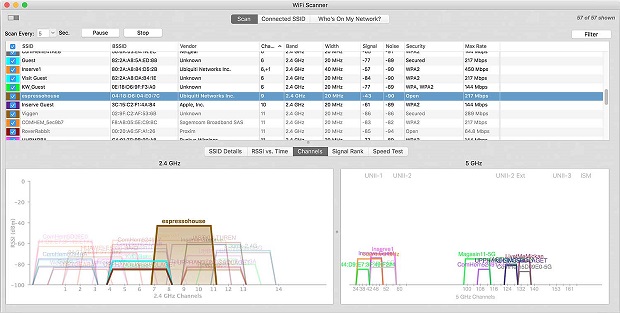
WiFi Scanner is a paid app that costs $14.99 for the Windows version and $19.99 for the Mac version. A free trial is available for those who would like to test its features before buying.
Pros and Cons
-
Available for both Windows and Mac
-
Support for 802.11 a/b/g/n/ac
-
Offers a lot of features
-
The Mac version is more expensive than the Windows version
Choice #5

Real WiFi
Available for Windows 10 version 15063.0 and newer.
Real WiFi, available directly from the Microsoft Store, is designed to make your life easier when it comes to optimizing your wireless network. You can use it to identify interference from neighboring networks so that you know how to adjust your settings for faster internet speed without purchasing a new router.
One stand out feature offered by Real WiFi is its integrated internet speed test. With it, you can quickly and easily gauge the actual performance of your connection in real-time. We also appreciate the ability to detect devices connected to your network. This Device Scan feature can be a real eye-opener, especially if you suspect unauthorized devices are accessing your network.
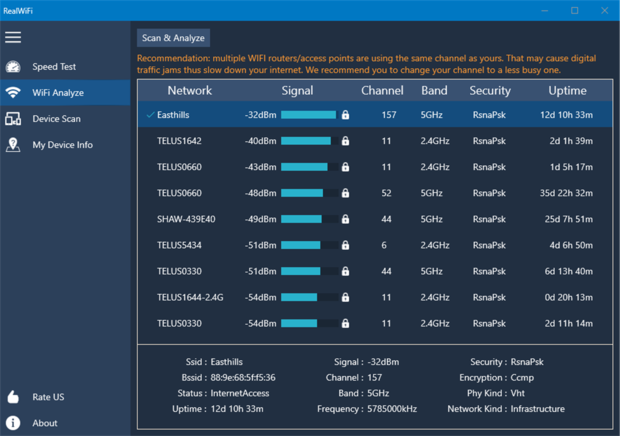
However, while it's packed with handy features for the everyday user, Real WiFi might not be suitable for those seeking highly specialized or advanced analysis. The app makes WiFi analysis accessible for the average user but may fall short for networking professionals or enthusiasts looking for a more robust wireless analyzer tool.
Pros and Cons
-
Easily accessible through the Microsoft Store
-
Provides essential tools like Internet Speed Test, WiFi Analyzer, and Devices Scan
-
Ideal for personal use and basic troubleshooting
-
Lacks advanced features that might be needed by professionals or tech-savvy users
Choice #6

Network Analyzer
Available for iPhone (Requires iOS 13.6 or later), iPad (Requires iPadOS 13.6 or later), iPod touch (Requires iOS 13.6 or later).
Users wishing to run their analyzer on an iOS device will love the features of this tool which include diagnostic tools and an Internet speed test. With Network Analyzer by Techet, you can diagnose various WiFi problems with ease and with nothing but your iPhone.
It takes just a few taps to detect all devices connected to your network and see their IP addresses. When troubleshooting a large network, you can narrow down the number of scanned devices by specifying an exact IP range. Scan results can be further filtered by multiple parameters.
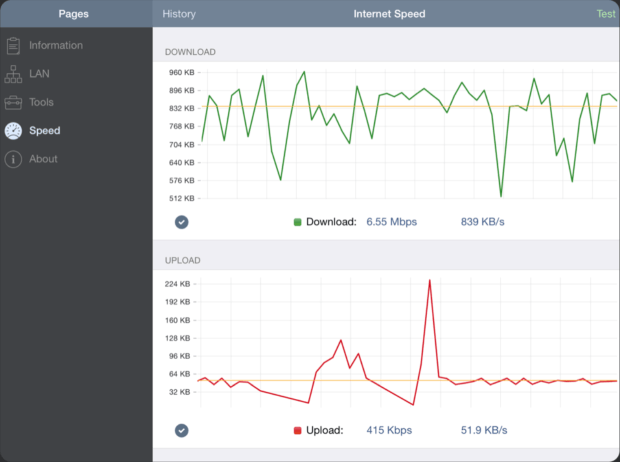
Network Analyzer can scan most common ports or user-specified port ranges to help you discover potential points of intrusion and close them before malicious hackers can take advantage of them. Being a modern WiFi analyzer app, Network Analyzer supports both IPv4 and IPv6, and it makes selecting between the two versions of the Internet Protocol a matter of a simple configuration option.
Pros and Cons
-
Compatible with all recent versions of iOS
-
Integrated internet speed test
-
Plenty of features
-
Support for IPv4 and IPv6
-
Outdated user interface
-
Not great for amateurs
Choice #7

WiFi Analyzer
Available for Windows.
Here is a free WiFi analyzer for Windows which can be used on your laptop to monitor signal strength, find open channels, and test your network’s speed. You can download WiFi Analyzer directly from the Microsoft Store and instantly turn your PC or laptop into a network analyzer.
With the free version of WiFi Analyzer, you can discover nearby WiFi networks and learn all essential information about them, such as their names and channels. The free version doesn’t contain any ads, and you can use it without any limitations.
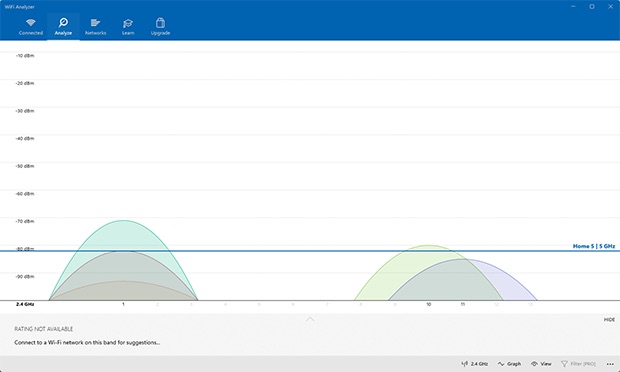
If you would like to unlock additional features, you can upgrade to the PRO version of WiFi Analyzer via an in-app purchase. The PRO version offers live-tile support, beeper for signal strength, the ability to connect to WiFi networks straight from the app, filters, and more.
Pros and Cons
-
Easy to use
-
Free with in-app purchases
-
Good enough for most home users
-
Lacks heatmapping capabilities
-
Too limited for professional use
Choice #8

Wireshark
Available for Windows, Linux, OS X, Solaris, FreeBSD, NetBSD, and many others operating systems.
First released in 1998, Wireshark is an extremely capable network protocol analyzer used to analyze what’s happening on wireless networks. It runs on Windows, Linux, macOS, Solaris, FreeBSD, NetBSD, and many other operating systems and can be downloaded and used for free without any limitations thanks to its open source license.
Wireshark can capture data packets both from wireless networks and Ethernet, and the captured data can be browsed via its graphical user interface or the terminal. The graphical user interface makes deep packet analysis easier by color-coding network packets based on their type. However, this alone doesn’t make Wireshark accessible to inexperienced users.
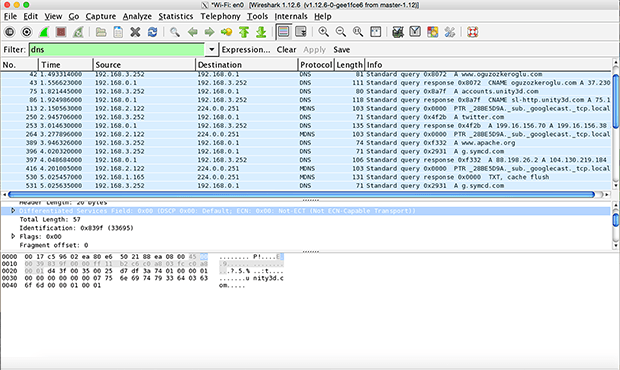
Fortunately, there are many online resources, including beginner-friendly videos, that explain how to use Wireshark for network protocol analysis, and they do a great job of supplementing the official documentation.
Pros and Cons
-
Free and open source
-
Extremely capable network protocol analyzer
-
Multi-platform
-
Live capture and offline analysis
-
Confusing for new users
Choice #9

Wi-Fi Scanner (LizardSystems)
Available for Windows 8 and newer, Windows Server 2012 and newer.
Wi-Fi Scanner by LizardSystems is a straightforward analyzer app that targets mainly home users who are interested in learning more information about the wireless activity in their area. It can also be used by professionals who are unable to justify paying extra for a professional data recovery tool, whose numerous features would greatly exceed their needs.
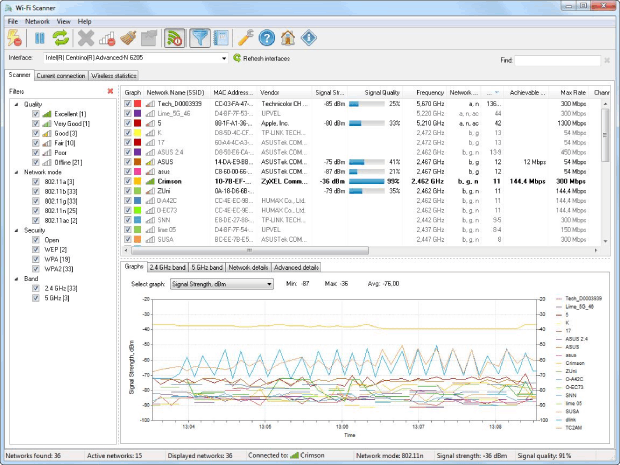
Home users can download and use Wi-Fi Scanner for free, but businesses are required to purchase a perpetual business license for $99.95. Regardless of whether you stay with the free version or purchase a license, you get to enjoy support for 2.4 and 5 GHz frequency bands, 802.11a/b/g/n/ac/ax, as well as WPS 1.0 and WPS 2.0.
Performing a WiFi scan with Wi-Fi Scanner by LizardSystems is easy enough, but the available graphs could be more visually appealing. We appreciate the ability to quickly apply various filter to narrow down the number of displayed WiFi networks, and we also like the option to instantly switch between different network interfaces.
Pros and Cons
-
Free personal license
-
Support for 2.4 and 5 GHz frequency bands
-
Clean user interface
-
Actively developed
-
Visually unappealing graphs
-
No heatmapping functionality
-
Windows only
Choice #10

Vistumber
Available for Windows 10, Windows 8, Windows 7, Windows Vista.
Vistumbler is one of the best open source WiFi analyzer apps. It’s used mainly for large-scale access point visualization based on collected wireless and GPS data. The most recent version is optimized for Windows 10, but it also works with older versions of the operating system.
All data collected by Vistumbler can be exported into a number of file format, and that includes the GPS locations of discovered access points, which can be exported into a Google Earth KLM file or GPX (GPS eXchange format).
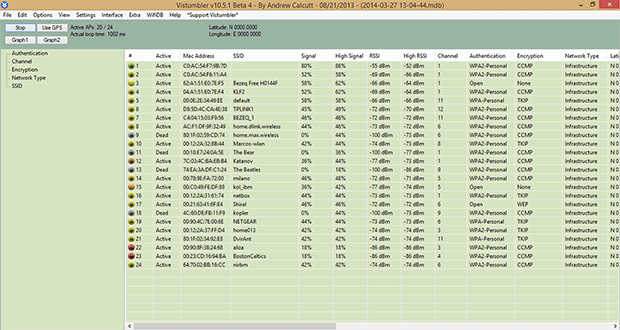
Don’t let the outdated user interface of Vistumbler discourage you from giving it a try. While it’s certainly true that Vistumbler developers prefer function over form, the user interface is fairly easy to get used to.
Pros and Cons
-
Open source
-
Runs only on Windows
-
Outdated user interface
-
Not great visualizations
One of these WiFi apps should be able to help you improve your network’s performance. Download one to the platform of your choice and scan your network. It might point out a simple way to fix to issues that negatively impact your network and its users.
How to Perform Wi-Fi Analysis Using a Wi-Fi Analyzer App?
Wi-Fi analysis may sound very technical and daunting, but it’s anything but that — as long as you use a simple yet capable Wi-Fi analyzer app like NetSpot. In addition to NetSpot, you’ll also need a laptop with a WiFi card so you can detect nearby Wi-Fi networks.
With NetSpot, you get a full view of your Wi-Fi environment, allowing you to understand and address issues with network interference. Let’s dive into why a WiFi analyzer is essential and how NetSpot can make a big difference in your overall Wi-Fi experience.
NetSpot compatible with the latest standards, including Wi-Fi 6 and Wi-Fi 6E. These updated standards give access to the 6 GHz frequency band, which is far less crowded than the usual 2.4 GHz and 5 GHz bands, resulting in higher bandwidth and reduced latency.
Even if your devices operate on older standards like 802.11ac or 802.11n, NetSpot can assist you in choosing the best Wi-Fi channel to enhance the stability and speed of your network.
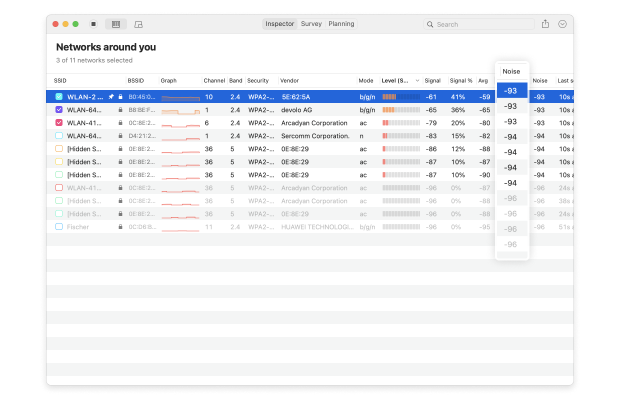
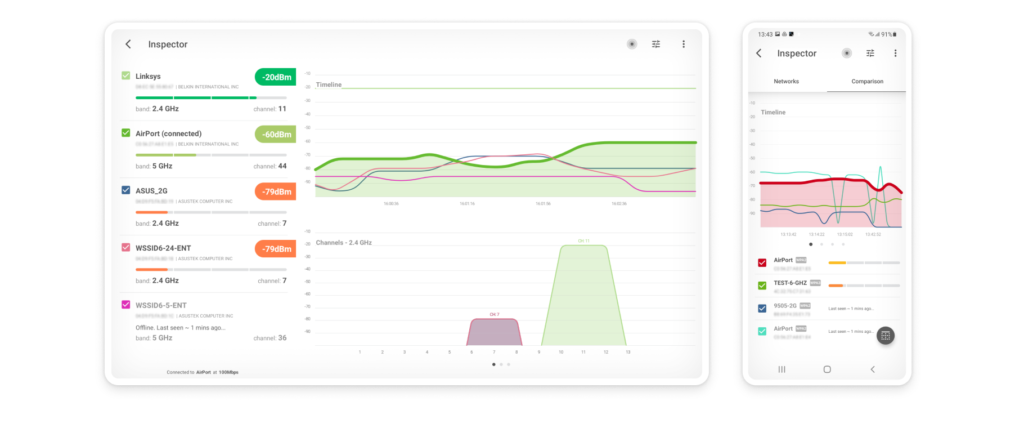
With NetSpot, you can choose between three distinct WiFi analysis methods. The first method, called Inspector Mode, is all about quick and easy WiFi network discovery, instantly listing all WiFi networks available in your area, along with all important information about them, including network name, band and channel, security settings, WiFi standard, signal strength, and noise level.
The second WiFi analysis mode is called Survey Mode, and it allows you to perform a WiFi site survey and create a WiFi heatmap so you can see exactly where your WiFi signal is strong and where it could use some improvement.
The third and last mode supported by the WiFi spectrum analyzer, called Planning Mode, focuses on the future planning and optimization of your WiFi network. In this mode, users can virtually map out their environment and simulate how different network setups will perform. This includes the ability to place virtual access points on the map to see how their location affects signal coverage and strength throughout the area.
By combining these three WiFi analysis methods, you can get a very accurate idea about the performance of your WiFi network and understand exactly what you need to do to improve it or deploy it. For example, it takes just one click to see which WiFi channels nearby WiFi networks broadcast on, which makes it straightforward to solve channel interference issues.
Performing WiFi Analysis Using Inspector Mode
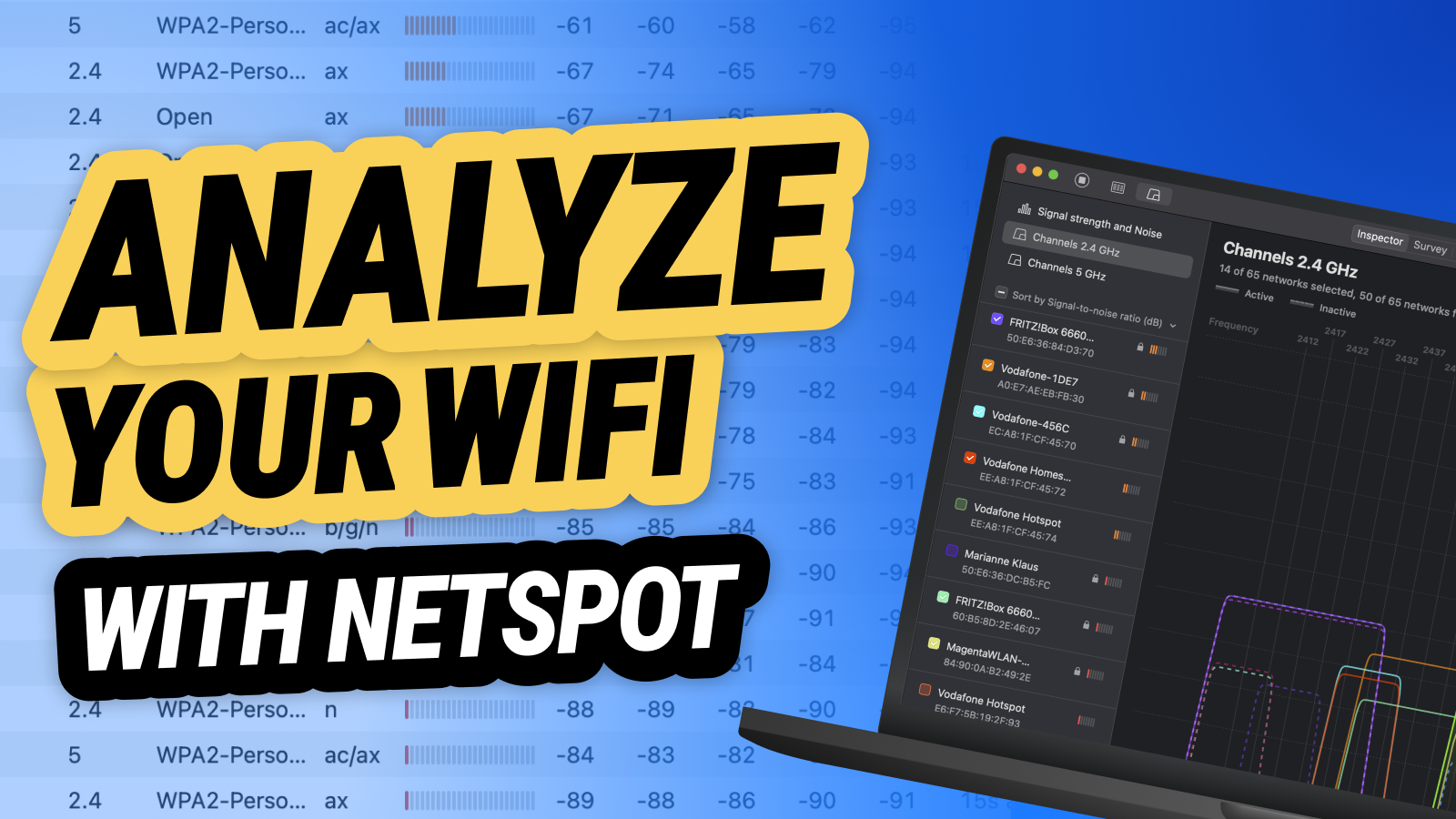
NetSpot’s Inspector Mode is so easy to use that it doesn’t need any explanation. Simply activate it using the toggle located in the top bar and watch as NetSpot creates a snapshot of all WiFi activity around you. NetSpot will then continue to analyze surrounding areas in real-time.
If you would like to pause the real-time analysis, you can do so using the Pause button in the top-left corner. Close to the Pause button is the Signal level and noise graphs button, which lets you see easy-to-understand graphs that represent the — you’ve guessed it — signal strength and noise levels of selected networks.
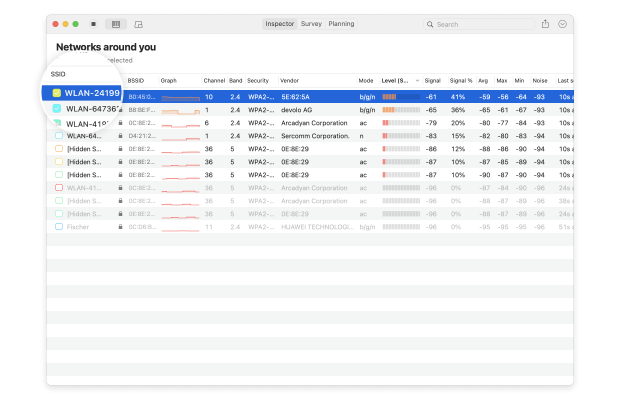
The information collected by Inspector Mode include:
- SSID: The Service Set Identifier is what’s commonly referred to as the network name. Wireless networks broadcast this string of letters, numbers, and possibly even special symbols to differentiate themselves from one another and make it easy for clients to establish a connection.
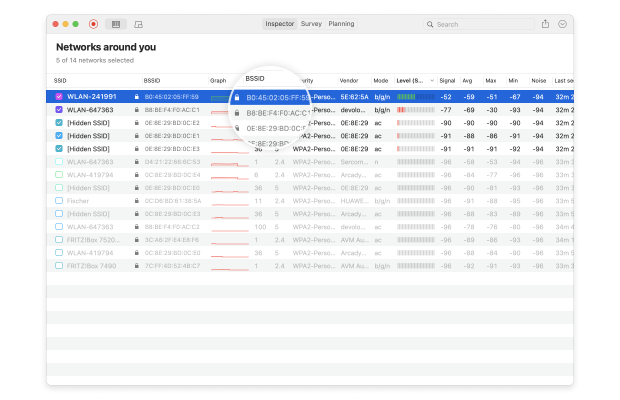
- BSSID: Similar to the Service Set Identifier, the Basic Service Set Identifier is used to uniquely identify an access point or router broadcasting a wireless network.
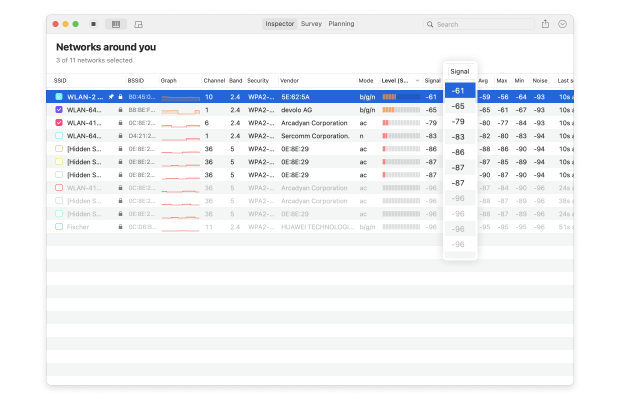
- Signal strength: Measured in dBm (decibel milliwatts) and expressed only as negative values, the signal strength of a wireless network directly influences data transfer speeds, latency, and connection reliability.
- Channel number: To reduce signal interference, the 2.4 and 5 GHz bands are divided into multiple channels, some of which may be more crowded than others, especially in densely populated urban areas.
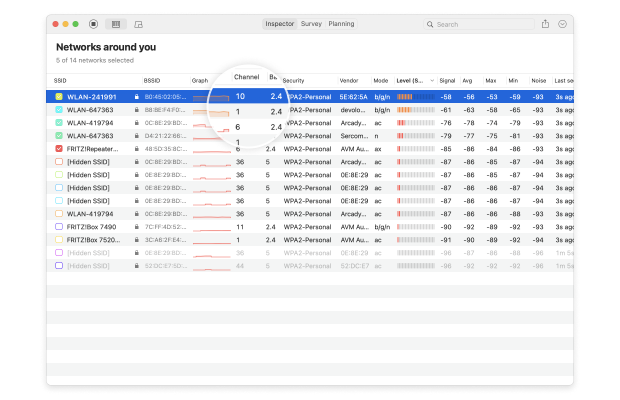
- Band: The 802.11 standard provides several radio frequency bands. Most modern WiFi routers support the 2.4 and 5 GHz bands, and so does NetSpot.
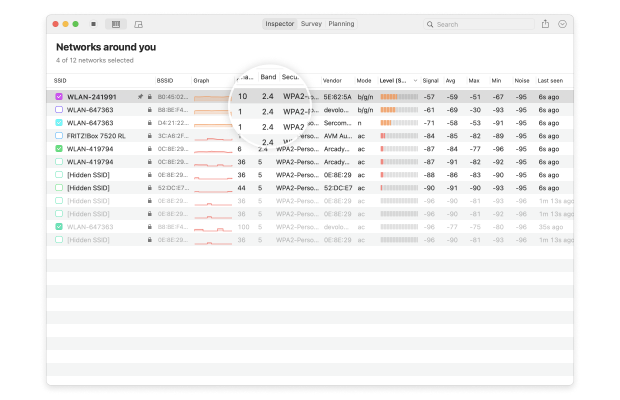
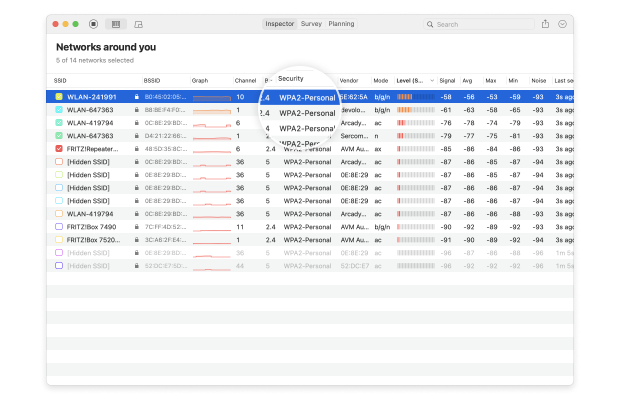
- Security: WEP, WPA, WPA2, and WPA3 are four security standards designed to secure personal, enterprise, and IoT wireless networks. Out of these, only WPA3 can resist modern cyber-attacks and protect sensitive information from snooping.
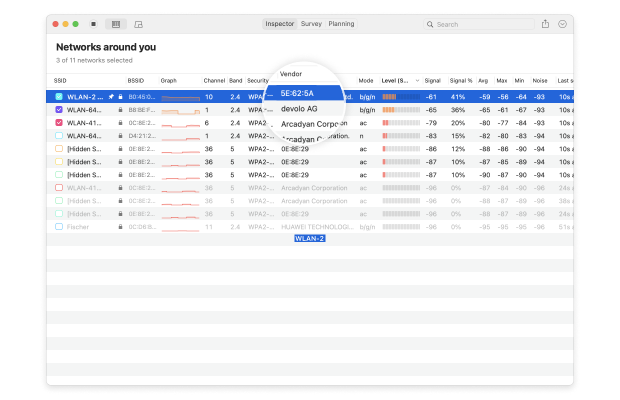
- Vendor: There are many router manufacturers, and not all are respected by cybersecurity professionals.
- Mode: WiFi standards are constantly evolving to meet our growing needs. NetSpot can analyze any 802.11 network, including 802.11a/b/g/n/ac/ax.
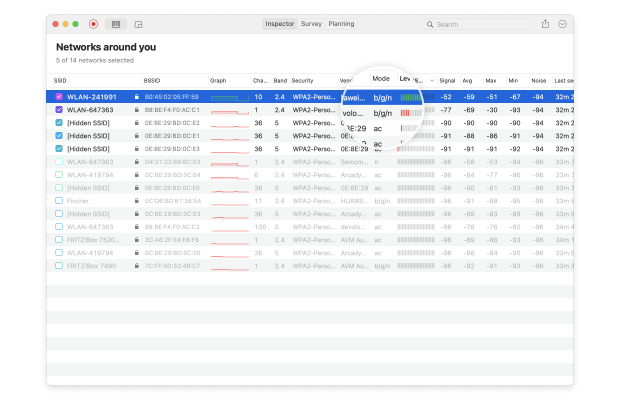
- Noise: Wireless signals can clash with radio frequency interference emitted by microwave ovens, Bluetooth headphones, baby monitors, wireless security cameras, and many other electronic devices, and NetSpot can detect the amount of this background noise in your area.
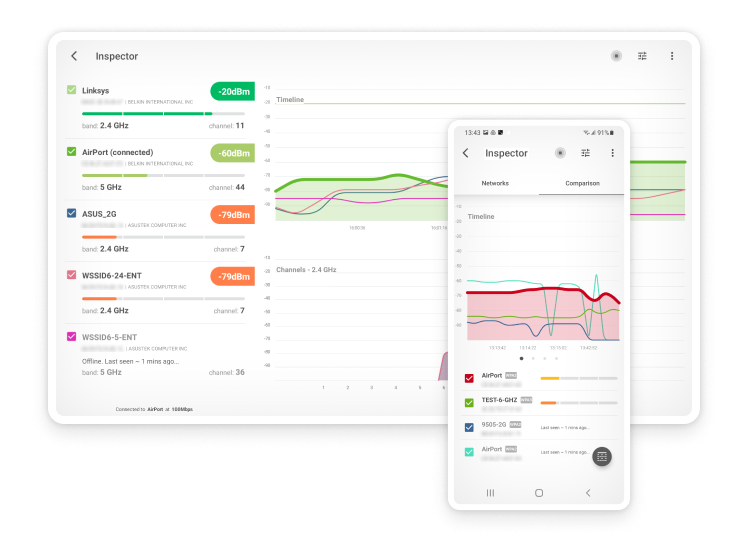
Inspector mode in NetSpot also offers graphs that track the signal strength of different networks over time.
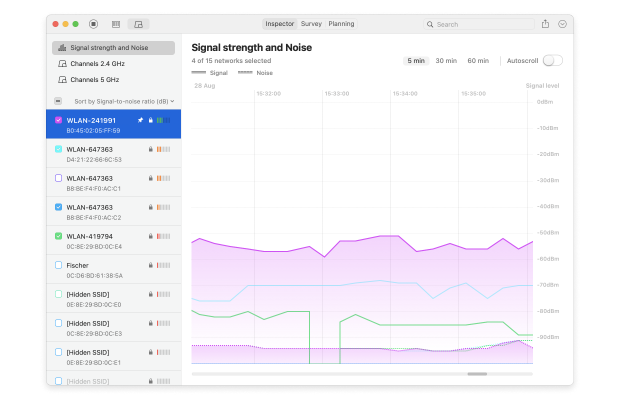
This feature is ideal for monitoring signal stability and identifying when signal quality begins to decline. Frequent drops in signal level could suggest hardware problems or interference.
Channel graphs allow you to visually analyze how networks are spread across channels.
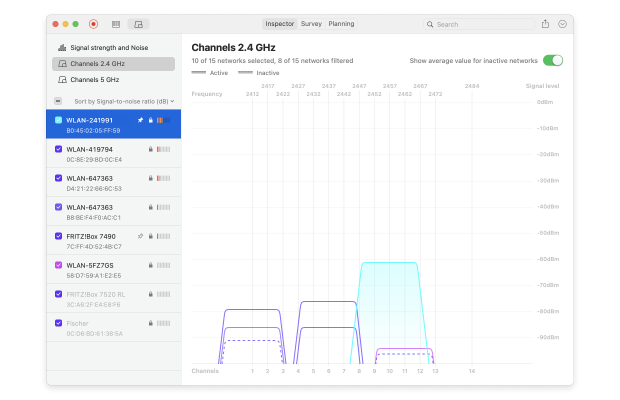
Choosing a less congested channel can greatly improve WiFi stability and connection speed. Additionally, the possibility to filter networks by channel width aids in analyzing congestion in more detail, allowing for smarter network adjustments.
As you can see, NetSpot can provide a wealth of information about wireless networks in your area, and it also lets you perform an in-depth analysis of the network you’re connected to thanks to Survey Mode.
Inspect Wi-Fi networks
Analyze WiFi networks around you, perform wireless surveys, and test Internet speed — all with just a phone or tablet in your hands.
Performing WiFi Analysis Using Survey Mode
One of the standout features of NetSpot is Wi-Fi heatmaps, which allow you to visualize and assess the coverage quality of your Wi-Fi network at home or in the office. These heatmaps are generated in Survey mode and provide valuable insights into signal distribution, band congestion, and channel overlap, helping you optimize your network for better coverage and stability.
By following these simple steps, you can gain valuable insights into your wireless environment and make informed decisions to improve connectivity.
Step 1
Start by downloading and opening NetSpot on your device. Then click on the Survey button to begin.
Step 2
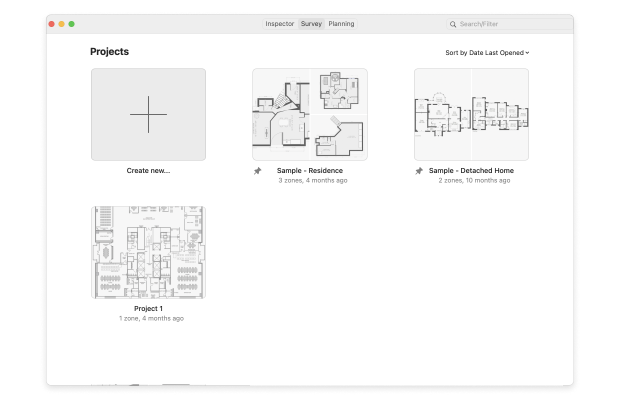
Click on Create New… to start a new project. Name your project and add a description if needed.
Step 3
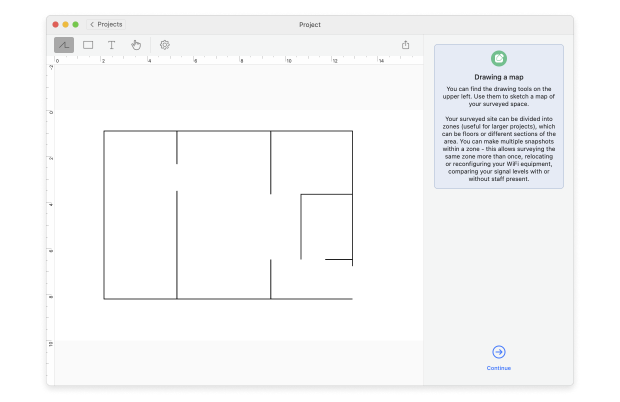
Either upload a map file (like a blueprint, sketch, or a Google Maps screenshot) or draw a new plan directly in NetSpot. If drawing a new plan, you can specify the area dimensions in feet or meters.
Step 4
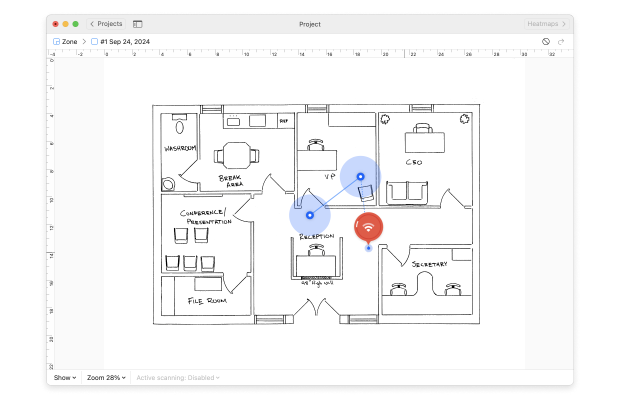
For a new drawing, use the tools provided below the canvas to sketch your surveyed space. If your area is large or has multiple zones, consider creating separate maps for each. Click Continue when the map is ready.
Step 5
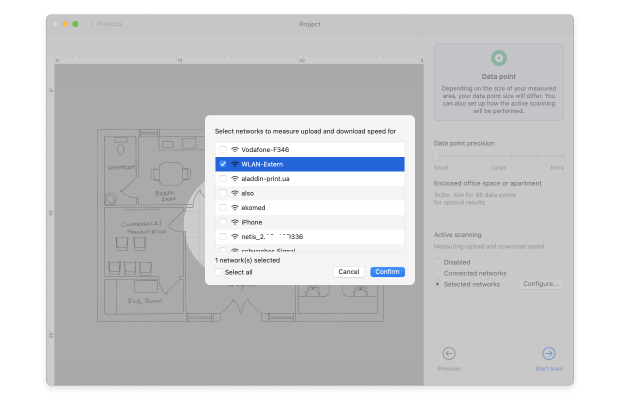
Decide on the density of data points based on the size and complexity of your space. Consider whether you’ll perform Active scanning and select the networks for scanning. Click Start Scan to begin collecting data.
Move to a corner of your space and mark it on the map where you are standing. Stay still while the app takes its first measurement. You’ll know it’s finished when the progress indicator changes and you hear an audio alert. Walk through your space, taking measurements at intervals that ensure slight overlap between the blue circles on your map, covering the area you intend to scan.
Step 6
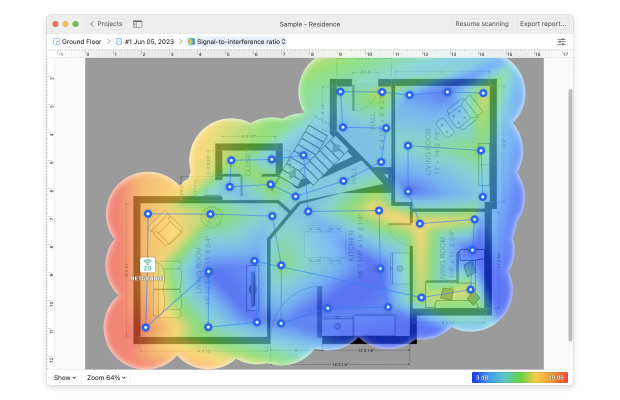
Click Heatmaps to view the wireless network coverage and various parameters affecting it.
Choose from different heatmap types to analyze various aspects of your wireless network's performance.
- Signal-to-noise ratio: highlights your signal level as compared to your noise level.
- Signal level: highlights your signal level, allowing you to easily see areas of signal weakness.
- Quantity of access points: highlights the number of access points available from each measurement point.
- Noise level: highlights the amount of background noise measured from each measurement point.
- Signal-to-interference ratio: highlights co-channel interference caused by other wireless networks.
- Download speed: highlights internet download speeds recorded during an active scan.
- Upload speed: highlights internet upload speeds recorded during an active scan.
- Wireless transmit rate: highlights the internet wireless transmit rate recorded during an active scan.
- Troubleshooting issues with SNR: this heatmap visualization makes it easier to identify and troubleshoot weak areas of signal-to-noise ratio coverage (macOS only).
- Troubleshooting low signal level: this heatmap visualization makes it easier to identify and troubleshoot areas of weak signal level.
- Troubleshooting high noise level: this heatmap visualization makes it easier to identify and troubleshoot areas of high noise level (macOS only).
- Troubleshooting overlapping channels (SIR): this heatmap visualization makes it easier to identify and troubleshoot areas of high co-channel interference.
- Troubleshooting low download rate: this heatmap visualization makes it easier to identify and troubleshoot areas of low download speeds.
- Troubleshooting low upload rate: this heatmap visualization makes it easier to identify and troubleshoot areas of low upload speeds.
Keep in mind that some of these visualizations are available only in the Pro version of NetSpot.
To obtain the most accurate results possible, it’s a good idea to repeat the survey process several times, at different times of the day. Why? Because the results may be influenced by temporary usage spikes, intermittent interference, and other difficult-to-predict factors whose influence becomes obvious only with additional measurements.
Do I Need a Wi-Fi Spectrum Analyzer?
A WiFi spectrum analyzer is a software application capable of revealing all activity in the WiFi spectrum (the 2.4 GHz, 5 GHz, and now also the 6 GHz frequency band).
Because the WiFi spectrum is just one part of the larger radio frequency (RF) spectrum, there are many potential sources of signal interference that can negatively affect it, including large kitchen appliances, cordless phones, wireless security cameras, baby monitors, and Bluetooth devices.
Using a WiFi spectrum analyzer, you can see the activity of RF-emitting devices on a graph that clearly shows how big of an impact they have.
WiFi spectrum analysis can also tell you which WiFi channels are used the most, making it easy to pick the one that’s crowded the least.
In the past, performing WiFi spectrum analysis used to be complicated because it required specialized equipment, but those days are gone. Today, a free WiFi spectrum analyzer like NetSpot can easily meet the needs of both home users and professionals, so there’s nothing stopping you from giving WiFi analysis a try.
SO, WE RECOMMEND

NetSpot
WiFi analyzer app runs on a MacBook (macOS 11+) or any laptop (Windows 7/8/10/11) with a standard 802.11be/ax/ac/n/g/a/b wireless network adapter. Read more about the 802.11be support here.
Learn More About WiFi Analysis with NetSpot
If there’s something that’s not completely clear to you, we encourage you to visit NetSpot’s help page, where you can learn more about using this professional wireless analyzer to perform WiFi analysis. If you perform WiFi analysis on a regular basis, NetSpot PRO can save you a lot of time, energy, and even money.
As you can see, WiFi analysis isn’t nearly as daunting as it would be if it wasn’t for modern WiFi analyzer apps such as NetSpot. With them, WiFi analysis is a piece of cake and something that every owner of a wireless router should do to avoid slowdowns and connection drops.
About WiFi Analyzer — FAQs
Which WiFi Analyzer is the best?
There are many different WiFi analyzers users can choose from, each offering a slightly different set of features and capabilities. The best WiFi analyzers support the latest WiFi technologies, are easy to use, and cost a reasonable amount of money. NetSpot is a great example of a WiFi analyzer that meets all these criteria and stands out from the competition when it comes to usability and performance. See the list of the best wifi analyzer windows apps.
What is the best free WiFi analyzer?
Even though free WiFi analyzers seldom offer the same number of features as their paid counterparts, many are more than capable enough to satisfy the needs of regular home users and even some professionals. The best free WiFi analyzer apps mentioned in this article include NetSpot (Inspector mode), inSSIDer, Real WiFi, WiFi Analyzer, Wireshark, and Vistumber.
If you are just starting out and want to see what other users recommend for your specific setup, check out this forum discussion on the best Wi-Fi analyzers for beginners.
How do you use a WiFi analyzer?
Modern WiFi analyzers tend to be intuitive and easy to use, so using them to gather detailed information about available wireless networks is usually quite straightforward. In most cases, all you need to do is install your WiFi analyzer of choice on a laptop and launch it to initiate an automatic scan of WiFi networks.
Is WiFi analyzer safe?
That depends on which WiFi analyzer you choose. The Best WiFi analyzer apps, such as NetSpot, Network Performance Monitor, or inSSIDer are all perfectly safe, and you can rest assured, knowing they won’t harm your computer.
What blocks WiFi signal?
Just like cell phones, televisions, and radios, WiFi networks use radio waves to transmit data over the air. This means that the signals they send can be blocked walls, common household objects, and even other electronic devices broadcasting on the same frequencies.
What do WiFi analyzer apps tell you?
The best WiFi analyzer apps can tell you everything you need to know about nearby WiFi networks, provide you with detailed information about a network’s coverage, reveal areas of channel interference, and more, making them indispensable when it comes to troubleshooting and optimization.
What is the purpose of a WiFi Analyzer?
A WiFi analyzer is a useful tool whose purpose is to provide a wealth of information about wireless networks, including their signal strength, coverage, names, and security configuration. This information can be used to troubleshoot WiFi-related issues, plan network deployments, and more.
How do you read a WiFi analyzer?
Modern WiFi analyzers like NetSpot are easy to read because they present all gathered information in the form of interactive tables, graphs, charts, and heatmaps. In most cases, you can spot issues with coverage, signal strength, or security settings at a glance and quickly determine what you need to do to solve them.
How do you analyze a WiFi signal?
To analyze a WiFi signal, you need a computer with a WiFi card and a WiFi signal analyzer like NetSpot. You can then simply start the WiFi signal analyzer, wait for it to gather information about the signal, and see if you can spot anything unusual.
What is the best WiFi Analyzer for Android?
There are many WiFi analyzer apps for Android that make it possible to quickly and easily scan your and surrounding wireless networks and observe the changes in data charts in real-time. One of them is the Android WiFi analyzer from NetSpot, and you can download it for free directly from the Google Play Store. Check our article about the best WiFi analyzer apps for Android.
What is the best WiFi analyzer for iPhone?
Due to Apple’s restrictions, there are not many WiFi analyzers for iPhone (check our list of the best wifi analyzers for iPhone).
Read how to choose the best WiFi analyzer for mac, if you are looking for one.
Get NetSpot for Free
Wi-Fi Site Surveys, Analysis, Troubleshooting runs on a MacBook (macOS 11+) or any laptop (Windows 7/8/10/11) with a standard 802.11be/ax/ac/n/g/a/b wireless network adapter. Read more about the 802.11be support here.
all features of modern WiFi analyzer apps like NetSpot are accessible to beginners and pros alike