Wireless Site Survey: Everything You Need to Know
Curious what a wireless site survey really is? Let’s break it down in plain English and walk through the full process together using NETSPOT.
No matter your age, job, or tech background, you probably hop online every single day. If you’d rather not just hit “Connect” and hope for the best, but actually see what’s happening in your Wi-Fi neighborhood and squeeze every bit of performance out of it, keep reading.
This guide unpacks the wireless site survey — sometimes called a site survey wireless assessment or a wireless network site survey — and shows why it’s the first step toward a faster, more reliable network. We’ll lay out what a wireless site survey is, explain the different flavors you can run, and point out the real-world wins you get when you base your decisions on hard data instead of guesswork.
Jump to...
What Is a Wireless Site Survey
Because Wi-Fi lives in an invisible layer of radio waves, you need a way to pull back the curtain and see how those signals really behave. That’s where a wireless site survey comes in.
A wireless site survey is essentially an assessment of your physical space designed to help plan, troubleshoot, and optimize your Wi-Fi network. Think of it like creating a detailed blueprint — but instead of measuring rooms and walls, you're measuring Wi-Fi coverage, mapping signal strengths, and spotting hidden interference.
During the survey, you or a technician will systematically move through your space, collecting real-world data on how signals perform. This allows you to identify trouble spots, decide exactly where to position access points, and ensure a smooth, uninterrupted Wi-Fi experience everywhere it counts.
Ultimately, a wireless site survey takes the guesswork out of Wi-Fi setup. Instead of relying on trial and error, you get clear, actionable insights to build a robust network ready for today's demands — and tomorrow’s growth.
Types of Wireless Site Surveys
Wireless site surveys come in three main flavors: passive, active, and predictive. Let’s dive into each type to understand their distinct purposes.
Passive Wireless Site Survey
In a passive survey, the analyzer simply listens to the airwaves without joining any network. It records raw signal strength, channel use, and background noise for every SSID it detects. Those readings highlight dead zones and show where neighboring networks are crowding the spectrum.
Active Wireless Site Survey
In an active survey, you connect to the network to gauge its performance. You measure data rate, latency, and packet loss to see how the Wi-Fi holds up, revealing the true quality of service and any performance issues.
Predictive Wireless Site Survey
Predictive surveys use sophisticated software to simulate the Wi-Fi environment virtually, even before the physical space is ready. A predictive survey feeds your floor plan and planned AP locations into simulation software that projects how the signal will spread, accounting for walls, ceilings, and other obstacles. It’s ideal during design: you can test whether the layout will hold up before a single access point is bolted to the wall.
How to Choose a Wireless Site Survey App
There’s no shortage of software available to help you perform a wireless site survey, from free tools with basic features to enterprise-level applications packed with advanced analytics. From my personal experience, here’s what really matters when picking the right tool:
Ease of Use:
No matter how powerful an app might be, it’s not useful if navigating its interface feels like flying a spaceship. For instance, Ekahau is widely respected in professional circles for its robust feature set — but its complexity makes it more suitable for large enterprises with dedicated network engineers. At the opposite end sits VisiWave Site Survey: refreshingly straightforward, yet so trimmed-down that you’ll outgrow it the moment you need deeper analytics. If you’re running Wi-Fi for a small business or a busy household, aim for software that lands comfortably between those extremes — clear visuals, sensible menus, no certification course required.
Functionality and Features:
Look for an app that doesn’t just map coverage but also analyzes key factors like interference sources, channel overlap, and signal-to-noise ratio. Some apps offer predictive modeling, which can be incredibly helpful when setting up or upgrading a network.
Support for New Wi-Fi Standards:
As technology rapidly evolves, it's important that your chosen app keeps pace. Ensure it supports recent Wi-Fi standards like Wi-Fi 6, Wi-Fi 6E, and ideally WiFi 7. That way, your survey data stays relevant and future-proof.
Device Compatibility and Flexibility:
Choose software that runs across multiple platforms — whether it's Windows, macOS, or Android — so you’re not limited in the devices you can use for surveys. This flexibility allows you to perform surveys with the hardware you already own.
Price and Licensing Model:
Finally, consider your budget. Many professional-grade apps come with substantial price tags, often subscription-based or per-seat licenses. Find the right balance between cost and capability — don’t overspend on features you'll never use, but don’t sacrifice essential functionality to save a few dollars.
By taking these factors into account, you’ll choose an app that not only fits your technical requirements but also makes managing your wireless environment much easier. Personally, after testing several solutions, I've settled on NetSpot — it offers the right balance of simplicity and powerful features for my needs. In the end, the best tool is the one that feels intuitive to you and integrates smoothly into your daily workflow.
Wireless Site Survey: Step-by-Step Guide
Let me show you — step by step — how I actually conduct a survey in NetSpot, straight from my own workflow:
Step 1
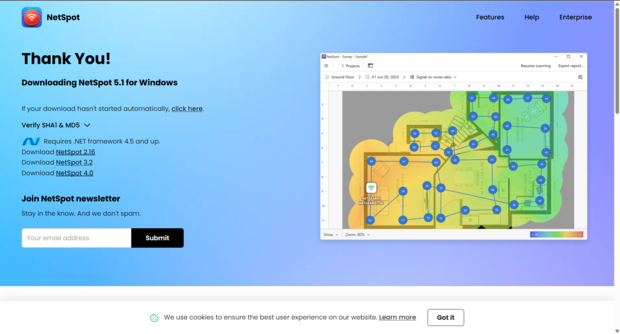
Get your kit together
Grab your laptop and install NetSpot. I work on Windows, but the app runs just as happily on macOS, and Android, so use whatever you’ve got. That’s all you need to get rolling.
Step 2
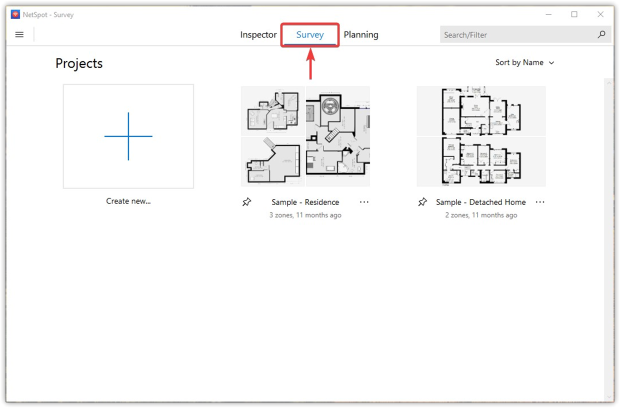
Start a fresh project in Survey mode
When NetSpot opens, switch to Survey, hit “New Project,” give it a name, and you’re ready for the next stage.
Step 3
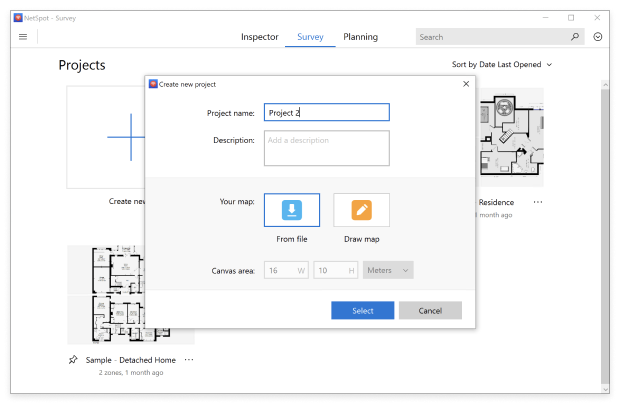
Add your map
NetSpot gives you two options. You can upload an existing plan — PDF, JPEG, or even a quick phone photo — using “Load from Image”.
If you don’t have a floor plan, simply set the canvas size and sketch the layout yourself with the built-in tools.
Step 4
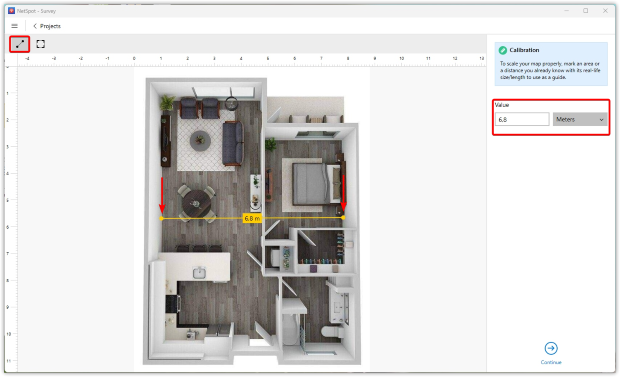
Calibrate the scale
With the plan on screen, tell NetSpot its real-world size. Draw a line over a distance you know — say the width of the room — and type in the actual measurement. NetSpot lets you calibrate with either that single line or a rectangle of known area; I stick with the line method because it’s faster and just as accurate.
Step 5
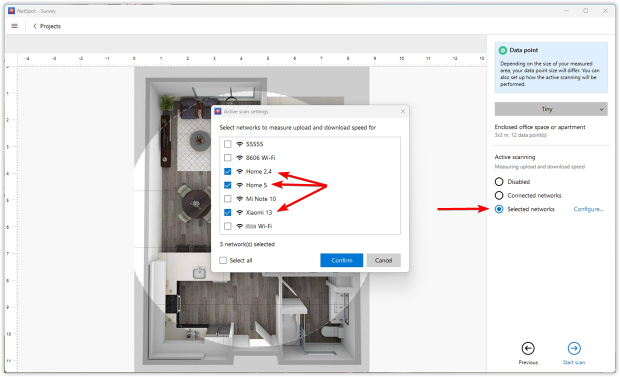
Choose data-point precision and pick your survey type
You can choose the data-point precision — this setting estimates how many survey points you’ll need for a high-quality heatmap.
After that, select either a Passive or an Active survey. I usually run Active because it gives me deeper insight into my current setup, and NetSpot lets me select multiple networks at once to measure both download and upload speeds.
Step 6
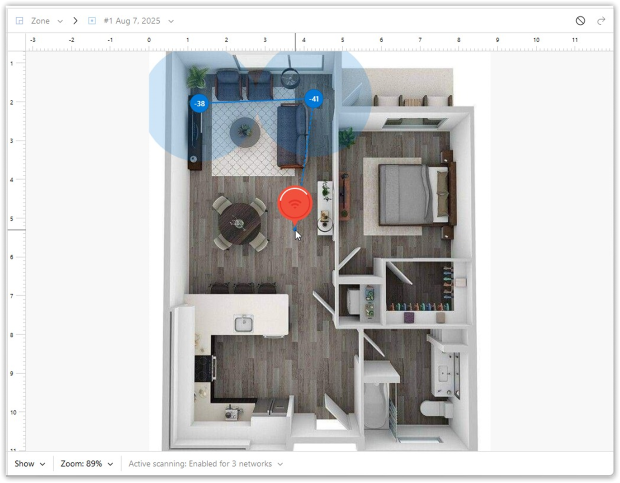
Walk the space
Next I plan out a convenient route through the apartment so I can cover every room without backtracking. Then I follow that path point by point, tapping each spot on the map as I go. NetSpot collects data automatically at every stop.
Step 7
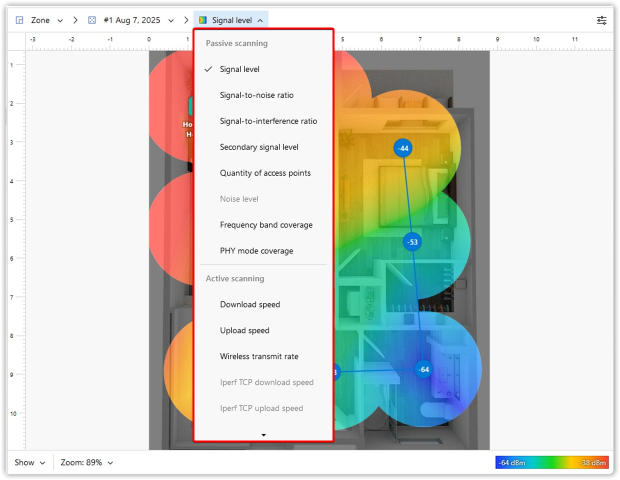
Dive into the results
Once the walk is done, NetSpot stitches your measurements into a set of Wi-Fi heatmaps. With roughly twenty visualizations — signal-to-noise ratio (SNR), signal level, signal-to-interference ratio, various troubleshooting maps and more — I get an instant, multifaceted snapshot of the network and know exactly where to tweak routers, channels, or AP placement.
Step 8
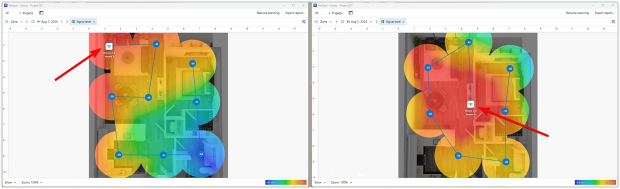
Fix what’s broken
Next, after analyzing the heatmaps and drawing conclusions about the problem areas, you can proceed to remediate the issues — whether that means relocating an access point, switching to a cleaner channel, or adding extra hardware.
Step 9
Re-survey and verify
A second pass is how you prove the tweaks actually work. Fire up NetSpot, walk the exact same path, and let the app rebuild the heatmap. NetSpot lets you take a new snapshot without rebuilding the whole project. If the dead zones you saw before have disappeared — and the color gradient looks healthy across the board — you know the upgrade did its job. If not, the fresh data shows where to adjust next.
When Should You Run a Wireless Site Survey?
A wireless site survey is the must‑have diagnostic whenever you need clear, data‑driven answers about your Wi‑Fi. Pull it out in these situations:
- When designing a new network: A predictive survey locks in full coverage from day one and heads off signal headaches.
- When network problems crop up: A fresh survey pinpoints weak spots and interference so you can tackle them fast.
- When the room layout changes: New walls, metal cabinets, or even a big furniture shuffle twist radio paths — re-survey to catch any new dead zones.
- For regular monitoring and optimization: Periodic sweeps keep performance dialed in, spotting rogue SSIDs or creeping interference before users notice.
Conclusion
Conducting a wireless site survey might seem like a technical hassle initially, but it's truly the cornerstone of great Wi-Fi performance. By choosing the right tools like NetSpot and following these steps, you'll eliminate network headaches, boost productivity, and keep everyone connected reliably.
So next time someone asks you, "What is a wireless site survey?" you'll not only know the answer but also understand how to implement it effectively.
SO, WE RECOMMEND

NetSpot
Wi-Fi Site Surveys, Analysis, Troubleshooting runs on a MacBook (macOS 11+) or any laptop (Windows 7/8/10/11) with a standard 802.11be/ax/ac/n/g/a/b wireless network adapter. Read more about the 802.11be support here.
FAQ — Wireless Site Surveys
What is a wireless site survey and why should I bother?
A wireless site survey is a systematic walk-through or predictive simulation of your space that maps signal strength, background noise, and interference. By turning invisible radio waves into actionable data, it lets you position access points with precision and deliver faster, more reliable Wi-Fi for every user and device.
How often do I need to perform a site survey?
Radio conditions shift whenever you remodel, add large metal objects, upgrade firmware, or bring in a new fleet of devices. In very dynamic venues the findings can drift in a matter of weeks; in typical offices a few months is common. An annual survey — plus an immediate one after any major change — keeps coverage and capacity on target.
Yes. Tools such as NetSpot guide you through importing a floorplan, walking designated paths, and generating heatmaps and channel-overlap visuals. In most small-to-medium environments a DIY approach is accurate enough, provided you calibrate your walking speed and gather data during normal operating conditions.
Does Wi-Fi 6E or Wi-Fi 7 change how a survey is done?
The workflow stays the same, but the 6 GHz band introduces wider channels and shorter range. Your software must recognize 6 GHz beacons, model 320 MHz-wide channels for Wi-Fi 7, and visualize separate heatmaps for 2.4, 5, and 6 GHz. NetSpot already does this, so your survey remains forward-compatible.
A heatmap overlays signal level, noise, or throughput on your floorplan, instantly revealing dead zones, overloaded cells, and channel conflicts. Instead of combing through tables of RSSI values, you see at a glance where to add or relocate an access point.
Do I need special hardware to run NetSpot?
For passive and active surveys, any recent Windows, macOS, or Android device with a modern Wi-Fi adapter will do. Predictive mode only needs your floorplan and the antenna specs of the access points you plan to deploy. NetSpot includes a database of Wi-Fi 6E and Wi-Fi 7 models, and you can enter custom parameters if your equipment isn’t listed.

Get NetSpot for Free
Wi-Fi Site Surveys, Analysis, Troubleshooting runs on a MacBook (macOS 11+) or any laptop (Windows 7/8/10/11) with a standard 802.11be/ax/ac/n/g/a/b wireless network adapter. Read more about the 802.11be support here.