Wi-Fi Site Surveys, Analysis, Troubleshooting runs on a MacBook (macOS 11+) or any laptop (Windows 7/8/10/11) with a standard 802.11be/ax/ac/n/g/a/b wireless network adapter. Read more about the 802.11be support here.
Master WiFi Channel Planning: Best Practices for Seamless Connectivity
Good WiFi channel planning helps keep your network fast, stable, and reliable, especially in setups with multiple access points. Reducing co-channel interference improves performance, boosts efficiency, and supports smoother day-to-day connectivity.
Jump to...
Understanding 802.11 Wireless Networking: Basics of WiFi Planning
To properly tackle the subject of WiFi channel planning, we must first explain the basic concepts of 802.11 wireless networking. The 802.11 specifications list the radio frequency spectrum allocated to WiFi, including the 2.4 GHz, 5 GHz, and emerging 6 GHz bands, which are transforming network design by offering more capacity and less interference.
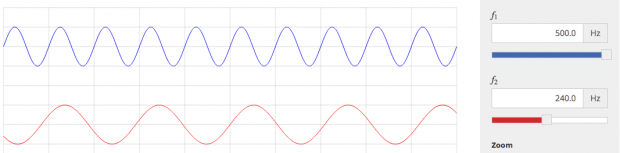
2.4 GHz Channel Planning
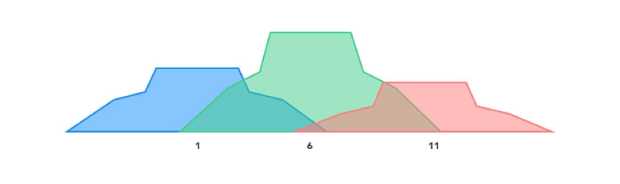
The legacy 802.11b, 802.11g, and 802.11n specifications utilize the 2.4 GHz frequency band, which is divided into 14 channels (only 11 of these channels are commonly utilized in North America). Each channel occupies at least 20 MHz, but channels are spaced only 5 MHz apart, causing significant overlap. This results in co-channel and adjacent channel interference that degrades performance in crowded environments
| Channel | Frequency (MHz) | North America | Japan | Most of world |
| 1 | 2412 | Yes | Yes | Yes |
| 2 | 2417 | Yes | Yes | Yes |
| 3 | 2422 | Yes | Yes | Yes |
| 4 | 2427 | Yes | Yes | Yes |
| 5 | 2432 | Yes | Yes | Yes |
| 6 | 2437 | Yes | Yes | Yes |
| 7 | 2442 | Yes | Yes | Yes |
| 8 | 2447 | Yes | Yes | Yes |
| 9 | 2452 | Yes | Yes | Yes |
| 10 | 2457 | Yes | Yes | Yes |
| 11 | 2462 | Yes | Yes | Yes |
| 12 | 2467 | No | Yes | Yes |
| 13 | 2472 | No | Yes | Yes |
| 14 | 2484 | No | 11b only | No |
WiFi planners typically use only channels 1, 6, and 11 in the 2.4 GHz band because they do not overlap.
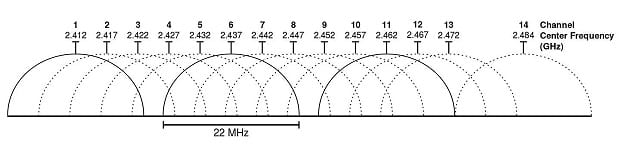
However, the limited spectrum and high device saturation make 2.4 GHz prone to congestion, especially in dense areas with competing wireless devices.
5 GHz Channel Planning
The 802.11a, 802.11n, and 802.11ac standards leverage the extensive 5 GHz band, offering up to 25 non-overlapping channels in UNII-1 and UNII-3 regions (commonly used in countries like the United States, Canada, and parts of Europe).
The 5 GHz band also supports DFS (Dynamic Frequency Selection) channels in UNII-2 regions (commonly used in countries like the United States, Canada, and parts of Europe, with Dynamic Frequency Selection required to avoid interference with radar systems), enabling access to additional spectrum but requiring devices to detect and avoid radar systems.
Wide channel bonding, where multiple 20 MHz channels are combined, allows for channel widths up to 160 MHz. While this increases data throughput, it also raises the noise floor, reduces signal-to-noise ratio (SNR), and increases contention in crowded networks. Strategic use of channel widths is critical to balance speed and reliability.
6 GHz Channel Planning
Introduced with the Wi-Fi 6E standard, the 6 GHz band adds a massive 1,200 MHz of spectrum, supporting 59 channels at 20 MHz, 29 at 40 MHz, 15 at 80 MHz, and 7 at 160 MHz. Unlike 2.4 GHz and 5 GHz, the 6 GHz band operates exclusively on Wi-Fi 6E and newer devices, reducing legacy interference and enhancing performance.
Key features of the 6 GHz band include:
- Ultra-wide channels for high-bandwidth applications like AR/VR.
- Reduced interference due to the absence of non-WiFi devices.
- Low-Power Indoor (LPI) and Automated Frequency Coordination (AFC) mechanisms to optimize spectrum sharing and minimize interference with incumbent services.
While 6 GHz offers higher theoretical speeds, its shorter range and reduced penetration through obstacles make it better suited for environments with high device density and minimal barriers.
Comparing WiFi Bands: 2.4 GHz, 5 GHz, and 6 GHz
The three WiFi bands differ significantly in terms of range, speed, and interference:

- 2.4 GHz: Offers the best range and wall penetration, making it suitable for basic connectivity in larger spaces. However, it suffers from severe congestion and interference from non-WiFi devices.
- 5 GHz: Provides higher speeds and less interference, ideal for high-bandwidth applications like 4K streaming. It has a shorter range and requires careful planning to mitigate DFS-related delays and channel contention.
- 6 GHz: The newest band, delivering unparalleled speeds and capacity. It minimizes interference but requires modern devices and is limited in range due to its high frequency.
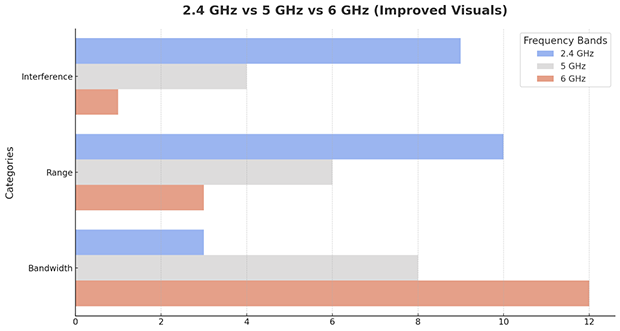
Using dual- or tri-band routers allows users to maximize the advantages of each band by assigning devices based on their connectivity needs.
How to Choose the Best WiFi Channel for Optimal Performance
To select the best channel for 6 GHz, 5 GHz and 2.4 GHz WiFi, you need a WiFi channel scanner like NetSpot. With NetSpot, you can quickly and painlessly gather information about surrounding WiFi networks and see WiFi channel utilization at a glance.
To discover the best channel for WiFi with NetSpot
Step 1
Download and launch NetSpot.
Step 2
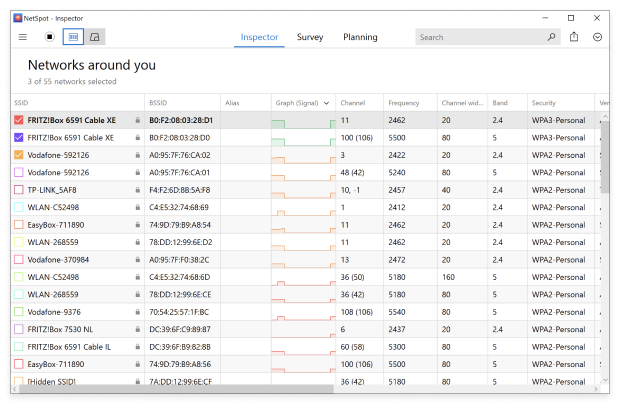
Use the Inspector Mode to collect every detail about surrounding WiFi networks.
Step 3
Select all WiFi networks that you want to visualize.
Step 4
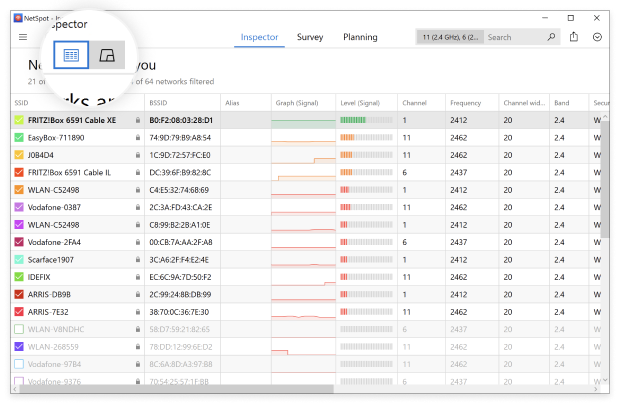
Click “Signal level and noise graphs” button.
Step 5
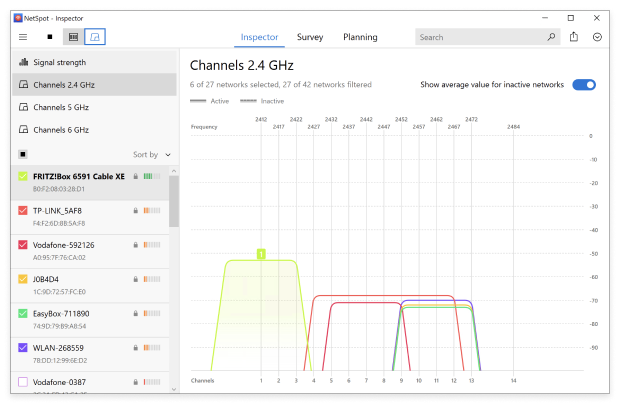
Click Channels 2.4 GHz, 5 GHz or Channels 6 GHz to see the distribution of WiFi channels in the two bands.
Pick the least utilized non-overlapping channel available. That’s how easy it is to select the best channel for WiFi if you have only one access point. But what about wireless networks consisting of multiple access points?.
Minimizing Co-Channel Interference: Best Practices for Reliable WiFi
Understanding the following technical concepts is essential for effective WiFi channel planning.
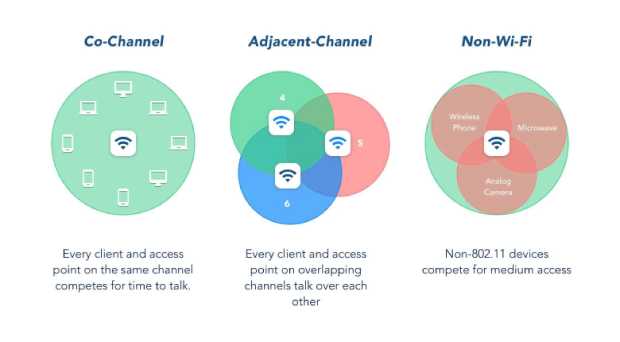
WiFi performance depends greatly on how well the network copes with interference. Problems most often arise from two factors: when devices are crowded together on the same channel or when their signals overlap on adjacent frequencies.
Imagine a situation where several access points are simultaneously operating on the same channel. In this case, WiFi's built-in protection mechanism (CSMA/CA) comes into play. It forces devices to "politely" wait their turn to transmit data to avoid signal collisions. This helps prevent fatal errors, but inevitably slows down the network — constant pauses cause overall speed to drop.
Adjacent channel interference
A much more insidious situation occurs when channels only partially overlap. In such cases, signals turn into unintelligible noise. Devices are unable to recognize this noise as useful traffic, leading to lost data packets and an unstable connection. To avoid this, it's crucial to properly deploy equipment and select only channels that don't overlap.
Typical Configuration Mistakes
One of the most annoying mistakes companies make when deploying a network is configuring all access points to the same channel. This results in the entire data stream trying to squeeze through a single, narrow corridor with limited bandwidth, which leads to serious disruptions.
The Golden Mean
Your main goal is to create coverage that makes the transition from one access point to another seamless (seamless roaming). To achieve this, coverage areas should slightly overlap, but the frequencies must remain independent. This is the only way to achieve consistently high speeds and a comfortable network experience.
About DFS (Dynamic Frequency Selection)
When talking about how to get the most out of the 5 GHz band, we can't forget about DFS technology. It's essentially a built-in "radar detector" in the router. It constantly scans the air: if a real radar (such as a weather service or military radar) is activated nearby, the access point immediately switches the network to a different, clear channel. This is good because it opens up a bunch of additional frequencies that would otherwise be blocked.
But this feature has its vulnerabilities. Firstly, when the network jumps from channel to channel, the connection can freeze for a second (that's what we call latency). Secondly, not all smartphones or laptops are compatible with DFS — some older devices simply don't see these channels and lose internet connection.
As a result, if you're installing Wi-Fi in an area where radar is common, you're left scrambling: how to grab as many frequencies as possible without leaving half the office without a stable connection due to these constant switching.
About Channel Width and Channel Bonding
When we need speed, channel bonding comes to the rescue. The idea is simple: we take several narrow "lanes" and combine them into a single wide highway. In theory, this provides a powerful boost in speed, especially in areas where the airwaves are clear and no one is disturbing anyone else.
But in practice, wide channels have an unpleasant side effect. The wider the channel, the more "junk" and background noise it collects. In dense offices or residential buildings, where routers are everywhere, such wide channels begin to interfere with each other, and instead of speeding up, you get a ton of errors.
For most normal conditions, it's better to be conservative and use narrower channels — for example, 20 or 40 MHz. This is the "gold standard" that ensures decent speed and prevents connection drops due to interference from neighbors.
It's not enough to simply slap routers together — you need to understand how far each one can reach. The idea is to have slightly overlapping coverage zones.
determine the coverage of each access point
By carefully addressing these technical considerations, network planners can simulate robust WiFi systems that balance speed, reliability, and capacity in even the most challenging environments.
This can be done using NetSpot’s Survey Mode, an easy-to-use WiFi heatmapping feature capable of creating interactive heatmaps with detailed information on all surveyed wireless networks in every point of the map.
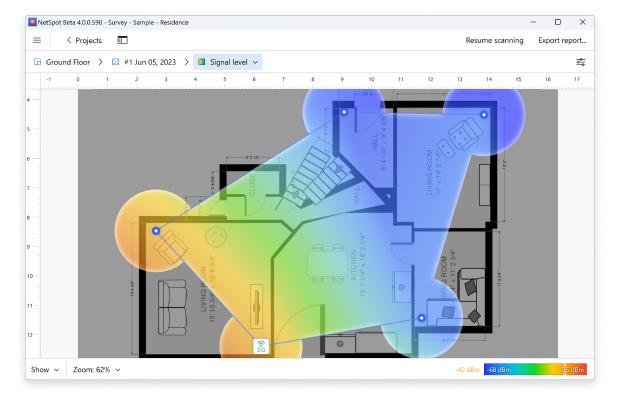
To create a WiFi site survey with NetSpot
Step 1
Download and launch NetSpot.
Step 2
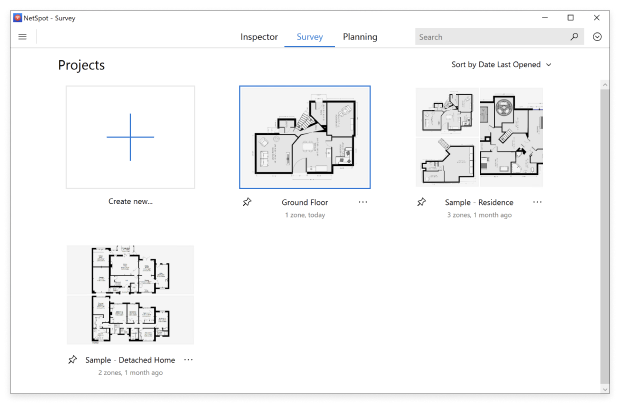
Switch to the Survey mode using the prominent button in the toolbar.
Step 3
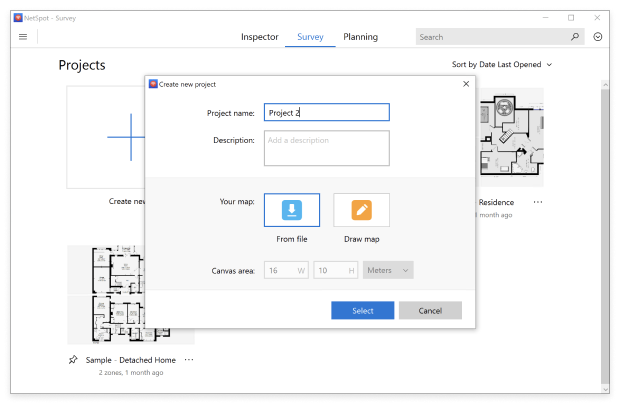
Name your WiFi site survey project and import a map of the area you want to survey.
Step 4
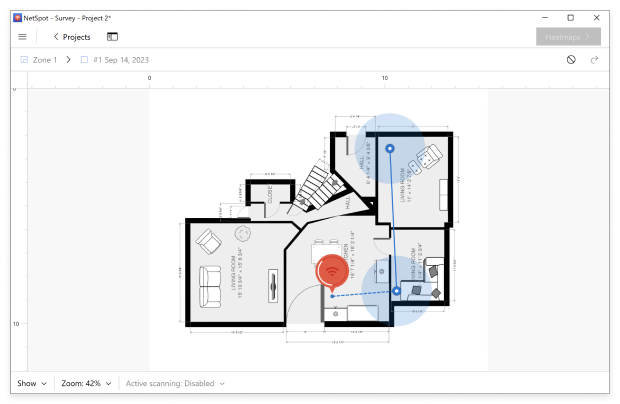
Move from one place to another until you cover the whole area.
Step 5
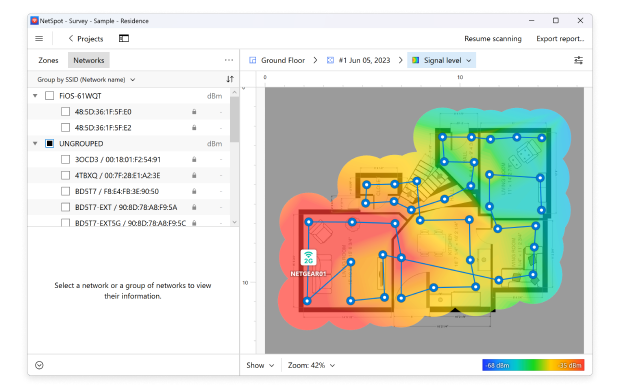
Click the Heatmaps button located in the top-right corner when you’re done.
Equipped with the detailed data provided by NetSpot, configure your access points so that no two access points with overlapping coverage use the same WiFi channel. As we’ve already explained, you should keep the 2.4 GHz channels to 1, 6, and 11 since these are the only three non-overlapping channels available, at least in North America.
In the 5 GHz band, there are far more channels to choose from, and most modern access points can set the most appropriate channel automatically, making it far easier to avoid co-channel interference and achieve flawless coverage and excellent capacity.
If your network already uses 6 GHz frequencies, NetSpot allows you to clearly see how channels are distributed and how connected devices are performing. This range offers much cleaner air, making it will help if network response speed and a consistently high flow are critical. For example, in modern offices with a large number of devices.
Including 6 GHz in your survey allows you to maximize the benefits of new standards without disrupting the overall network balance. NetSpot data helps you design a system to minimize interference and ensure stable capacity across three bands: 2.4, 5, and 6 GHz.
Final Thoughts: Building a High-Performance WiFi Network
When deploying a wireless network, it’s crucial to address overlapping channels and interference. A tool like NetSpot simplifies this by identifying co-channel and adjacent channel interference, visualizing signal strength, noise, and channel distribution across 2.4 GHz, 5 GHz, and 6 GHz bands. With the heatmapping feature, NetSpot helps optimize channel planning, minimize interference, and ensure reliable, seamless connectivity, even in dense environments.
SO, WE RECOMMEND

NetSpot
Get NetSpot for Free
Wi-Fi Site Surveys, Analysis, Troubleshooting runs on a MacBook (macOS 11+) or any laptop (Windows 7/8/10/11) with a standard 802.11be/ax/ac/n/g/a/b wireless network adapter. Read more about the 802.11be support here.
THE MAIN ADVANTAGE OF THESE WIDE CHANNELS IS THAT THEY CAN CARRY MORE DATA