WiFi Tester app runs on a MacBook (macOS 11+) or any laptop (Windows 7/8/10/11) with a standard 802.11be/ax/ac/n/g/a/b wireless network adapter. Read more about the 802.11be support here.
WiFi Signal Strength Test — Measure & Boost Your dBm in Minutes
Learn how to run a precise WiFi signal strength test, interpret dBm values, and fix weak spots — this article teaches you everything you need to know using easy WiFi tester apps.
A quick WiFi signal strength test gives you precise dBm numbers to instantly spot weak coverage. If you think that WiFi testing is something that only professional IT administrators and employees of Internet services providers do, think again. These days, even regular home users test WiFi signal strength to optimize their home WiFi coverage and achieve the fastest possible Internet speeds.
Jump to...
What is a WiFi Signal Strength Test and How Is It Different from a Speed Test?
When your WiFi drops or your video streams buffer, you might first run a speed test. However, a WiFi signal strength test measures something different — and just as important.
A WiFi signal strength test shows the quality of your wireless connection in decibel milliwatts (dBm). According to the Wi-Fi Alliance, strong signal quality is critical for ensuring seamless connectivity, especially as more devices demand stable wireless performance.
In contrast, a WiFi speed test only measures your actual download and upload speeds in megabits per second (Mbps). It shows if your connection is slow but doesn’t explain why.
Here's how to quickly interpret your WiFi signal test results:
Regular WiFi signal strength tests help you pinpoint weak coverage and decide whether you should move your router, change channels, or use WiFi extenders. This way, you improve your WiFi based on facts, not guesses.
Why Is It Necessary to Test WiFi Signal and When Do You Need to Test It?
- After any noticeable slowdown: When Netflix suddenly buffers or web pages crawl, a quick signal test confirms whether your RSSI has dipped below –67 dBm and shows exactly where the drop occurs.
- When new networks pop up around you: In an apartment block, neighbors may light up another router on the same channel. A fresh scan instantly reveals new overlaps and points you to a quieter channel.
- After you move the router — or the furniture: Shifting a bookcase or adding a mirror changes how radio waves bounce and fade. One test immediately tells you whether fresh dead zones appeared.
- Before mission-critical online events: A video conference or live stream deserves a pre-flight check. Verifying that your workspace holds above –60 dBm keeps surprises off the agenda.
- On a regular schedule: Wi-Fi environments evolve: firmware updates, smart-home gadgets, or new access points next door all reshape the airwaves. Testing every couple of months catches issues early, so you can tweak placement or channels before they bite.
Best Apps for Running a WiFi Signal Strength Test
Understanding the need for WiFi signal testing leads naturally to the question: which tools deliver the most accurate results? Let’s take a closer look at the best WiFi tester apps available today.
- NetSpot — is arguably the best WiFi tester app ever created, and it’s certainly the favorite WiFi tester app.
- Acrylic Wi-Fi — is another popular WiFi tester app capable of analyzing 802.11/a/b/g/n/ac/ax wireless networks.
- Wi-Fi Analyzer — is the simplest WiFi tester app on this list, and it’s also the easiest to install.
- W-iFi Commander — is a modern WiFi tester app that stands out with its touch-friendly user interface and 3D channel distribution analysis.
- Vistumbler — is a spiritual successor to Netstumbler, the award-winning wireless networking tool for Windows.
Choice #1
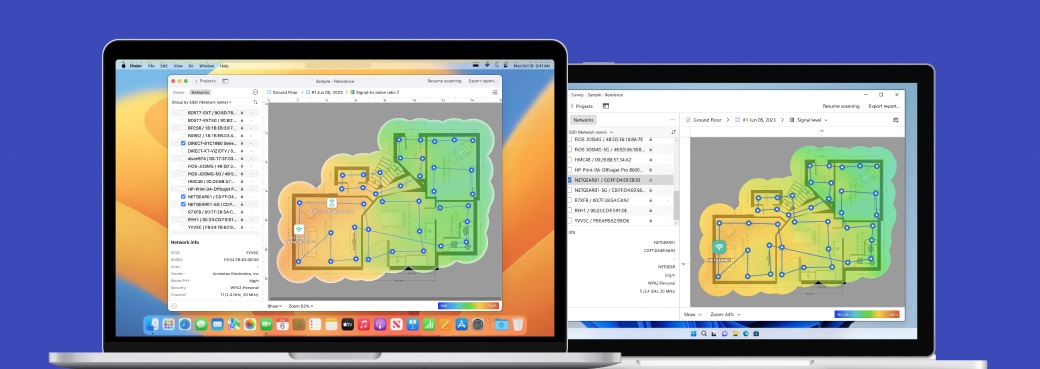
NetSpot is arguably the best WiFi Signal Strength tester app ever created, and it’s certainly the favorite WiFi tester app of hundreds of thousands of professional and home users alike, who all appreciate its modern user interface, complex features, great customer support, and attractive price. NetSpot has three distinct modes of operation: Inspector, Survey and Planning.
-

Inspector Mode
Gives you real-time insights into the WiFi networks around you..
-

Survey Mode
Provides a comprehensive, map-based analysis of your WiFi network's performance.
-

Planning Mode
Enables you to simulate and plan your WiFi network's layout and coverage.
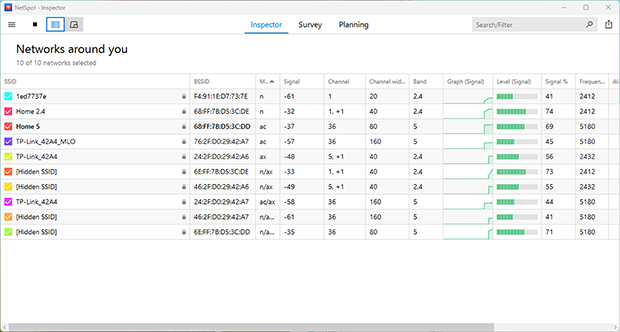
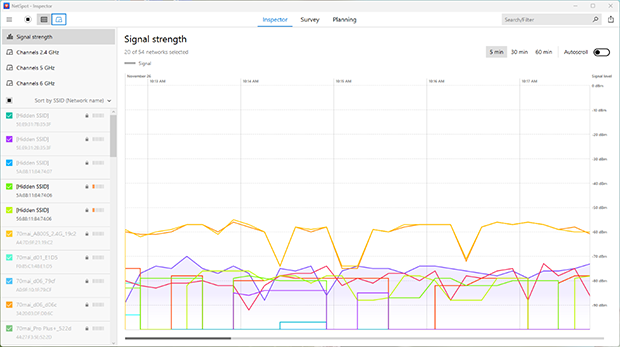
A live signal-strength graph show levels rise and fall as you move.
The Survey mode, on the other hand, lets you run in-depth wireless site surveys and generate clear, intuitive heatmaps that reveal exactly where the signal strongest and where it is the weakest.
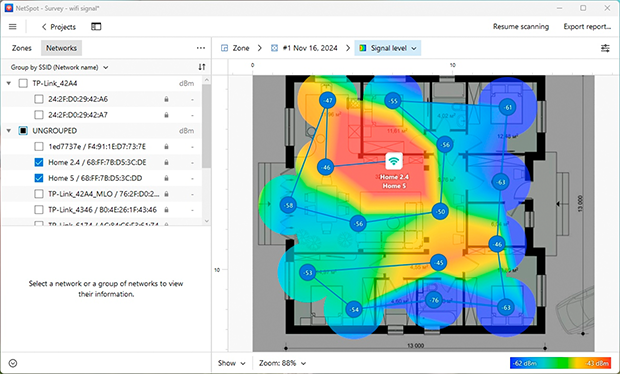
With NetSpot, you don’t need to be an expert to gain enough insight into the state of your wireless network to see where the problem is and understand how you can solve it.
Pros and Cons
-
20+ heatmap coverage graph
-
Powerful customizable reports
-
Modern user interface
-
Multiple data export options
-
Excellent customer support
-
Doesn’t work on Linux
- Summary recommendation: Get NetSpot
Choice #2

Acrylic Wi-Fi
Available for Windows 10, 8.1, 8, 7, Vista.
Acrylic WiFi is another popular WiFi tester app capable of analyzing 802.11 a/b/g/n/ac/ax wireless networks. Compared to NetSpot, Acrylic WiFi has a lot less user-friendly interface, which may put off less experienced users. That said, the company behind Acrylic WiFi offers comprehensive WiFi testing training courses intended to turn beginners into pros.
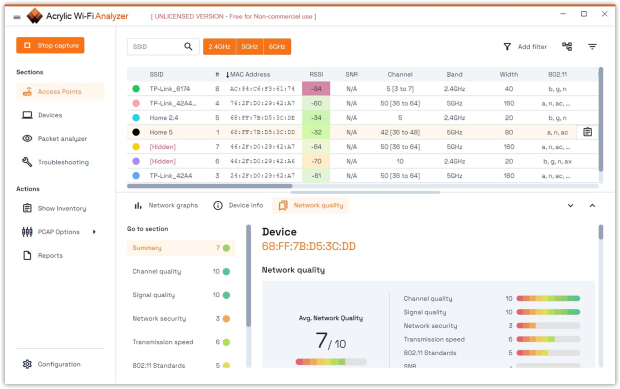
If you’re willing to invest some time into learning how to use this free WiFi tester app, you may even consider eventually upgrading to the Pro version or purchase the Heatmaps add-on to gain an even deeper understanding of wireless networks around you.
Pros and Cons
-
Supports 802.11/a/b/g/n/ac/ax
-
Shows SNR using an AirPCAP card
-
Unlimited device inventory
-
Intended for professional users
-
The free trial version can be used only for 5 days
Choice #3

Wi-Fi Analyzer
Available for Windows 10 version 18362.0 or higher.
WiFi Analyzer is the simplest WiFi tester app on this list, and it’s also the easiest to install because you can download it straight from the Windows Store. The app can gather basic information about nearby wireless networks and help you find the best channel to broadcast on, but that’s where its capabilities end.
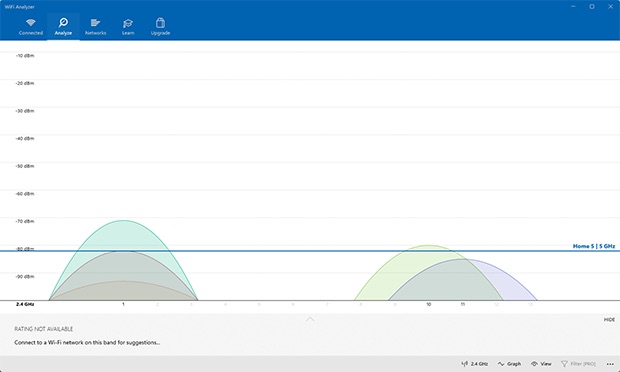
Because WiFi Analyzer is a modern Windows app, you can also run it on mobile devices with the Windows Mobile operating system, which is far more convenient than always carrying a heavy laptop around.
Pros and Cons
-
Easy to use
-
Available in the Windows Store
-
The basic version is completely ad-free
-
Advanced features must be purchased via an in-app purchase
Choice #4

Wi-Fi Commander
Available for Windows 10 version 10240.0 or higher.
WiFi Commander is a modern WiFi tester app that stands out with its touch-friendly user interface and 3D channel distribution analysis. You can download it directly from the Windows Store, but that’s unfortunately also the only place where it’s available. That’s right, WiFi Commander doesn’t work on any other operating system besides Windows.
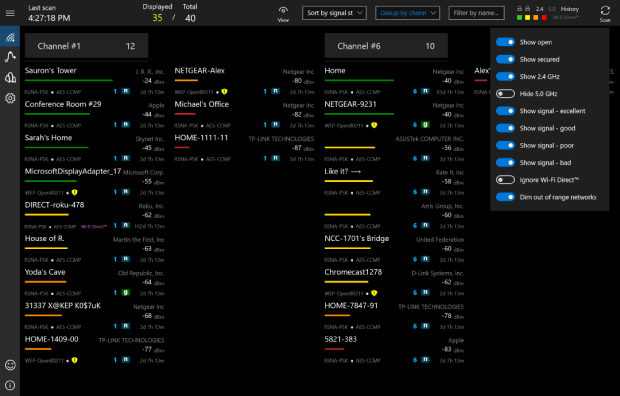
Unlike most other Wi-Fi testers that can be found in the Windows Store, Wi-Fi Commander aspires to be more than a quick diagnosis tool for home users. With a simple tap, it can reveal detailed information about any Wi-Fi access point, including its vendor, security settings, and MAC address. Combined with its small installation size, it makes for a great companion for technicians whose job is to troubleshoot Wi-Fi issues in the field.
Pros and Cons
-
Unique 3D graphs
-
Touch-friendly user interface
-
Small installation size
-
Works only on Windows
Choice #5

Vistumbler
Available for Windows 10, 8, 7, and Vista.
Vistumbler is a spiritual successor to Netstumbler, the award-winning wireless networking tool for Windows that runs on Microsoft Windows operating systems from Windows 2000 to Windows XP. The main purpose of Vistumbler, according to its official website, is to map and visualize access points based on collected wireless and GPS data.
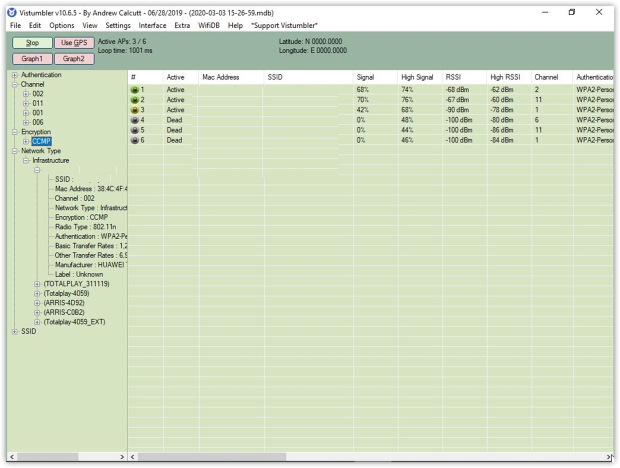
The current version of this WiFi test application is optimized for Windows 10, but it also works on Windows 8, 7, and vista. Vistumbler uses the Windows Native WiFi API or netsh, which is a command-line utility included in Microsoft's Windows NT line of operating systems. The only thing we don’t like about it is its outdated user interface, which makes this WiFi tester app seem as if it came straight from the Windows 98 era.
Pros and Cons
-
GPS support
-
Compatible with NetStumbler
-
Live Google Earth tracking
-
Open-source license
-
Outdated user interface
What Is the Best Way to Test WiFi Signal Strength?
The easiest and most accurate way to test WiFi signal strength is by creating a WiFi heatmap. Instead of manually checking dBm numbers in every corner, a heatmap provides a complete visual of your network’s coverage in just a few minutes, instantly showing where the signal is strong, weak, or dropping below safe levels (around –67 dBm).
That’s why it’s important to choose WiFi tester apps that can generate WiFi heatmaps — such as NetSpot or Acrylic. Unlike basic testers that only display a list of networks and signal values, these apps automatically collect signal strength data as you walk through the area and then visualize it on a map. Strong coverage appears in warm colors (yellow, orange, red), while weaker zones are highlighted in cooler shades (green, blue).
A good WiFi testing tool should also display basic security information, such as the type of encryption used by each network. Modern apps help you quickly spot outdated security standards like WEP, which is considered obsolete, and recommend networks secured with WPA2 or WPA3.
Compatibility with the latest technologies such as Wi-Fi 6 and Wi-Fi 6E is another important factor. Both standards are defined in the IEEE 802.11 documentation and deliver higher speeds, improved efficiency, and better performance in crowded environments. The latest WiFi standards offer faster speeds, greater capacity, and better performance in crowded environments, so using a tester that recognizes and analyzes these networks ensures your results stay relevant as your devices and routers upgrade.
By starting with a heatmap and relying on a tester that covers both network strength and security essentials, you’ll get a full, accurate view of your wireless environment — and take the right steps to improve it exactly where it matters.
Pro Tips for Getting the Most Accurate WiFi Signal Test Results
Even the most accurate and feature-packed WiFi tester won’t be able to deliver reliable results if you don’t use it properly. Here are some tips to help you obtain accurate results when using a WiFi tester online:
- Stop other online activity: When using a WiFi tester app to measure the performance of your WiFi network, it’s paramount that you stop other online activity, such as streaming, web browsing, online gaming, and video chatting. Only then will you be able to obtain accurate results.
- Know when to test: If you want to find out the maximum download and upload speed you can achieve on your WiFi, it might be a good idea to avoid peak hours. During peak hours, most of your neighbors will likely be online, and their activity could interfere with the performance of your WiFi.
- Test from different rooms: Before you send an angry email to your internet service provider, complaining about its inability to deliver the advertised internet speeds, you should test your WiFi from several different rooms so you can rule out your WiFi router as the cause of the problems.
SO, WE RECOMMEND

NetSpot
WiFi speed test app runs on a MacBook (macOS 11+) or any laptop (Windows 7/8/10/11) with a standard 802.11be/ax/ac/n/g/a/b wireless network adapter. Read more about the 802.11be support here.
You don’t need expensive hardware or complicated setups to boost your WiFi. With NetSpot, a simple signal strength test and a color-coded heatmap are all you need to start improving your network today.
FAQ WiFi Signal Strength Test
How accurate are WiFi signal strength test apps compared to professional tools?
Modern WiFi signal strength test apps like NetSpot deliver highly accurate dBm readings, very close to what professional-grade survey tools provide, especially for home and small office networks.
Can a WiFi signal strength test help fix frequent disconnects?
Yes, a WiFi signal strength test can reveal weak signal zones where frequent dropouts occur, helping you relocate your router or optimize your network settings to eliminate disconnects.
What’s the difference between WiFi signal strength and WiFi signal quality?
While a WiFi signal strength test measures the power of the signal (in dBm), signal quality also factors in interference and noise, which affect the actual usability of the connection.
Is a WiFi signal strength test useful before upgrading to Wi-Fi 6 or 6E?
Definitely. Running a WiFi signal strength test before upgrading to Wi-Fi 6 or Wi-Fi 6E helps you map out existing weak spots, so you can plan new router placement and get maximum benefit from the upgrade.
How often should I perform a WiFi signal strength test at home?
Ideally, you should run a WiFi signal strength test every few months, after moving furniture, or after major Wi-Fi network changes, to make sure your coverage remains strong and reliable.

Get NetSpot for Free
Wi-Fi Site Surveys, Analysis, Troubleshooting runs on a MacBook (macOS 11+) or any laptop (Windows 7/8/10/11) with a standard 802.11be/ax/ac/n/g/a/b wireless network adapter. Read more about the 802.11be support here.