If you’re dealing with weak Wi-Fi, the fastest way to waste time is flipping settings at random and hoping you get lucky. To find the root of the problem, start by measuring your signal with a Wi-Fi analyzer like NetSpot. Once you see what’s actually happening, you can fix the real problem instead of guessing.
1. Check if your channel is crowded
Factory router settings are the #1 reason people end up stuck on the same overloaded channels as everyone else.
What to check in NetSpot:
Open Inspector Mode and look at the Channels graph (and the channel list). You’re looking for two things: your network’s current channel and how many nearby networks are “sitting” on top of it.
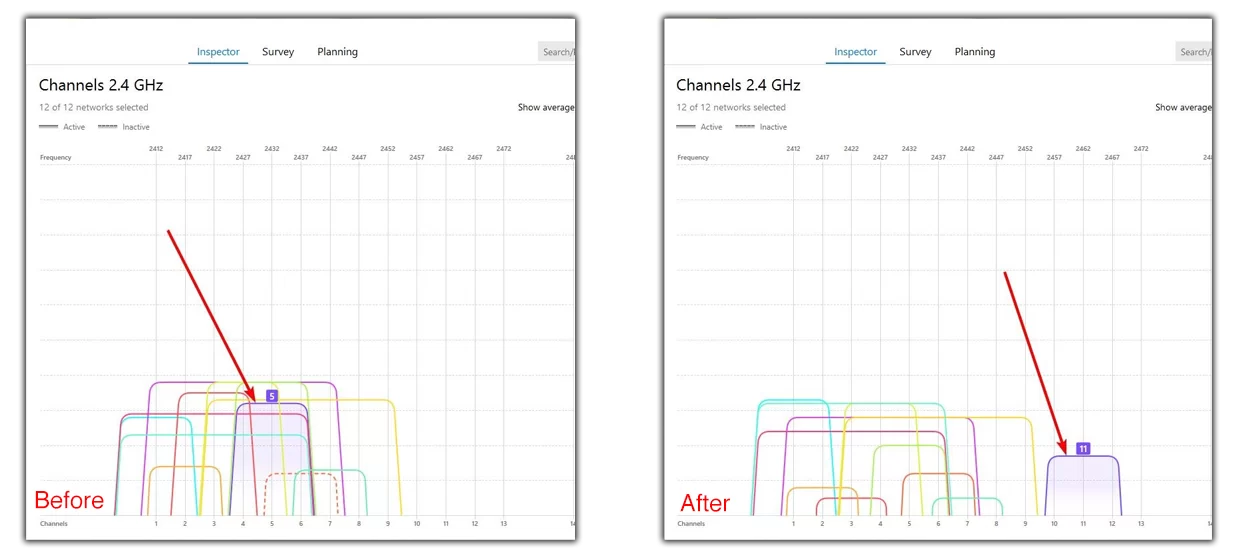
If NetSpot shows your current channel is overloaded and you’ve identified a cleaner one, follow these steps:
What to change in the router:
- Open a browser and type your router’s IP address (usually 192.168.0.1 or 192.168.1.1) into the address bar.
- Log in to the admin panel.
- Go to Wireless / Wi-Fi Settings → select the correct band (2.4 GHz or 5 GHz) → find the Channel setting → switch it from Auto to Manual, and select the cleaner channel you identified in NetSpot.
- Click Save / Apply and wait for the Wi-Fi to restart.
Pro Tip: If possible, move your high-bandwidth devices to the 5 GHz (or 6 GHz) band. While 2.4 GHz travels farther, it is usually the most congested frequency.
2. Fix your channel width
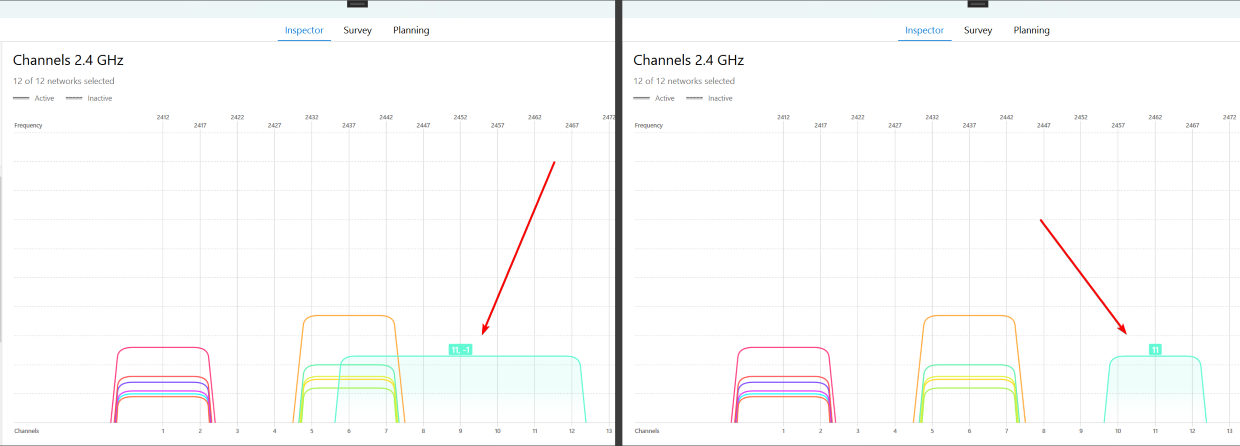
Using channels that are too wide often makes Wi-Fi less stable in crowded areas. Many people leave 160 MHz enabled because it sounds like an “upgrade,” but they often end up with buffering and random slowdowns.
What to check in NetSpot:
In NetSpot’s Inspector Mode, look at the Channels graph and see how busy the spectrum is around your network. If there’s a lot of overlap near your channel, a narrower channel width usually provides a smoother, more reliable connection.
What to change in the router:
Navigate to Wireless / Wi-Fi → Channel Width.
Practical Defaults:
- On 2.4 GHz: Set to 20 MHz. (Avoid 40 MHz here, as it almost always causes interference).
- On 5 GHz: Start with 80 MHz, but drop to 40 MHz if the environment is heavily crowded.
- On 6 GHz: Higher widths (160 MHz) can work well, but only if the band is actually clear.
3. Eliminate sources of interference and noise
Microwaves, baby monitors, cordless phones, and Bluetooth gadgets can all introduce RF noise — especially on the 2.4 GHz band, where the airwaves are most crowded. If your internet slows down at specific times, pay attention to which appliances are running at that moment.
Pro-Tip: Move your router away from large appliances, thick power supplies, and tangled power strips. If possible, place it in an open, elevated spot. If your router supports dual-band, try connecting to 5 GHz — it’s typically cleaner and less prone to random household noise.
What to check in NetSpot:
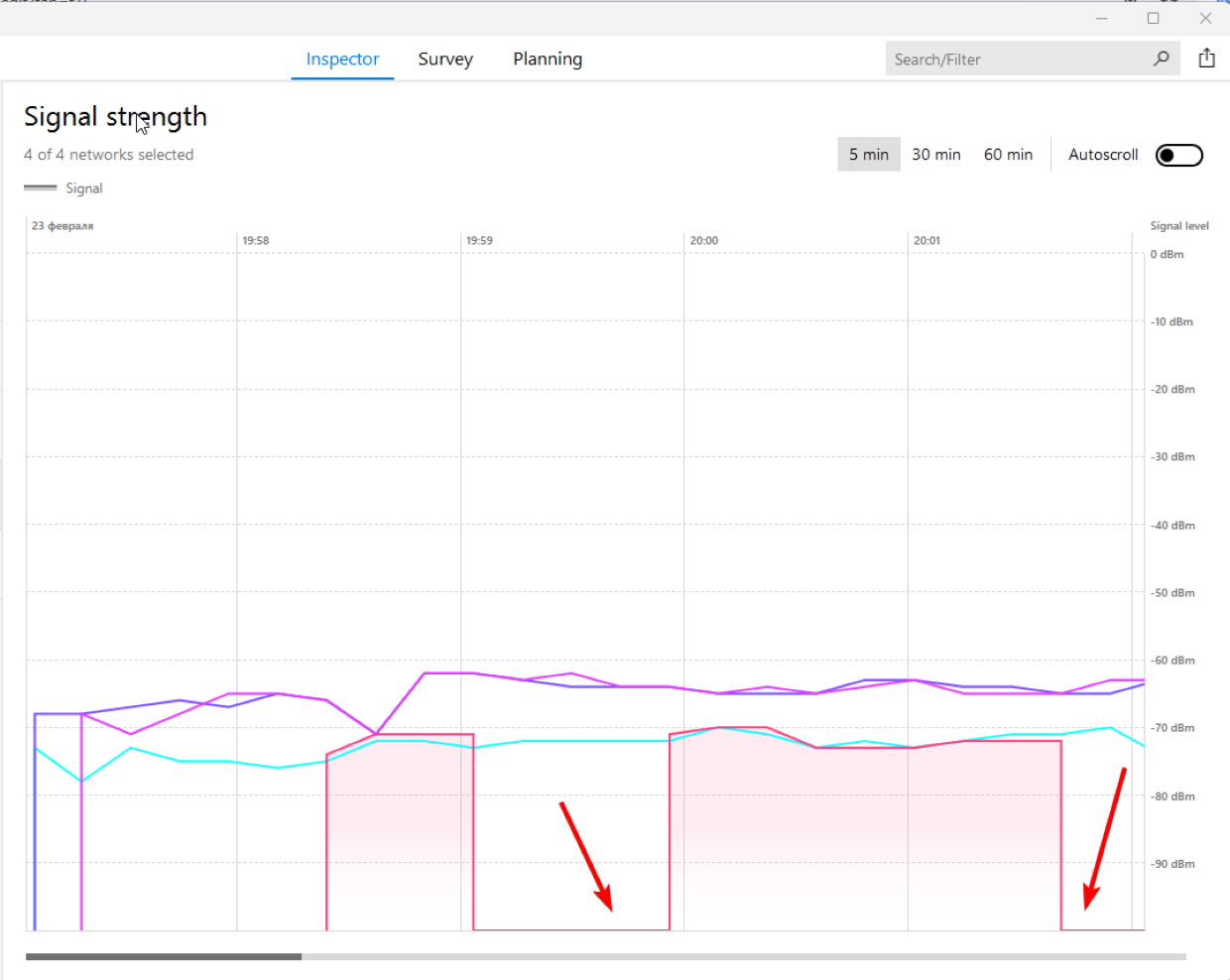
Open Inspector Mode and watch the Signal Strength graph. When a noisy device (like a microwave) turns on, you may see the signal line drop sharply or become unstable. This usually indicates local interference rather than an issue with your ISP.
The Best Fixes for Noise:
- Move off 2.4 GHz: This is the simplest and most effective solution. The 2.4 GHz band is highly sensitive to everyday household RF noise.
- Switch to 5 GHz or 6 GHz (if supported): Household appliances rarely affect these higher bands, resulting in a much more stable connection.
4. Move your router
If your Wi-Fi is “bad in one room but fine in the rest,” channel tweaks won’t fully solve the problem—you are dealing with a coverage issue.
What to check in NetSpot:
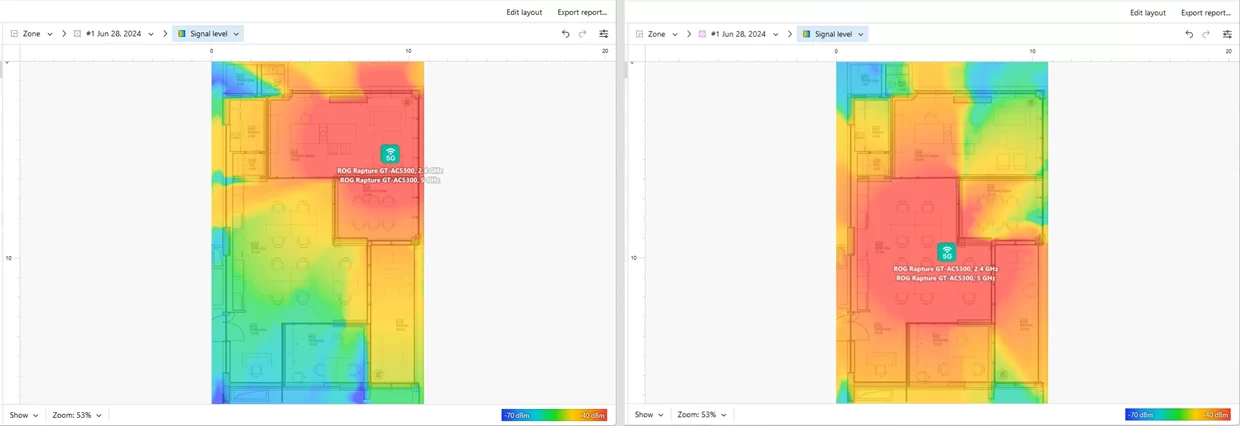
Start with Survey Mode to map out the actual dead zones on a heatmap. Look for areas where the signal consistently drops to -75 dBm or worse. Now you aren’t guessing; you know exactly where the signal dies.
How to plan the move:
Next, open Planning Mode, load your floor plan, and add walls or specific building materials. Try a few virtual router or Access Point (AP) placements to see which spot improves coverage in your weak areas before you start drilling holes or moving cables.
The Physical Move:
Once you’ve found the ideal spot, move the router for real. Follow these three rules:
- Elevate it: Get it off the floor.
- Centralize it: Place it in the middle of your living space.
- Clear the path: Move it out of closets, away from corners, and away from mirrors.
Finally, run a quick re-check (Survey) to confirm the signal has actually improved in the problem room.
5. Optimize antenna position and gain
If the tips above haven’t moved the needle, it’s time to tweak your router’s antennas.
The Physics of Placement:
If your router has external antennas, their orientation significantly changes the coverage pattern. As a general rule:
- To cover a single floor: Keep the antennas vertical. This spreads the signal horizontally across the same level.
- To cover multiple floors: Tilt one antenna horizontally. This directs more signal energy up and down through the ceiling and floor.
It sounds minor, but a few degrees of tilt can often make a bigger difference than you’d expect.
Hardware Upgrades:
If your router features removable antennas, consider swapping them for high-gain models. You can also switch to directional antennas if you need to “beam” the signal specifically toward a problem area rather than broadcasting it in a full circle.
What to check in NetSpot:
Use NetSpot’s Planning Mode to model your layout and virtually test different antenna setups.
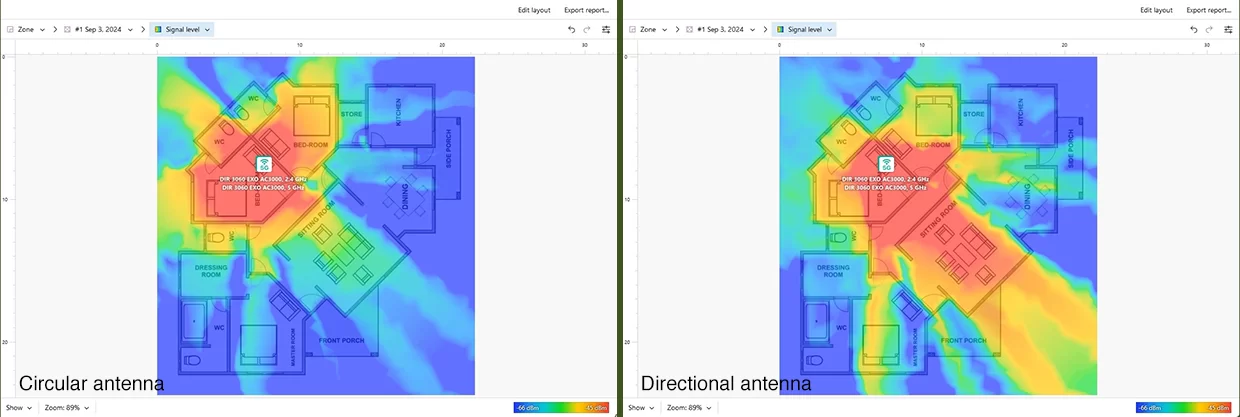
This allows you to see the predicted coverage before you spend money on new hardware or start climbing ladders to adjust mounted equipment.
6. Use a repeater (as a temporary fix)
If a Survey shows an area where the signal barely reaches and moving the router isn’t an option, a repeater can act as a bridge.
The Golden Rule of Placement:
The biggest mistake is placing the repeater inside the dead zone. It needs a strong signal to repeat, so you must place it at the edge of stable coverage:
- Check NetSpot: Look for a spot with a signal strength between -60 dBm and -65 dBm.
- Install and Extend: Place the repeater there; it will catch the solid signal and push it toward the problem room.
The Trade-off:
Keep in mind that traditional repeaters (or “extenders”) usually cut your throughput in half. Because they have to receive and then retransmit every packet of data on the same channel, they create a “bottleneck.” This is why a repeater is often best used as a temporary solution rather than a permanent fix.
7. Upgrade your hardware or add an Access Point
If your house has persistent “dead zones” where the signal barely reaches, a single router simply may not be enough for your floor plan. Modern Wi-Fi gear is designed to handle crowded environments better and remains much more stable under a heavy load.
Signs your router is outdated:
- Old Standards: It only supports 2.4 GHz or relies on 802.11n (Wi-Fi 4).
- Early Tech: It’s an early Wi-Fi 5 (802.11ac) model that lacks “Beamforming” or “MU-MIMO.”
- Poor Penetration: The signal drops off sharply after passing through even a single wall.
- Unstable Performance: Speeds fluctuate wildly even when NetSpot shows the channel is clean.
What to do in NetSpot:
Before you buy new hardware, use Planning Mode. You can virtually select and test different router or Access Point models within your specific floor plan.
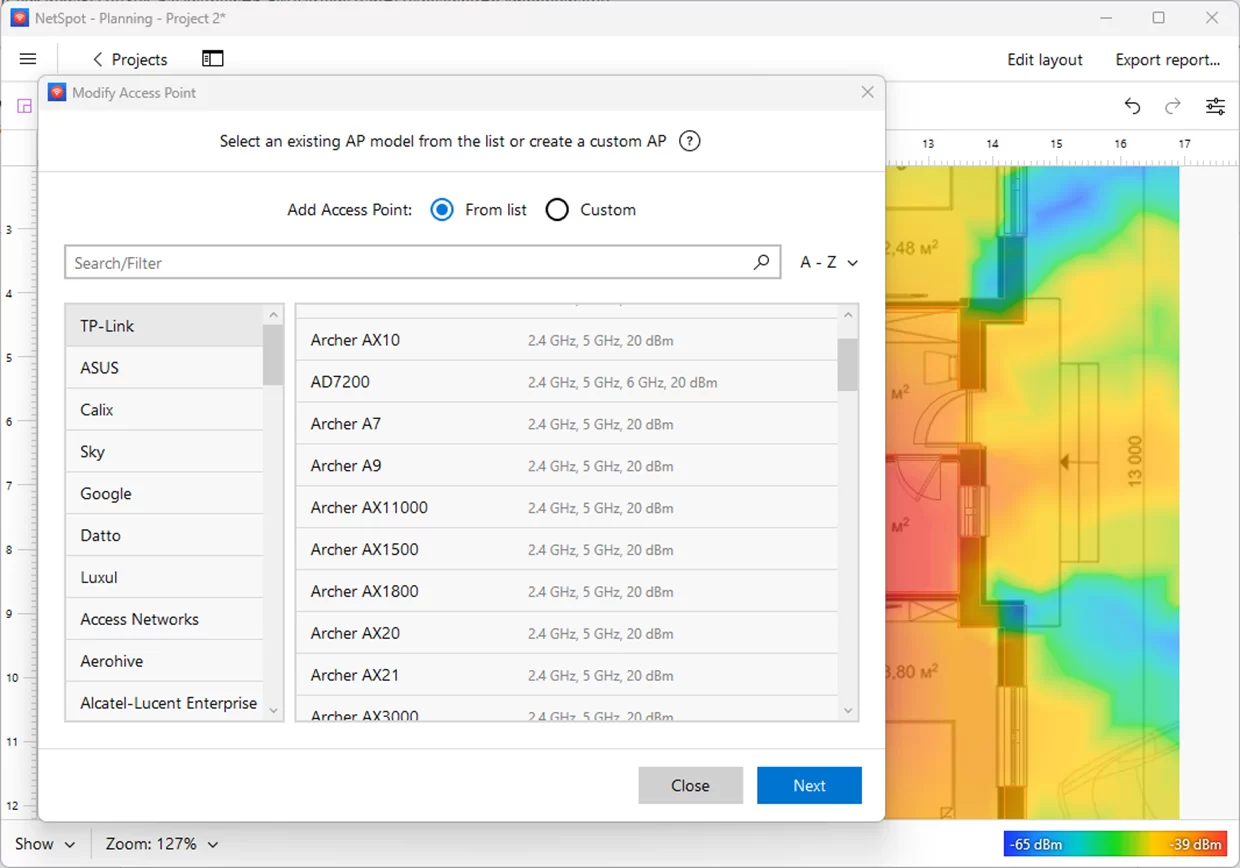
This allows you to see the simulated coverage results and choose the right hardware to eliminate your dead zones once and for all.
8. Switch to a Mesh system for complex layouts
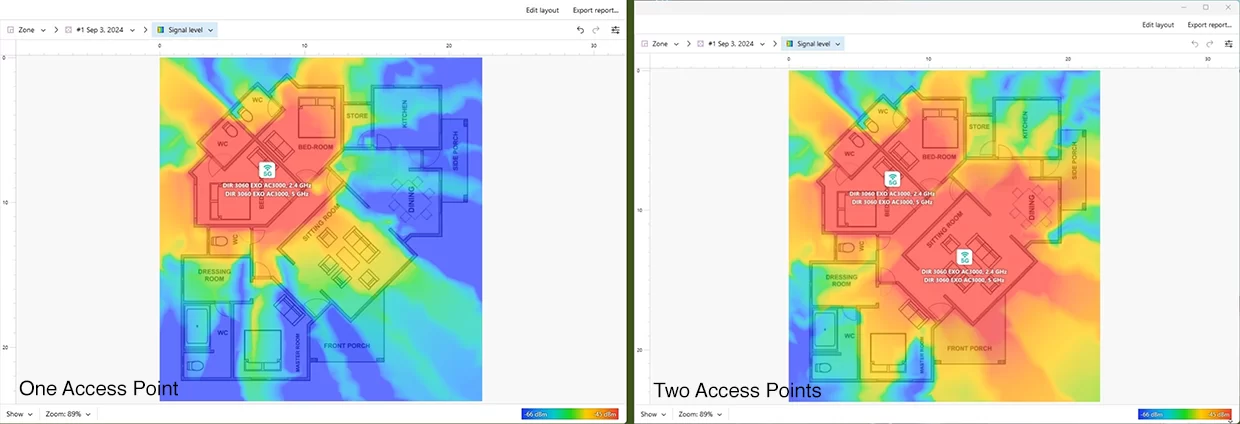
If NetSpot’s Survey Mode reveals multiple dead zones across various walls and floors, a single router or repeater will always be a compromise.
Why Mesh is the logical choice for larger spaces:
For large apartments, multi-story houses, and offices, a Mesh system is the most effective way to provide uniform coverage. Unlike traditional setups, Mesh offers:
- Seamless Distribution: Multiple nodes are placed throughout your home to create a single, continuous “blanket” of Wi-Fi.
- Intelligent Roaming: Your devices automatically switch to the strongest node as you move from room to room without dropping the connection.
- Simplified Management: Most systems are controlled via a single app, making it easy to monitor network health.
Pro-Tip for NetSpot Users:
Don’t just place nodes at random. Use Planning Mode to virtually position your Mesh nodes. This helps you find the “sweet spot” where each node is close enough to the others to maintain a fast backhaul, but far enough apart to maximize your total coverage area.