WiFi interference is the most common reason your network feels unstable, even when your internet plan is fast. Before you start changing random router settings, learn how to detect interference properly — it saves time.
1. Identify overlapping channels using a Wi-Fi analyzer
Proper detection starts with checking the radio spectrum — otherwise, you’re just guessing. NetSpot is a solid choice because it handles modern standards, finds hidden networks, sorts by signal strength, and shows channel congestion in real time.
What to check in NetSpot:
Open NetSpot, go to Inspector Mode, and hit the Channels graph. Find your SSID. If you see a bunch of overlap, that’s exactly why your speed is dropping and your ping is spiking.
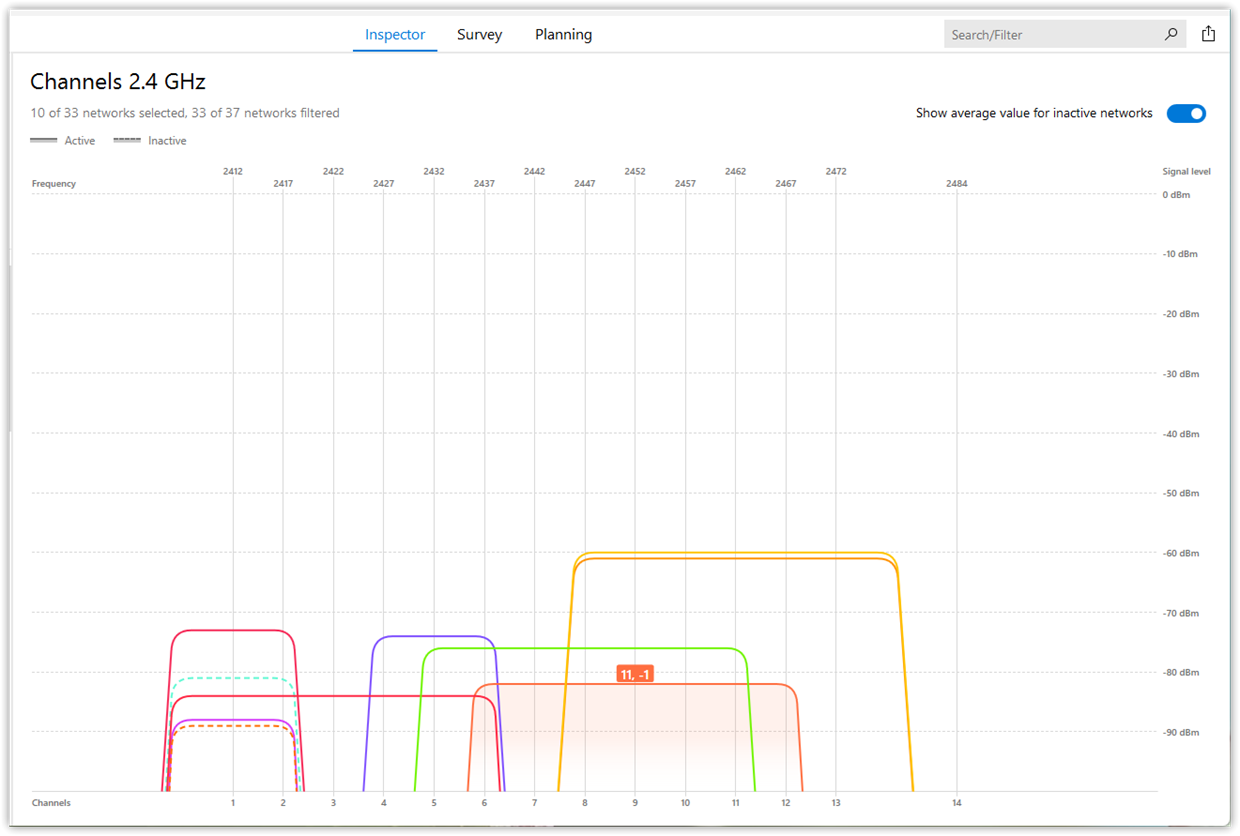
On the Channels graph, look at what sits on/near the same channel: decide if you’re in partial overlap, full overlap, or clear (non-overlapping) channel mode.
This distinction matters. If a truly free, non-overlapping channel is available — switch to it. If none are available, choose a channel with full overlap rather than partial overlap. Avoid fragmented channel positioning at all costs.
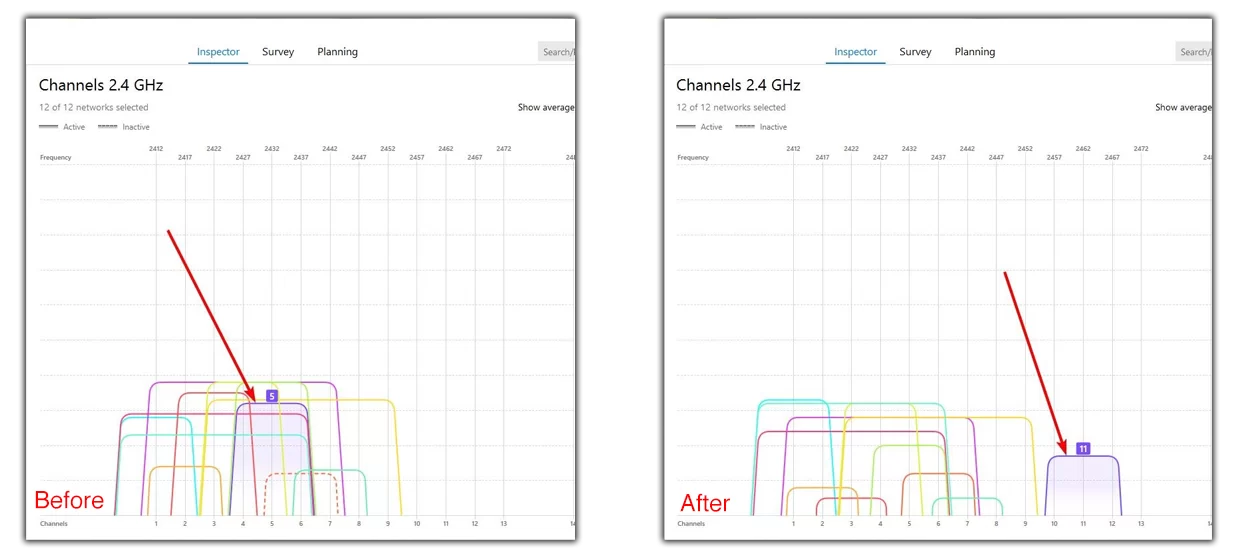
What to change in the router:
- Open your browser, type in your router’s IP (usually 192.168.0.1 or 192.168.1.1), and log in.
- Go to the Wireless or Wi-Fi section → pick either the 2.4 GHz or 5 GHz band → switch the channel from Auto to Manual.
- Pick your best channel → hit Save, and do the same for the other band if you need to.
2. Check and adjust Wi-Fi channel width
It’s also super important to check your channel width. A lot of people make the mistake of using wider channels just to chase higher speeds. It sounds logical — like, “160 MHz has to be faster than 80 MHz” — but in the real world, especially in crowded areas, wider channels usually just mean more overlap, more interference, and a shaky connection. Most of the time, a slightly narrower channel actually gives you more consistent speeds and lower lag.
What to check in NetSpot:
On the Channels graph, look at how wide your network’s “hill” is (20/40/80/160 MHz) and how many other networks it overlaps or sits right next to — if your wide channel footprint is covering multiple busy channels, that’s a clear sign to narrow it down for stability.
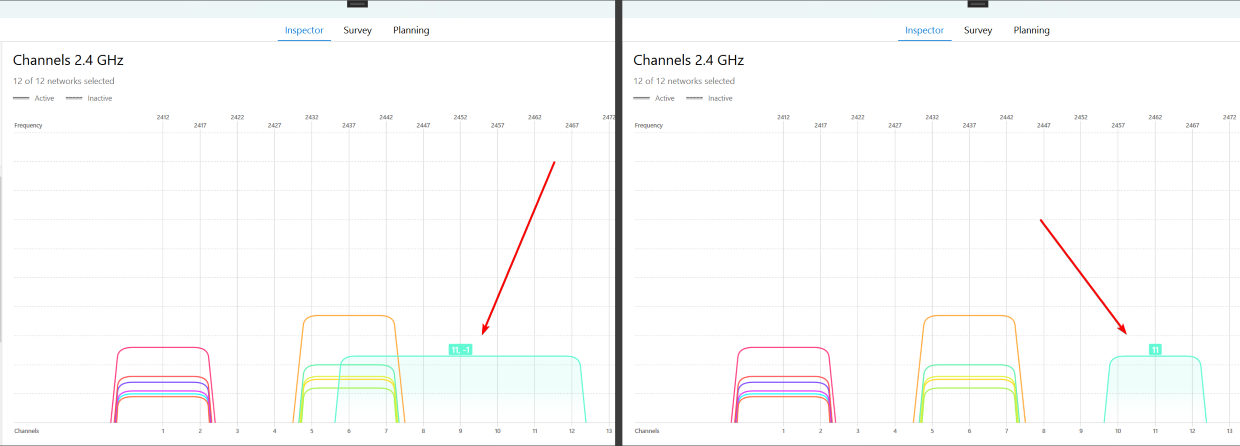
What to change in the router:
To change this, go back to your router settings: browser → router IP → Wireless / Wi-Fi → band (2.4 / 5 / 6 GHz) → Channel Width.
Pro-tips for settings:
- 2.4 GHz: Stick to 20 MHz.
- 5 GHz: Use 80 MHz (but drop to 40 MHz if the area is crowded).
- 6 GHz: You can use 80 MHz or even 160 MHz, but only if the spectrum is actually clean and you don’t see heavy overlap in the analyzer.
3. Move devices off 2.4 GHz and separate bands
Keep in mind that the 2.4 GHz band is always the most crowded. It’s not just your neighbors — stuff like microwaves and baby monitors use it too, so interference is almost guaranteed.
What to check in NetSpot:
If your gear supports 5 GHz or 6 GHz, use a NetSpot to compare them. Open Inspector Mode → Channels and compare how busy each band is. You’ll usually see 2.4 GHz is much more cluttered.
How to switch bands in your router settings:
Open your browser and enter your router’s IP address. Log in, go to Wireless / WiFi Settings, and look for Band Settings, Radio Settings, or separate sections for 2.4 GHz / 5 GHz / 6 GHz. There you can enable/disable bands or assign separate SSIDs so you can manually connect your device to 5 GHz or 6 GHz instead of 2.4 GHz.
Also note: the 6 GHz band is displayed in the app on MacBooks or Windows laptops with compatible adapters and if this band is allowed for use in your country. Read this post to find out how to check which frequency channels are supported on your laptop.
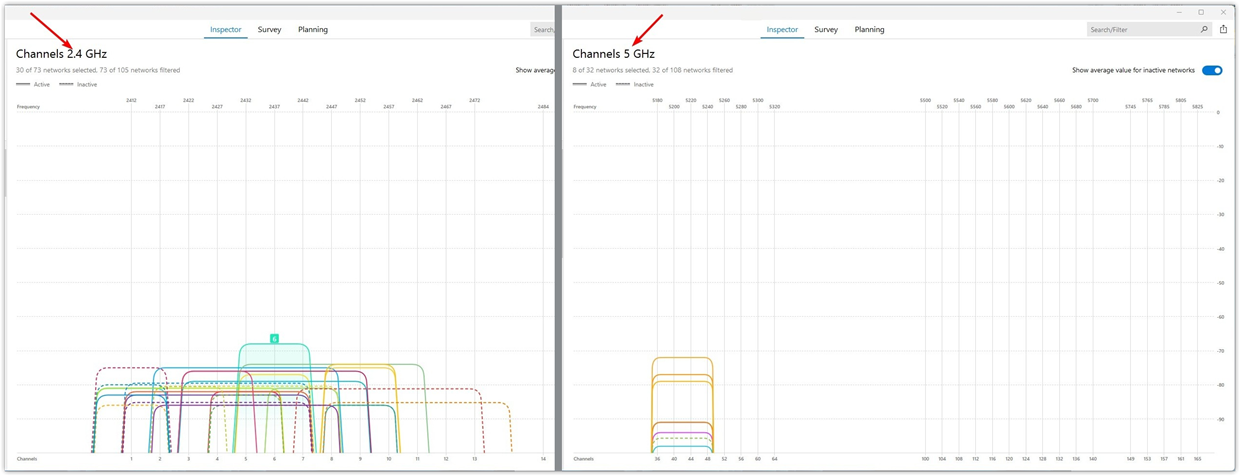
The Goal:
Move high-bandwidth devices (phones, laptops, TVs, and consoles) onto the 5 GHz or 6 GHz bands.
Pro Tip:
If you’re using 5 GHz (channels 36–48), use DFS channels (52–144). These are usually free, but keep in mind that your router may automatically switch to them when it detects radar.
What to change in the router:
To stop your devices from constantly jumping back to the slow 2.4 GHz band, go to your router settings → Wireless / Wi-Fi → and split the networks (for example, name them “Home-2.4” and “Home-5G”). Then, manually connect your modern tech to the 5G or 6G network.
Save the 2.4 GHz band for things like smart plugs and sensors. This clears up the airwaves and cuts down on interference without you having to spend a dime on new gear.
4. Use a WiFi Heatmap to Find Placement Problems
Sometimes the Channels graph in NetSpot’s Inspector Mode looks totally fine — no crazy neighbor networks, nothing obvious — but Wi-Fi in a specific room still feels broken. In that case the problem can be your own layout: walls, metal, glass, or even your own APs/mesh nodes overlapping each other on the same channel.
What to check in NetSpot:
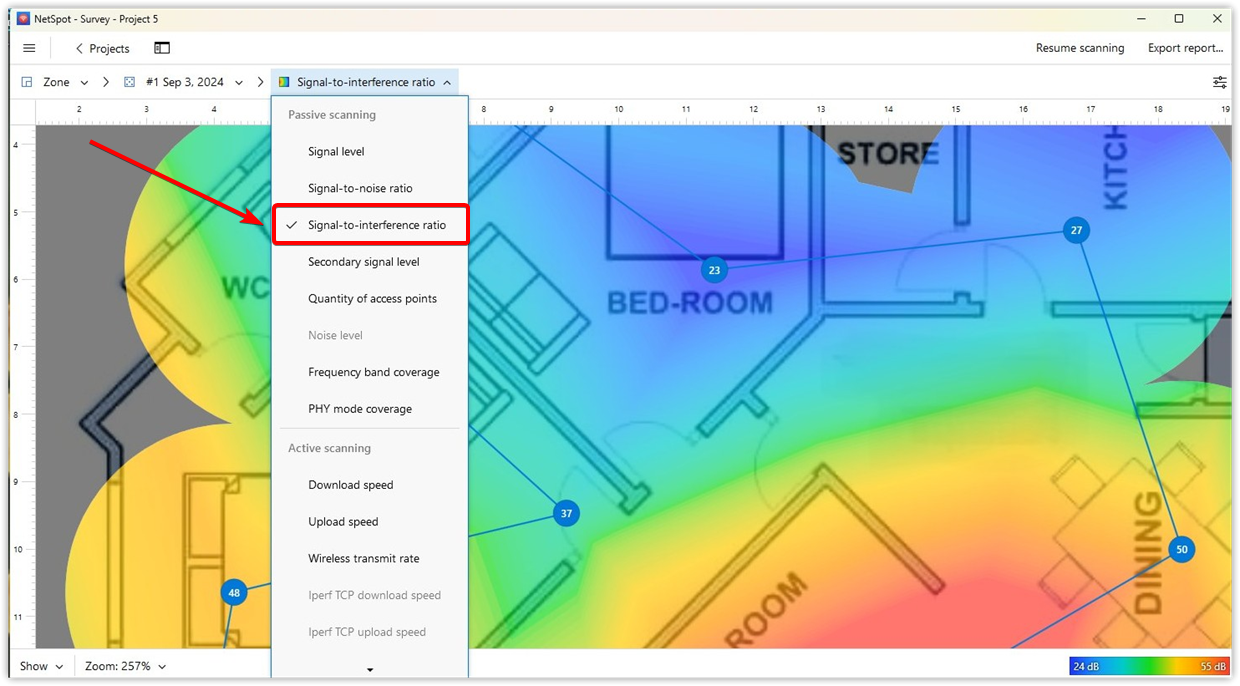
To see what’s really going on, оpen NetSpot → Survey Mode, run a quick walk-through, and then look at the SIR (Signal-to-Interference Ratio) heatmap. If the SIR map shows “problem” zones despite clean readings in Inspector mode, it usually means the issue is placement, not your ISP or your neighbors.
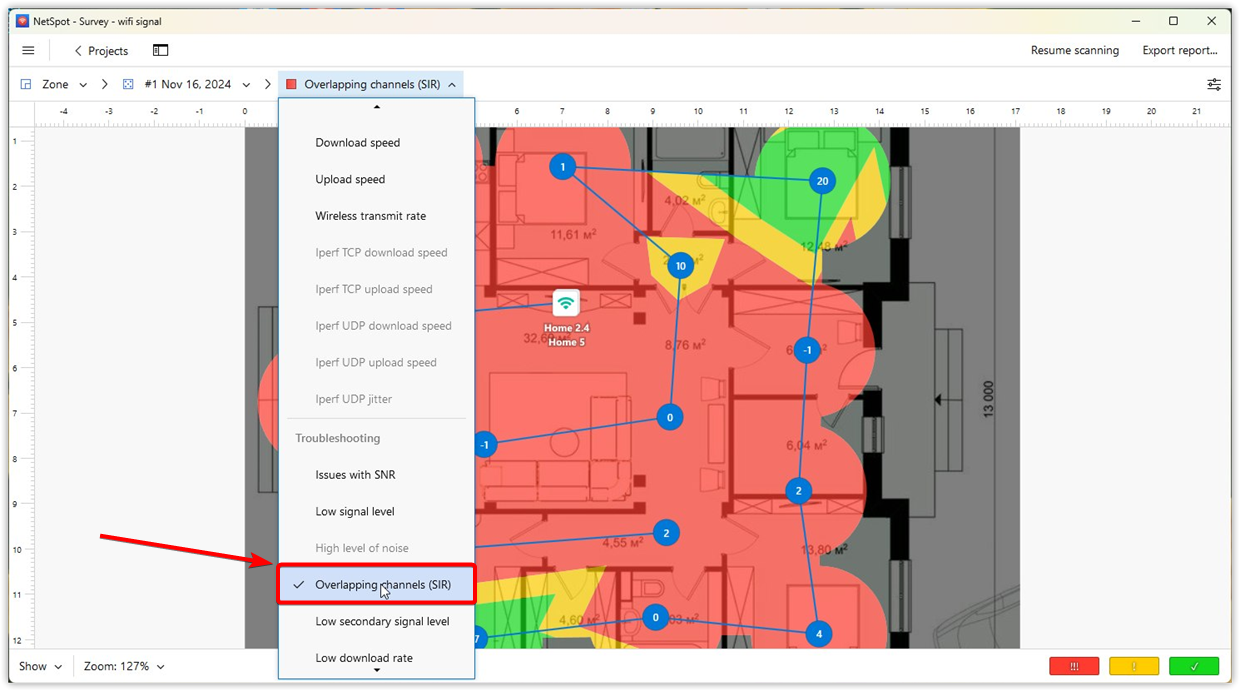
Also check the Overlapping Channels (SIR) troubleshooting heatmap — it’s the one that flags areas where your Wi-Fi is getting hit specifically by channel overlap (co-channel or adjacent-channel interference), not just low signal.
What to try:
Move the access point to a more open, central spot, away from big metal surfaces, mirrors, TVs, and deep corners.
If you have a Pro or Enterprise license, you can also use Planning Mode first to model a few new AP spots and pick the most promising location before you physically move anything — then rerun a quick Survey and recheck the SIR heatmap to confirm the improvement. If those low-SIR patches shrink or disappear, you’ve just fixed interference that was coming from your own setup, not from outside networks.
5. Adjust antenna angles
If your router has external antennas, the way you angle them changes how the signal spreads through your home. This won’t magically kill off interference, but it can boost your SIR by making your devices “hear” your router over all the competing noise.
How to tweak them:
If you’re in a single-story place, keep your antennas mostly vertical. If you’ve got two floors, keep most of them vertical but tilt one slightly to the side — this helps push the signal up and down to the other level.
If you want to go beyond guessing, you can model this in NetSpot Planning Mode. Drop an AP onto the floor plan where it actually sits, choose a brand/model from the built-in list, and set the basic radio settings.
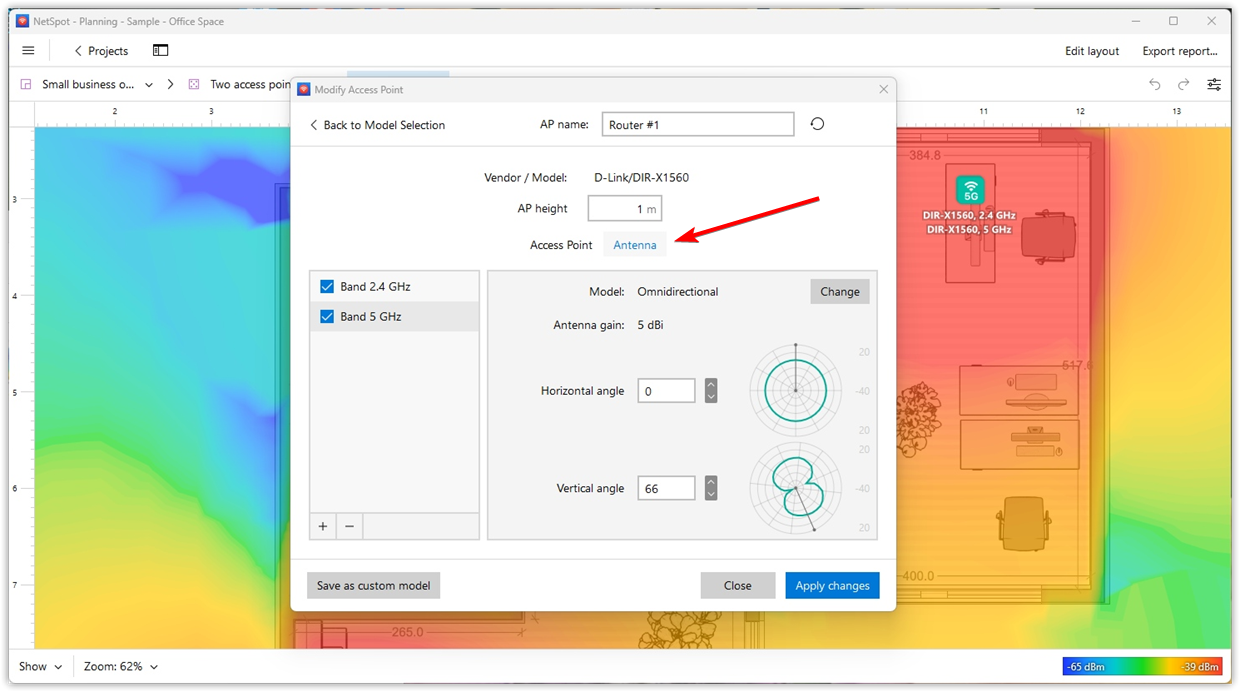
For antenna work, you can adjust antenna properties or import an antenna pattern file. If you don’t have a pattern file, download it from the vendor’s official site (many publish them). NetSpot supports .json, .ant, .ana, .msi, .adf, and .prn patterns, so you can test realistic behavior.
And if your hardware allows it, Planning Mode is also a good place to sanity-check whether a higher-gain or different-style antenna is worth it before you spend money.