We offer two different types of licensing for both NetSpot PRO and Enterprise on our official website: Lifetime License and Annual Subscription.
Lifetime License
NetSpot Lifetime license for Windows & macOS is perpetual one-time purchase and all major and minor updates are included in the price.
Annual Subscription
License subscription is activated as soon as the payment goes through. For the duration of your paid subscription you get all major and minor updates, new features, and bug fixes for free.
The NetSpot subscription is offered for a one-year (twelve (12) consecutive months) period.
By purchasing a subscription, you authorize us to charge your selected payment method for the applicable fee at the time of order placement and automatically every 12 months thereafter, unless you cancel your subscription before the renewal date.
We reserve the right to change our subscription fees at any time. Any price changes published on our website will automatically apply to your subscription and will be charged to your payment method on file on your next billing cycle. Any price changes will apply only to future renewal terms.
A reminder email will be sent before the renewal date. You can cancel your subscription and change the billing method at any time.
Payments are processed by Paddle, our merchant of record and authorized reseller. If payment remains unsuccessful, your subscription may be suspended or terminated until a valid payment method is provided.
Listed prices are subject to applicable sales tax or Value Added Tax (VAT) based on your geographic location.
How to Cancel a NetSpot Subscription
To cancel your subscription, just log in to the Paddle Customer Portal or go to https://paddle.net/.
For Paddle Customer Portal click:
https://customer-portal.paddle.com/login/cpl_01dq89jsd8h900xa2hs7csy9jq
OR
Click the link in the “Manage subscription” section in the confirmation email you received from Paddle (the Merchant of Record) after placing your order.
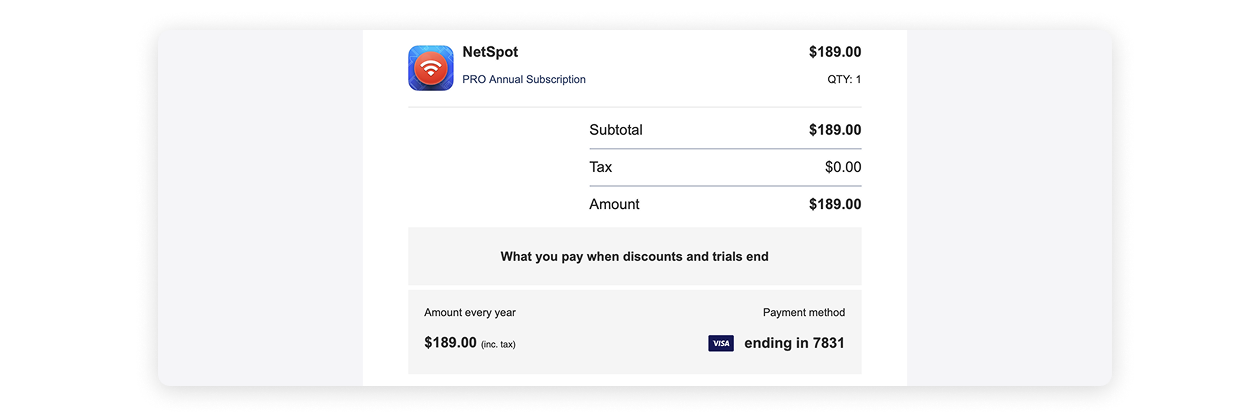
When you are on the Customer Portal page, enter the email address used to purchase the subscription and click “Sign in”.
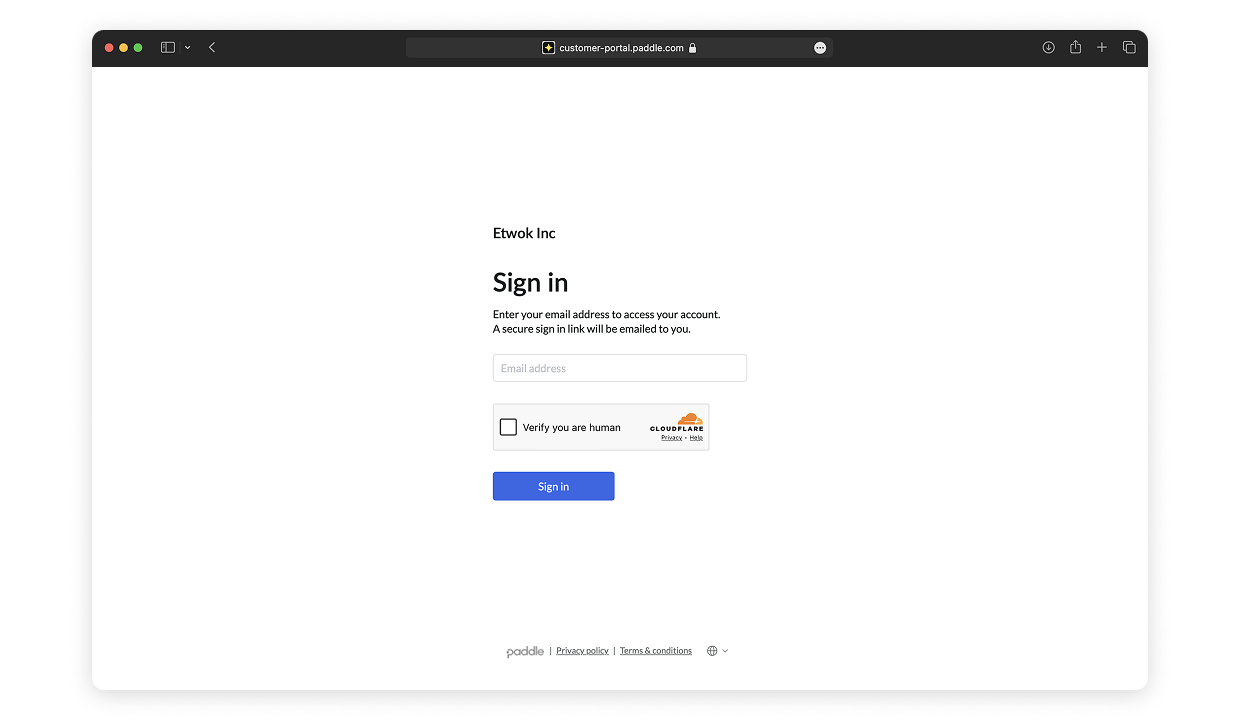
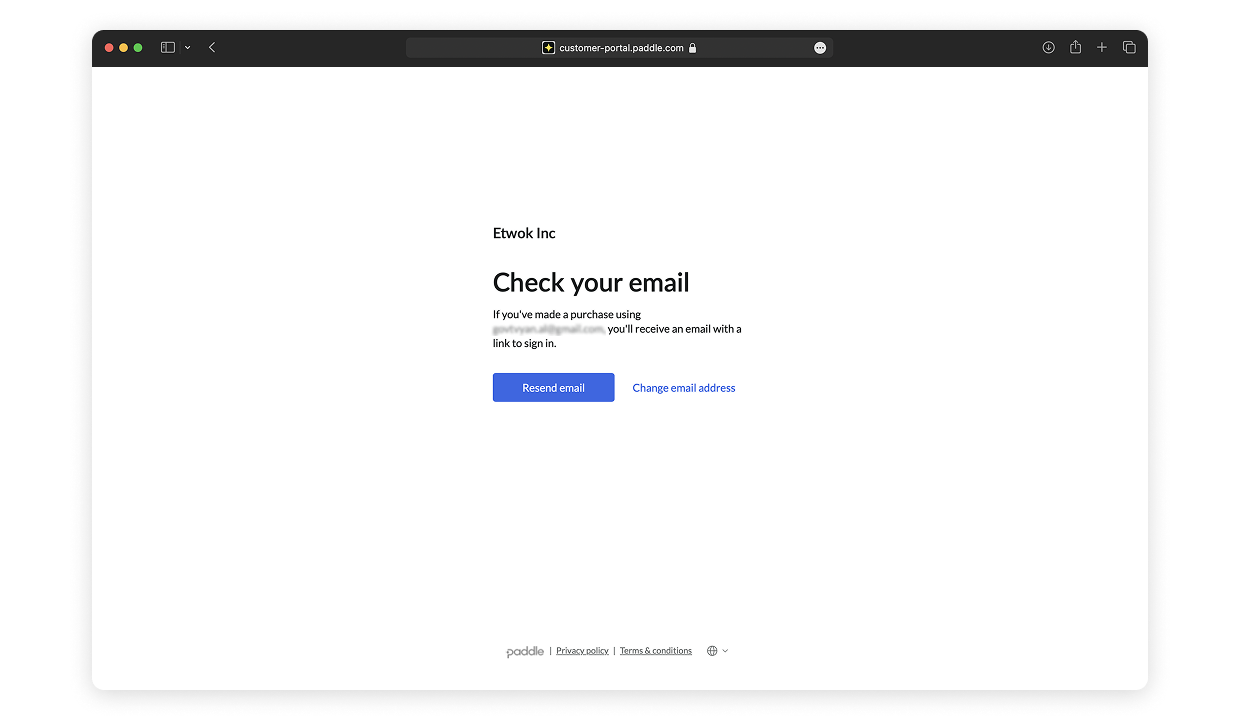
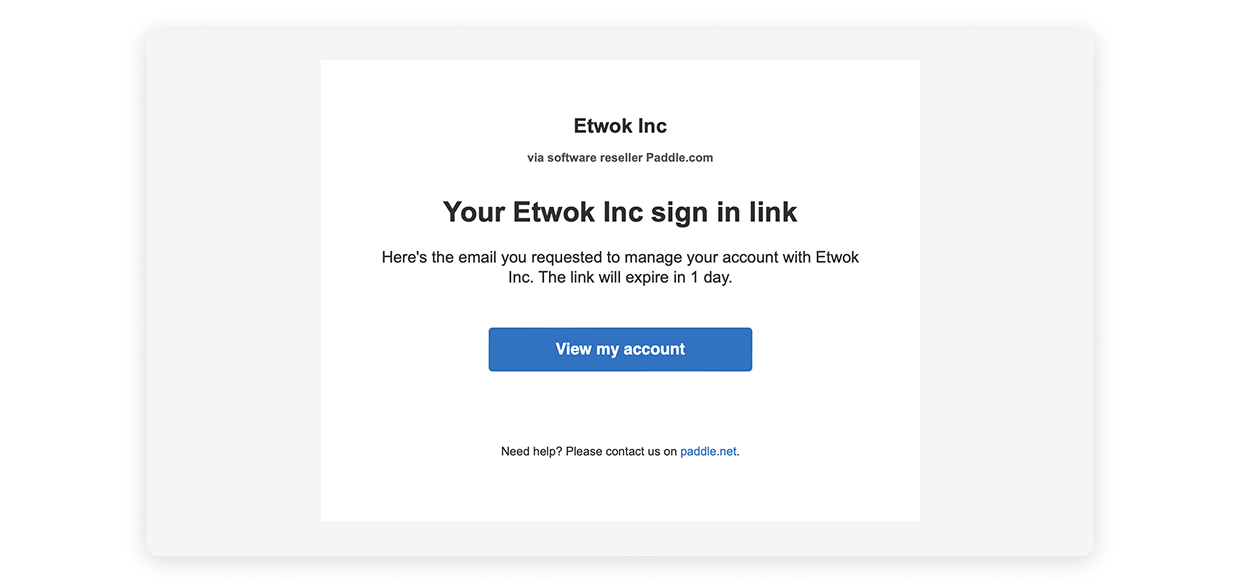
A secure login link will be sent to your email. Click on the link in order to access your subscription dashboard.
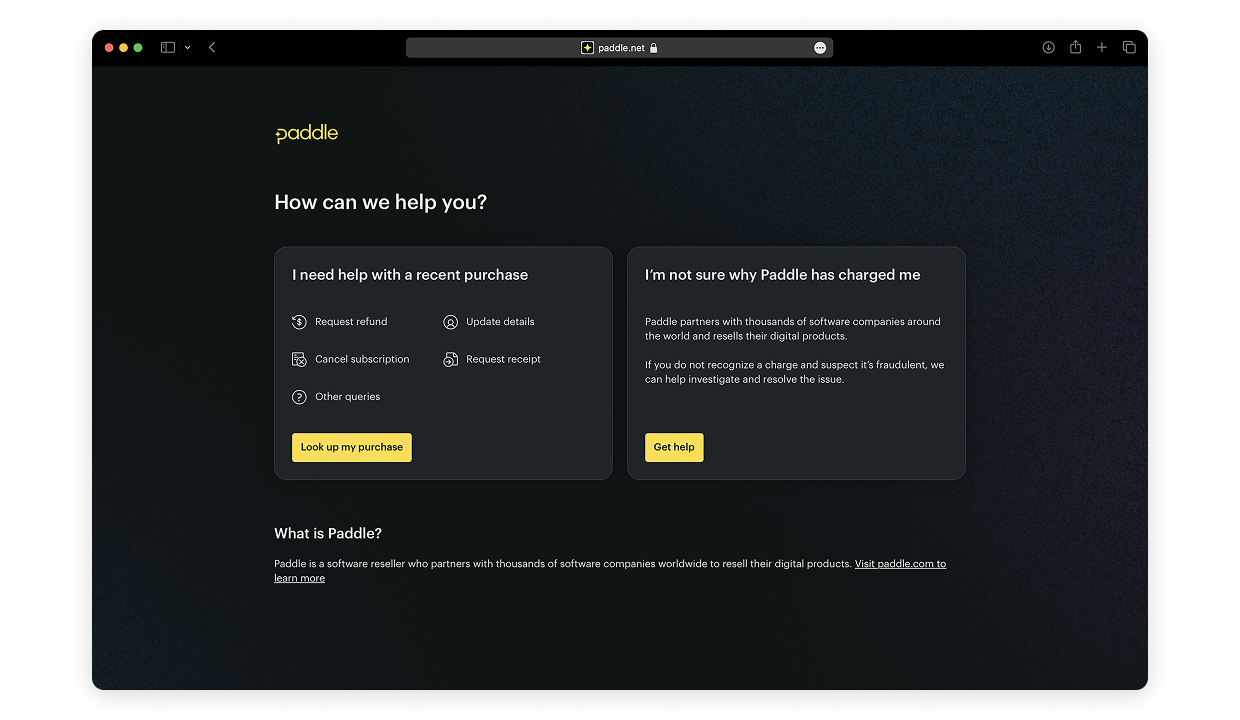
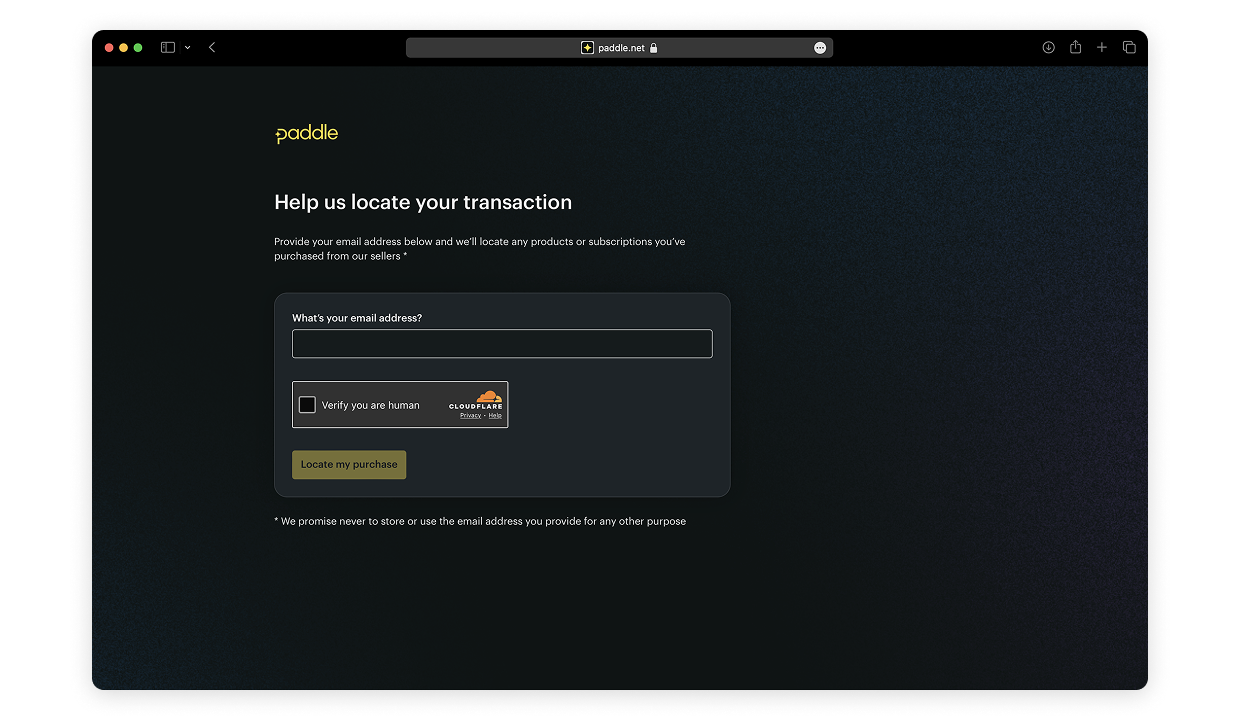
Click Look up my purchase. Enter the email address you used to place your order and click Locate my purchase.
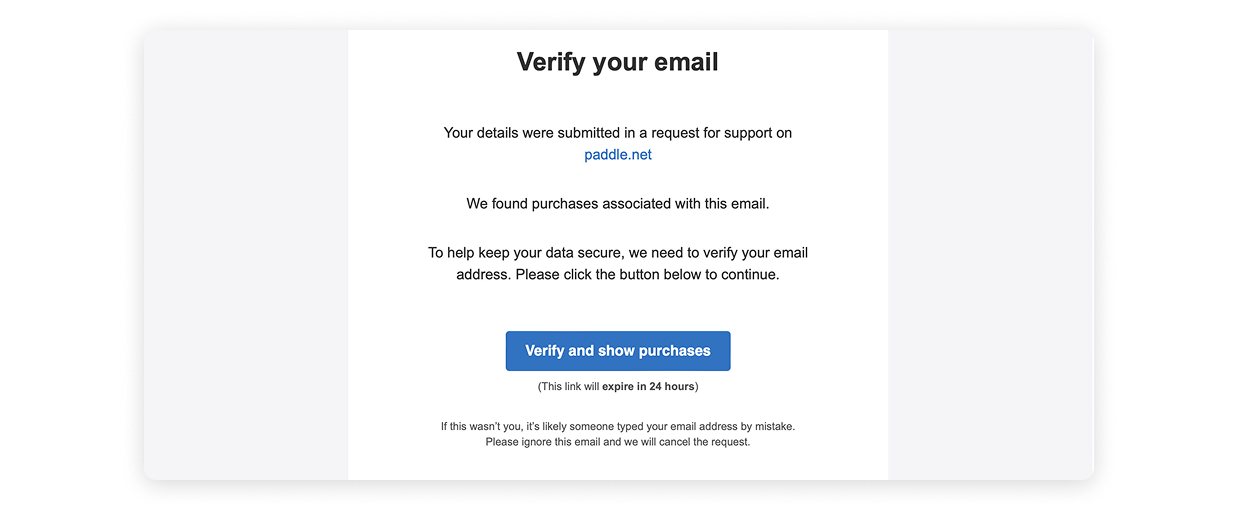
Verify your email to see your purchases.
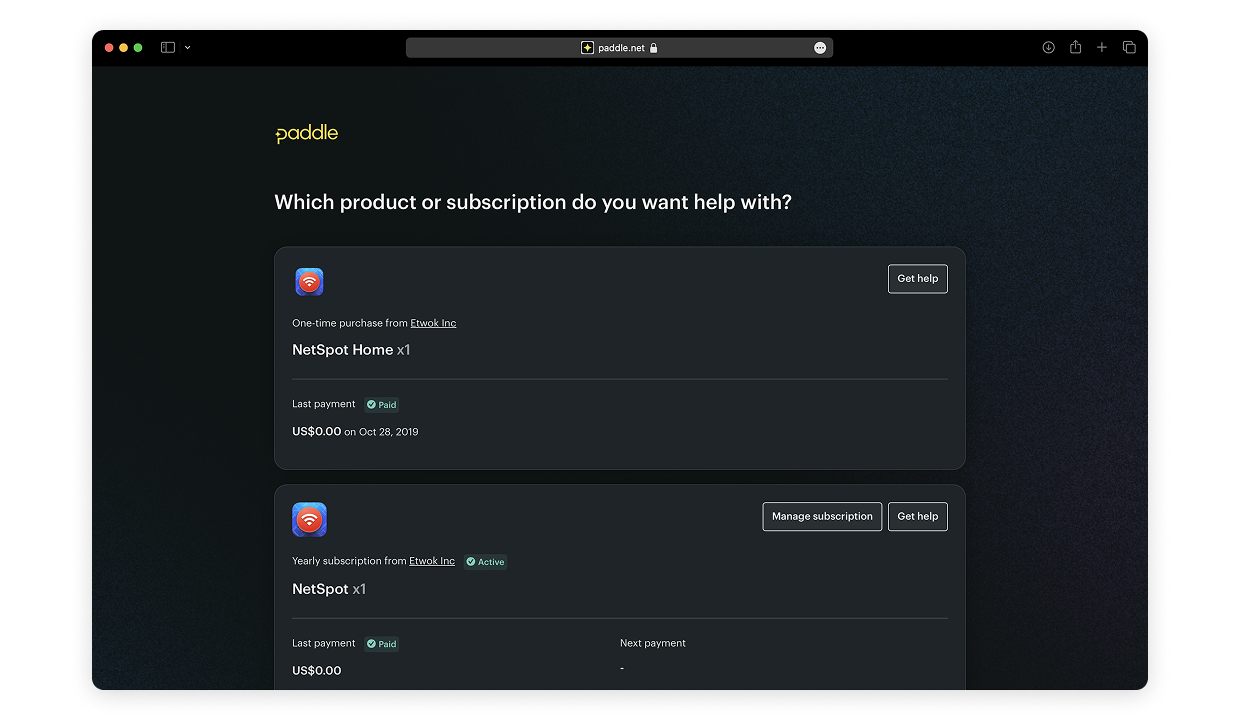
Find the required subscription and click Manage subscription.
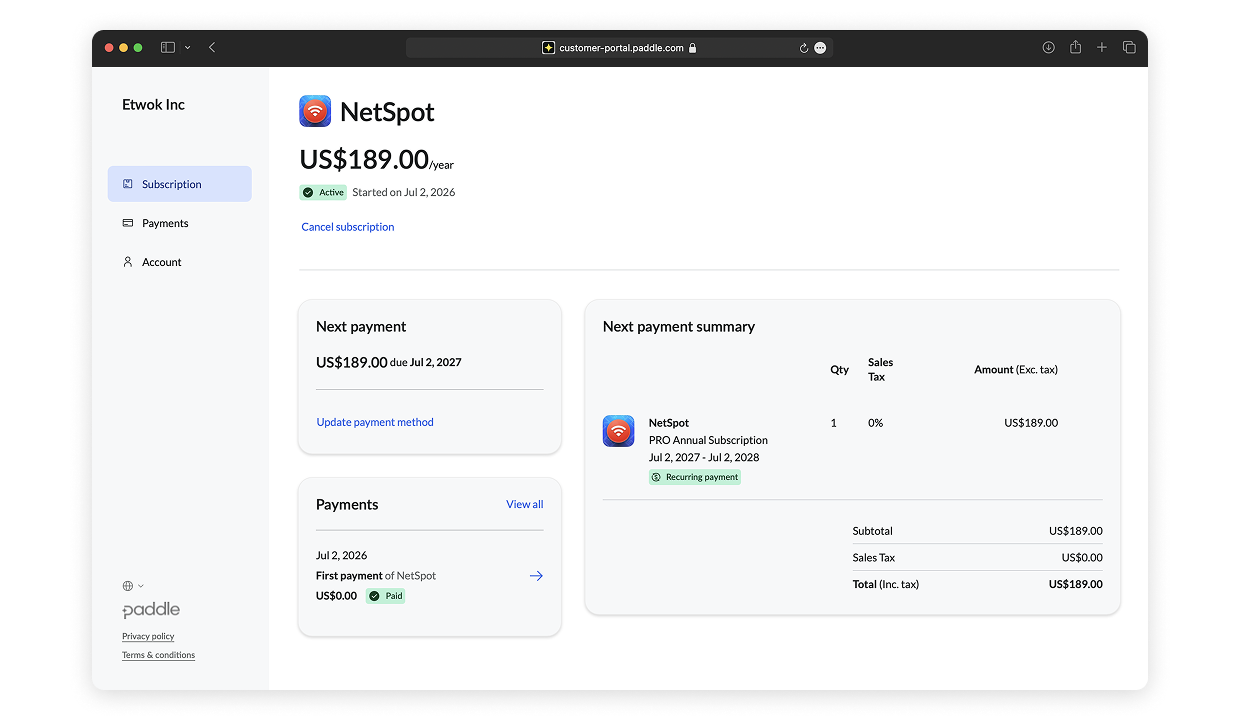
Once you get to the subscription dashboard you can go to the “Subscription” section and click “Cancel subscription”.
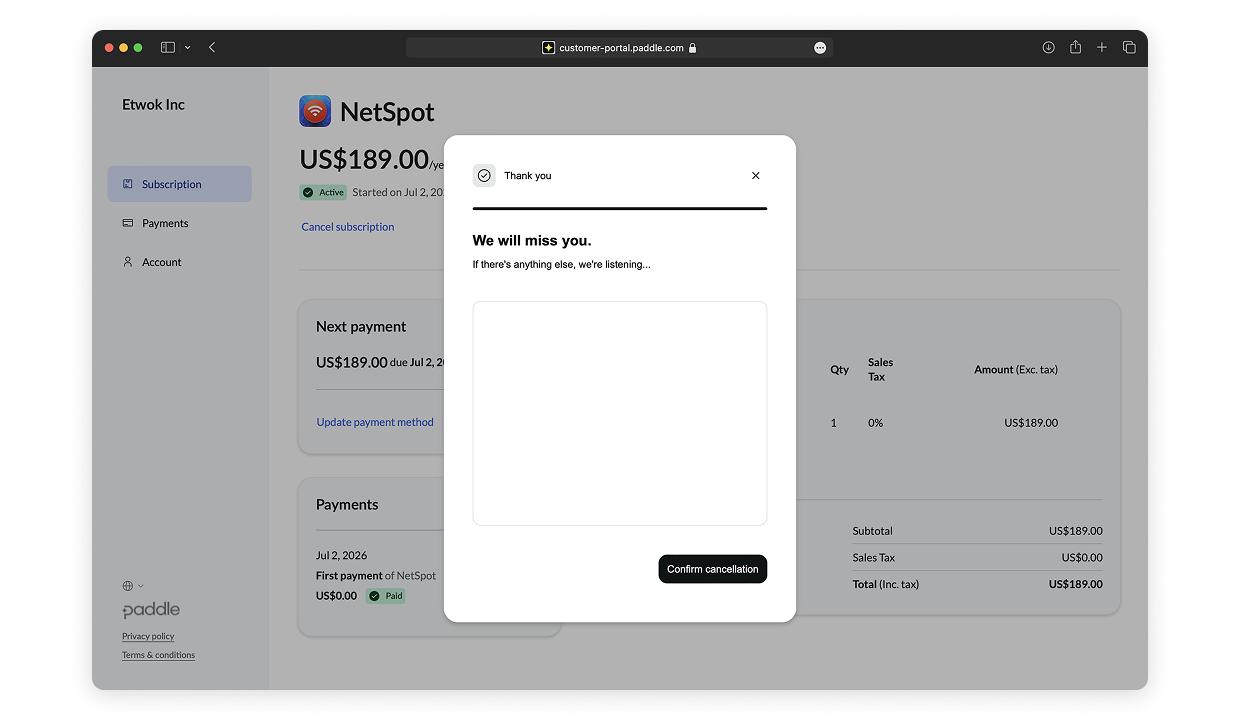
Confirm the cancellation in the pop-up window.
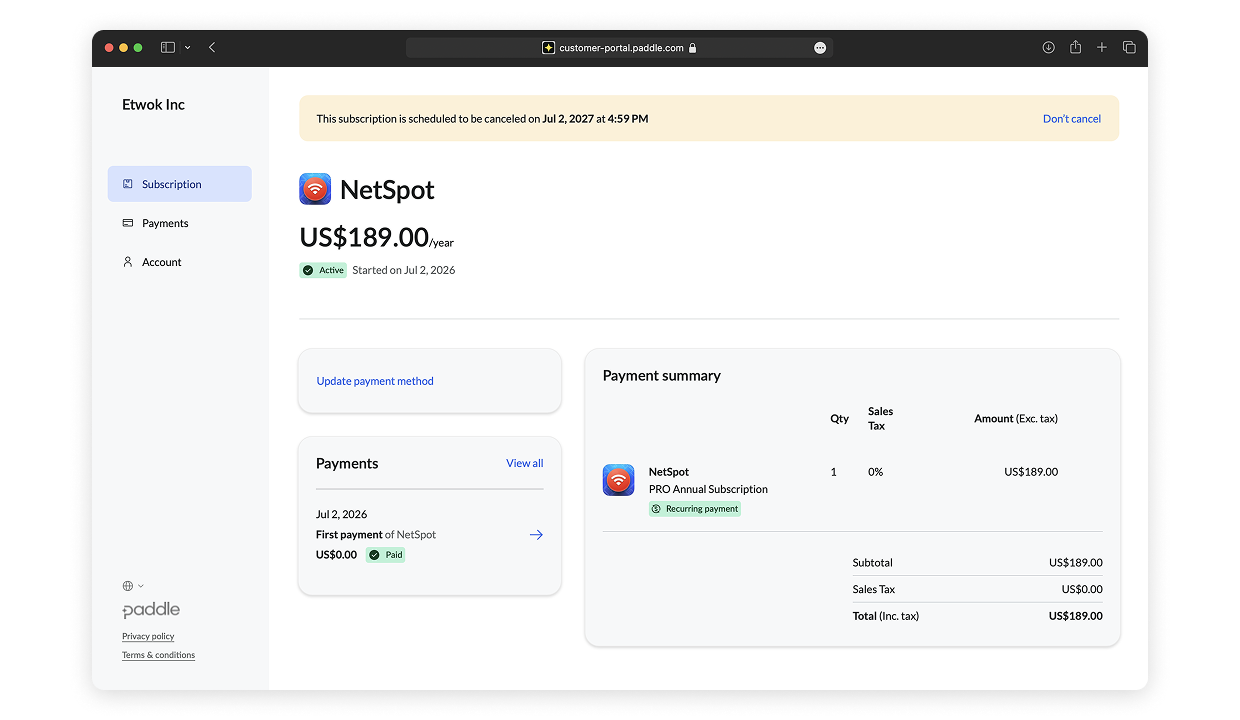
You will see a message confirming the date of the subscription cancellation.
You will also get a cancellation confirmation email in your inbox. If you don’t get the message in your email, check your Spam folder.
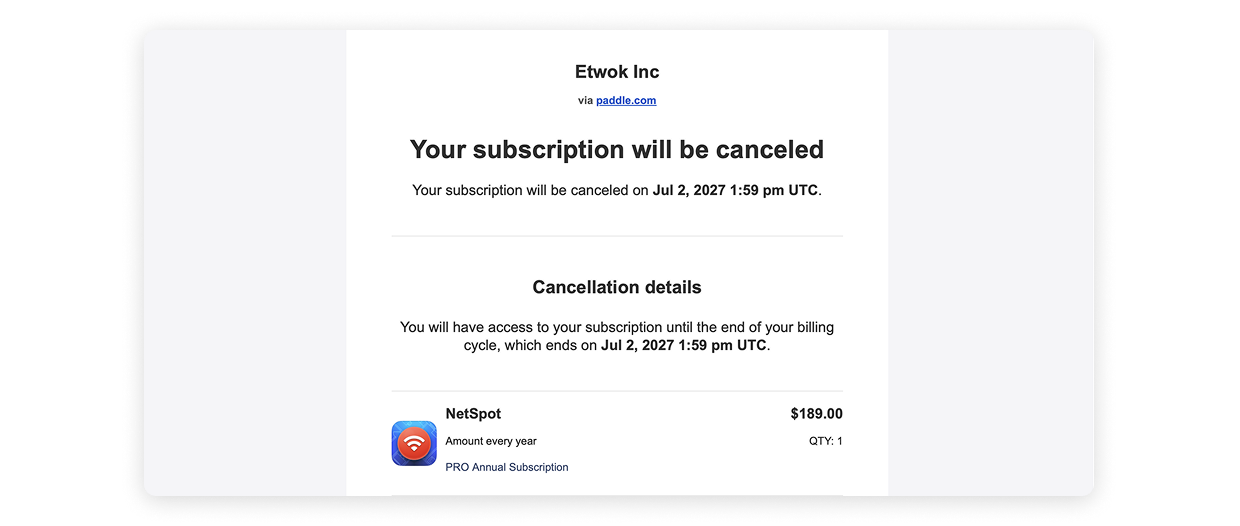
After canceling, your NetSpot license remains fully functional until the end of the current billing period, but the subscription won’t renew automatically.
Cancellation will prevent future renewal charges but will not result in a refund for the current subscription term. Please refer to our Refund Policy.
Update Payment Details
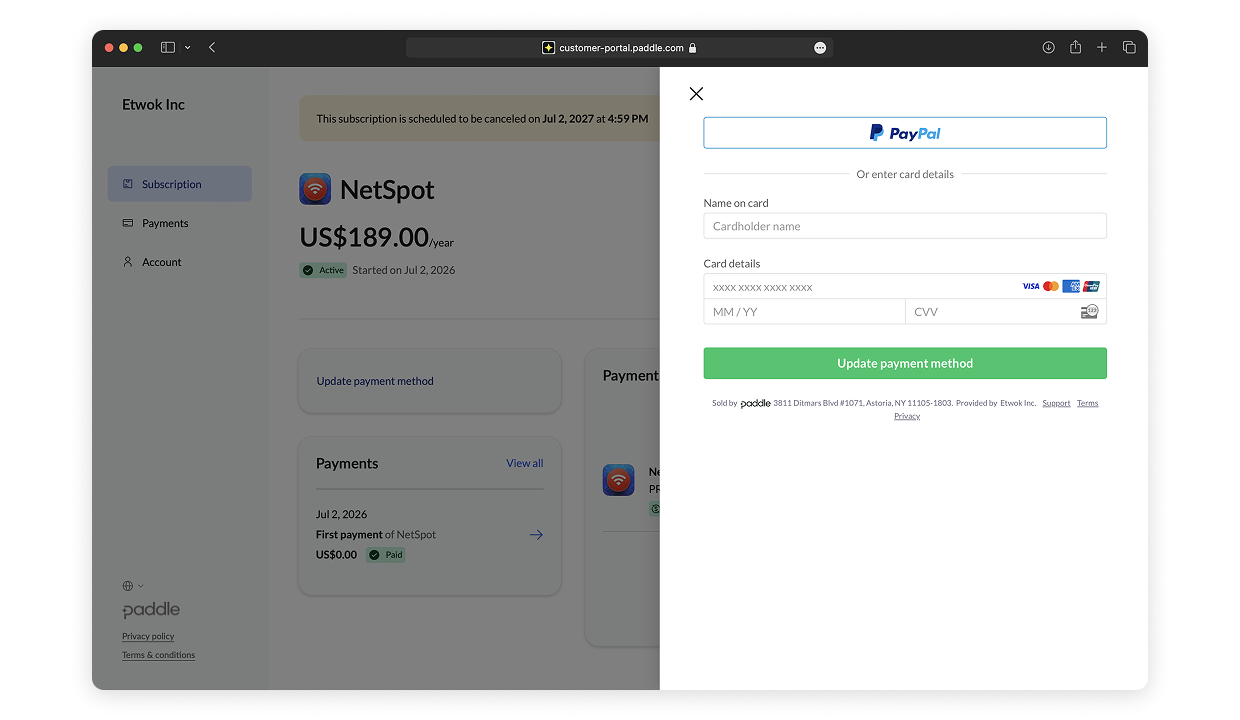
Sign in to your Paddle Portal as described in the previous section. Click Update payment method.
Enter your new payment details and click Update payment method.
Your use of NetSpot software is subject to the End User License Agreement (EULA) and the Privacy Policy.